

When a new submission is received in FormKeep, send an SMS via Twilio
Every new FormKeep submission triggers a Twilio text message to the number you set, so you, a teammate or the person who filled in the form gets an SMS right away.
 FormKeep
 Twilio
2 steps Setup ~5 min Used on 3.3k sites Free to import
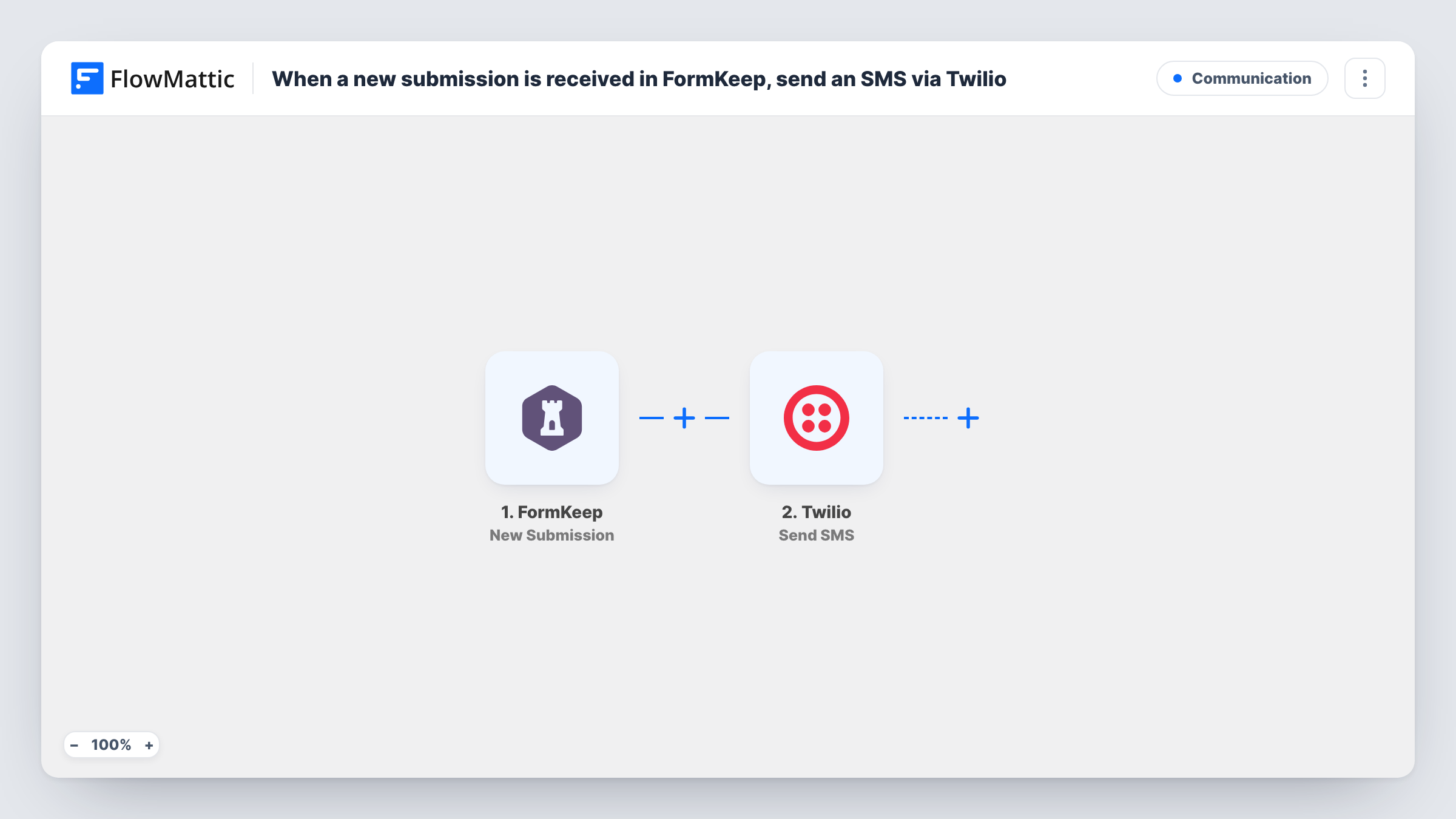
What this workflow does
FormKeep collects form entries for static sites and other pages without a backend. Email notifications are easy to miss, though, and some submissions need a quick reaction. This workflow sends a text message the moment an entry arrives.
A run starts as soon as FormKeep stores a new entry from your form. FlowMattic passes the entry's fields to Twilio, whose Send SMS action texts a number using your Twilio account. You choose after import who receives it: a fixed number, such as your own mobile, or a phone answer from the form itself.
You also write the text. Insert form answers such as the person's name or the topic they picked, so the SMS says something useful without opening FormKeep. Every submission sends one message, and Task History shows Twilio's response for each.
Urgent call-back requests
A plumber's site has a FormKeep 'call me back' form. The owner gets a text with the visitor's name and number while on a job.
Confirmation text to the visitor
Map the phone answer as the recipient, so people who book a table or a class receive an SMS saying their request arrived.
Alerts for a small sales team
Quote requests from a landing page reach the salesperson on duty by SMS, even when they are away from email.
How this workflow runs
What happens at each step once the workflow is on, and what you need before you import it.
 FormKeep New Submission
Runs each time FormKeep receives a new submission on one of your forms. Every field in the entry is passed on so you can use it in the text message.
- Twilio Send SMS
Sends an SMS from your Twilio account. Connect Twilio, set the recipient number, either fixed or mapped from the form, and write the message with any submission details you want.
What you need
- FlowMatticCore
- FormKeep AccountAccount
- Twilio AccountAccount
After importing, map your own data. To keep the template universal, not every step is pre-filled. Open each step in the builder and connect your accounts and fields (channels, lists, sheets, recipients) before you switch the workflow on.
Make it yours
Changes worth making after you import it.
- If you text the visitor, ask for the number in international format on the form, with the country code, so Twilio can deliver it.
- Add a Filter after the trigger so only some entries send a text, for example when a priority field says urgent.
- Start the message with a fixed label such as New FormKeep entry, so you can tell these texts apart from other SMS on your phone.
Questions about this workflow
Who receives the Twilio SMS for each FormKeep entry?
Whoever you set as the recipient in the Send SMS step. Use your own number for alerts, or map the phone field from the form to text the person who submitted it.
Which Twilio number sends the FormKeep alerts?
A number in your own Twilio account. You need one there that can send messages to the countries you are texting.
What if a FormKeep visitor enters an invalid phone number?
Twilio returns an error instead of sending, and Task History shows the error for that run. FormKeep still keeps the submission.
Does FormKeep stop sending its own notifications?
No. The workflow only receives the submission. Your FormKeep settings stay as they are.
More Communication workflows
Other ready-to-import templates from the same category.





Import this workflow into your WordPress site
Download the JSON, import it from the Workflows screen and connect your accounts. Every run stays on your server, with no per-task fees.
30-day money-back guarantee Unlimited workflows and runs Self-hosted