

Send weekly WhatsApp messages with Ocoya AI copies
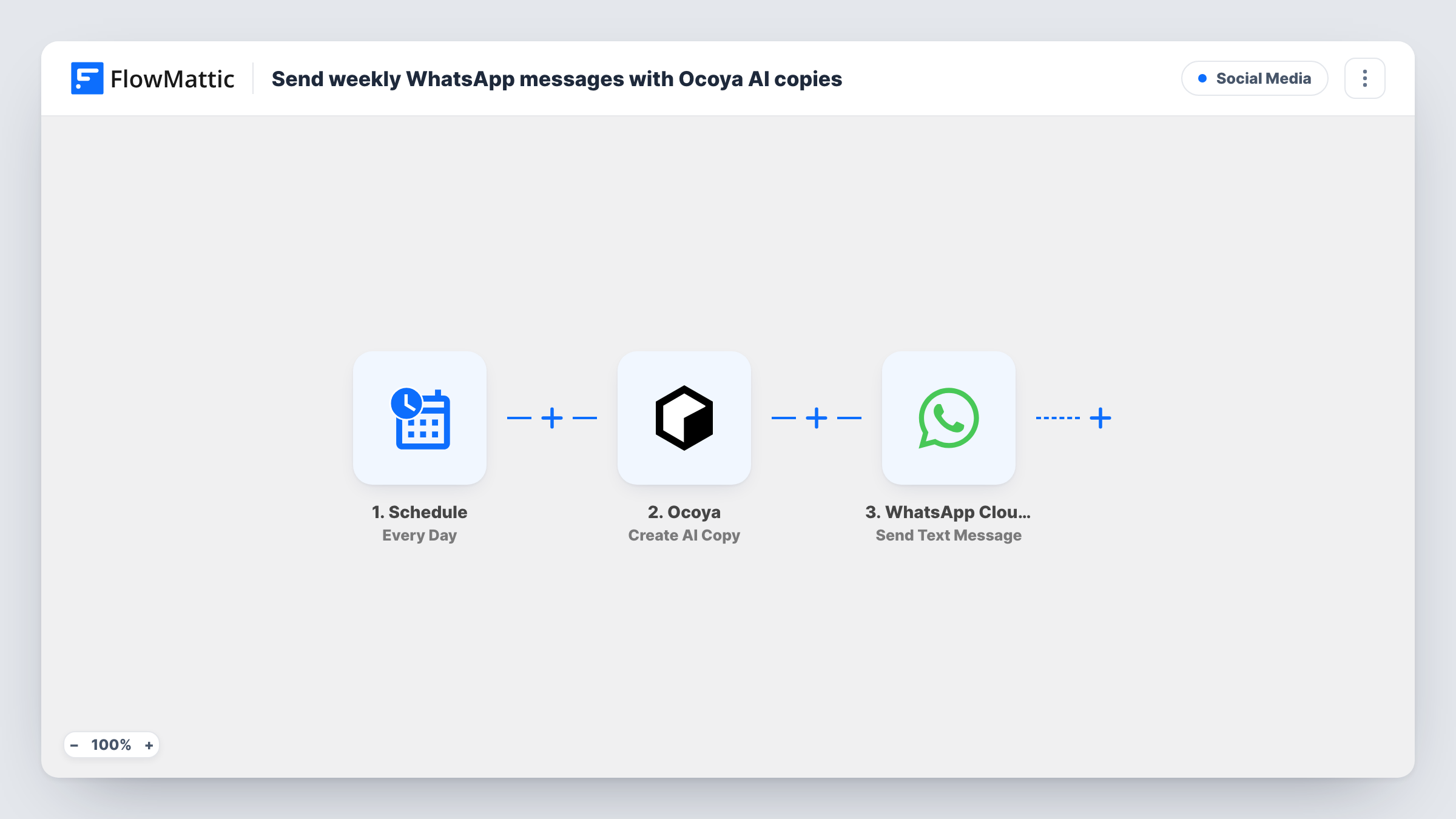
Once a week, FlowMattic asks Ocoya to write a new piece of AI copy from your prompt and sends that text as a WhatsApp message to the number you set in WhatsApp Cloud API.
 Schedule
 Ocoya
Ocoya
 WhatsApp Cloud API
3 steps Setup ~5 min Used on 922 sites Free to import
What this workflow does
A weekly message is easy to plan and easy to skip when the week gets busy. This workflow takes the writing off your list: on a schedule you choose, Ocoya drafts the text from a prompt you write once, and WhatsApp delivers it without anyone opening an editor.
The Schedule trigger kicks off the workflow on a weekly cycle. The Ocoya step then creates AI copy using a prompt and your Ocoya profile settings. Write a prompt that describes the message you want, such as a weekly tip, a reminder or a product spotlight, so each week's copy fits the same purpose.
The last step sends the Ocoya text through WhatsApp Cloud API as a text message. Neither action step is mapped in the template, so after import you write the Ocoya prompt, map Ocoya's output into the message body and enter the recipient's phone number. Each run sends one message to that number.
WhatsApp normally delivers free-form text only within 24 hours of the recipient's last message to your business number. A weekly message to someone who hasn't written to you that week usually won't arrive. Check Task History after the first run to see what WhatsApp returned.
Weekly ideas for your own phone
A social media manager gets a fresh batch of caption ideas from Ocoya on WhatsApp every Monday, ready to adapt for the week's posts.
Content prompts for a team lead
An agency sends its content lead a weekly AI-written theme suggestion on WhatsApp, which the team then turns into client posts.
Draft check-in for an active chat
A coach who messages a client daily on WhatsApp has Ocoya write a short weekly motivation note that reaches the client inside their open chat window.
How this workflow runs
What happens at each step once the workflow is on, and what you need before you import it.
 Schedule Every Week
Starts a run once a week, at the time you configure in the trigger after import. Each run goes straight on to the Ocoya step.
- Ocoya Create AI Copy
Creates AI copy in Ocoya from a prompt and your Ocoya profiles. The step ships unmapped, so write the prompt after import and run a test to see the text it returns.
- WhatsApp Cloud API Send Text Message
Sends the Ocoya text as a WhatsApp text message. Map the Ocoya output into the message and enter the recipient's phone number in international format.
What you need
- FlowMatticCore
- Ocoya AccountAccount
- WhatsApp Cloud API AccountAccount
After importing, map your own data. To keep the template universal, not every step is pre-filled. Open each step in the builder and connect your accounts and fields (channels, lists, sheets, recipients) before you switch the workflow on.
Make it yours
Changes worth making after you import it.
- Send the message to your own number first, or to a teammate who reviews it, so a person checks the AI copy before it reaches anyone else.
- Switch to the Send Template Message action if the recipient doesn't message your business number each week. The template's wording must be approved, so the Ocoya text can only fill its variables.
- Include the week or the date in your Ocoya prompt by mapping it from the Schedule trigger data, if your test run shows one, so each message reads as current.
Questions about this workflow
Can this send the Ocoya copy to a whole WhatsApp contact list?
Not as imported. Each run sends one message to the number you set. To reach several people, put a step that reads your list, such as Google Sheets Get Rows, and then an Iterator between the Ocoya step and the WhatsApp step, and map each number from the Iterator.
Will the weekly WhatsApp message always be delivered?
Only inside WhatsApp's 24-hour window, unless you use an approved template. Free-form text to someone who hasn't messaged your number recently is usually not delivered.
Is the Ocoya copy different every week?
Ocoya generates new copy on each run from the same prompt, so the wording changes. Write the prompt carefully, since nobody reviews the text before it is sent.
Can I pick the day and time of the weekly run?
Yes. The Every Week trigger's own settings decide when each run happens, so set them after import to suit your recipients.
More Social Media workflows
Other ready-to-import templates from the same category.






Import this workflow into your WordPress site
Download the JSON, import it from the Workflows screen and connect your accounts. Every run stays on your server, with no per-task fees.
30-day money-back guarantee Unlimited workflows and runs Self-hosted