

Send a Slack alert for every new MarketBox booking
Every time a new booking is created in MarketBox, FlowMattic posts a message to the Slack channel you pick with the booking details you map, so staff see new appointments without opening MarketBox.
 MarketBox
 Slack
2 steps Setup ~5 min Used on 2.7k sites Free to import
What this workflow does
When bookings come in through MarketBox, the people who deliver the service are not always the ones watching the admin screen. A message in Slack puts the new booking in front of the whole team, in the place they already check during the day.
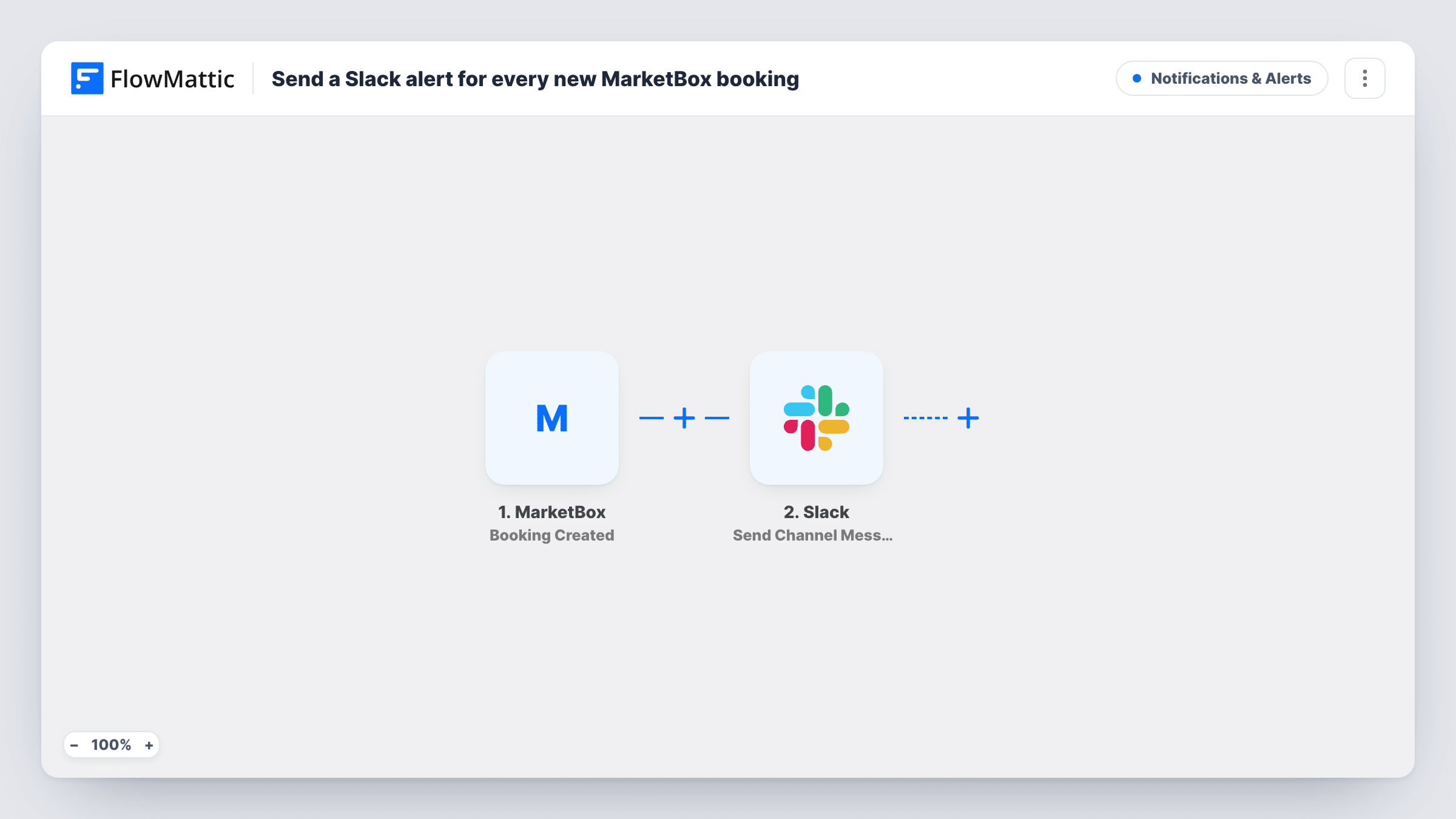
The MarketBox trigger starts a run as soon as MarketBox records a fresh booking. FlowMattic takes the booking data MarketBox sends and passes it to Slack. The Send Channel Message action posts to the channel you choose, and you write the message from whichever booking fields MarketBox includes.
The template reacts only to new bookings. Changes to an existing booking come through MarketBox's separate Booking Updated trigger, which this workflow does not use. With no Filter, every new booking produces one message. Task History shows each run with the MarketBox data and Slack's response.
Mobile service teams
A mobile pet groomer takes bookings through MarketBox. Each new appointment is posted in a #bookings channel so the groomer on shift sees it on their phone.
Tutoring sessions
A tutoring business lets parents book lessons in MarketBox. Tutors in the team Slack see each new session as it is booked.
Home cleaning schedules
A cleaning company's coordinator watches a Slack channel to plan routes, with every new MarketBox booking appearing there as a message.
How this workflow runs
What happens at each step once the workflow is on, and what you need before you import it.
 MarketBox Booking Created
Starts the workflow each time a customer or staff member adds a booking in MarketBox. The booking details that MarketBox sends are ready to place in the Slack message.
- Slack Send Channel Message
Posts the booking alert to the Slack channel you pick. Connect your Slack workspace, choose the channel, and add MarketBox booking fields to the message text.
What you need
- FlowMatticCore
- MarketBox AccountAccount
- Slack AccountAccount
After importing, map your own data. To keep the template universal, not every step is pre-filled. Open each step in the builder and connect your accounts and fields (channels, lists, sheets, recipients) before you switch the workflow on.
Make it yours
Changes worth making after you import it.
- Add a Filter after the MarketBox trigger to post only bookings for one service or location, if that field is in the booking data your test run shows.
- Use a Router to send bookings to separate Slack channels by service, with one Slack step on each route and conditions that cannot both match.
- Copy the workflow and switch the trigger to Booking Updated if you also want the team told when a booking changes.
Questions about this workflow
Does a rescheduled MarketBox booking send another Slack message?
Not with this template. It only uses Booking Created. MarketBox's Booking Updated trigger can drive a second workflow for changes.
Which details from the MarketBox booking appear in Slack?
The ones you put in the message text. Run a test booking after import to see what MarketBox sends, then add the fields you want.
Are MarketBox bookings made before I turn the workflow on posted to Slack?
No. Only bookings created after the workflow is active trigger a message.
More Notifications & Alerts workflows
Other ready-to-import templates from the same category.




Import this workflow into your WordPress site
Download the JSON, import it from the Workflows screen and connect your accounts. Every run stays on your server, with no per-task fees.
30-day money-back guarantee Unlimited workflows and runs Self-hosted