

Send a Slack alert when a new member joins a DropFunnels course
Whenever a course member is created in DropFunnels, FlowMattic posts a message to the Slack channel you choose with the member’s details, so your team knows who has just joined a course.
 DropFunnels
 Slack
2 steps Setup ~5 min Used on 2.4k sites Free to import
What this workflow does
Course creators and their support teams like to know when someone new joins, whether to welcome them in a community, watch for login problems, or simply keep count. Checking the DropFunnels dashboard for that is easy to forget. This workflow posts the news in Slack instead.
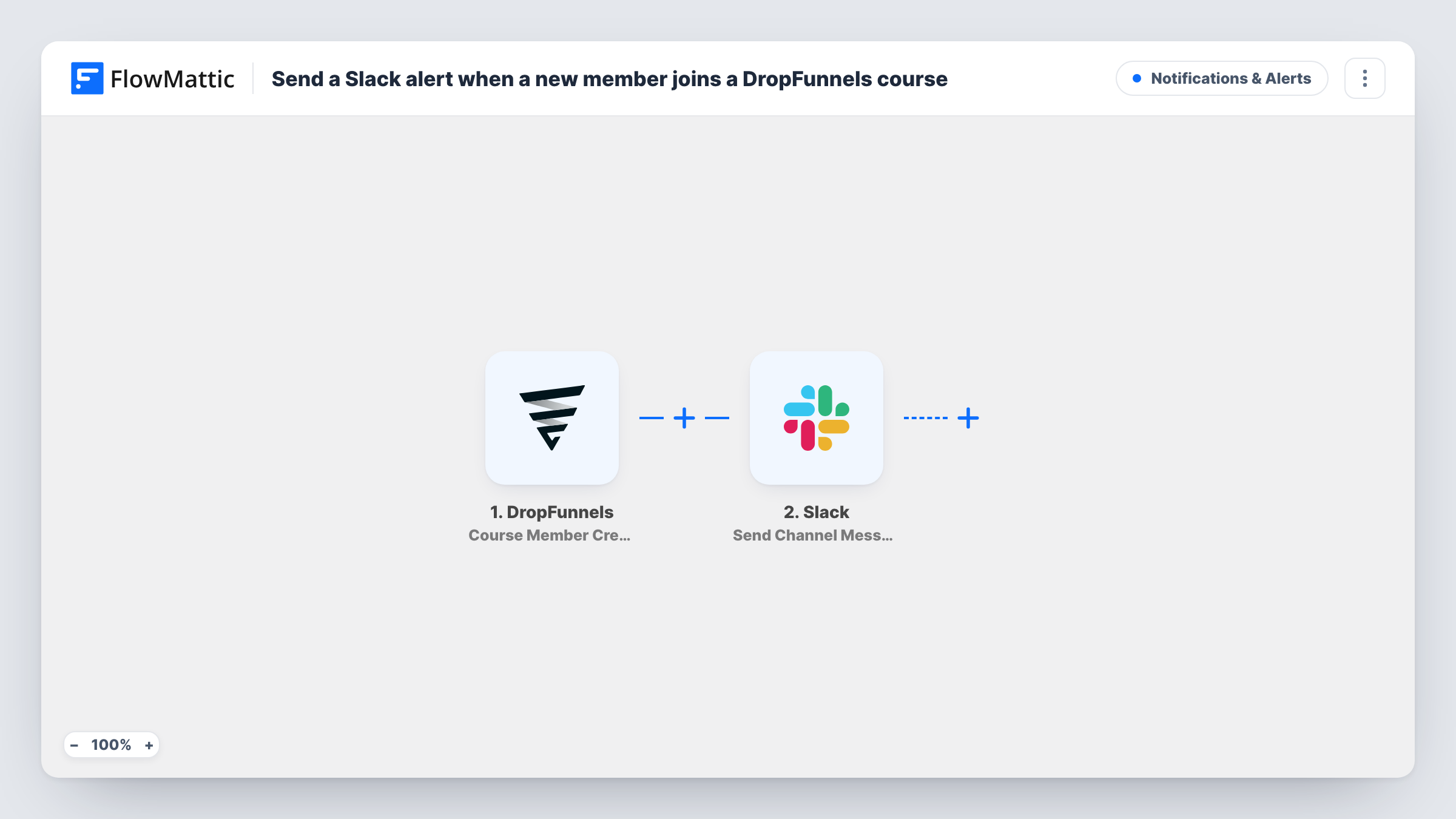
The DropFunnels trigger runs whenever DropFunnels adds a member to one of your courses. FlowMattic receives the member data DropFunnels sends and passes it to Slack. The Send Channel Message action then posts to the channel you choose, with member details placed in the message wherever you want them.
Every new course member produces one message, across all your courses, since the template has no Filter. If you run several courses, add one to limit the alerts or route them to different channels. Task History records each run along with the DropFunnels data and Slack's reply.
Welcoming students in a community
Your course has a member community. The Slack alert reminds a moderator to greet each new student by name in the community space.
Support team on standby
New students sometimes struggle to log in. Seeing each new course member in Slack lets support check in if a question comes through later that day.
Watching a launch
During a course launch, a launch channel shows every new member as they are added, so the team can follow sign-ups as they happen.
How this workflow runs
What happens at each step once the workflow is on, and what you need before you import it.
 DropFunnels Course Member Created
Fires when a course member is created in DropFunnels. The member data that DropFunnels sends becomes available to use in the Slack message.
- Slack Send Channel Message
Posts the new-member alert into a Slack channel of your choosing. Connect Slack, pick the channel, and write the alert using the DropFunnels member fields.
What you need
- FlowMatticCore
- DropFunnels AccountAccount
- Slack AccountAccount
After importing, map your own data. To keep the template universal, not every step is pre-filled. Open each step in the builder and connect your accounts and fields (channels, lists, sheets, recipients) before you switch the workflow on.
Make it yours
Changes worth making after you import it.
- Add a Filter after the DropFunnels trigger so only members of one course are posted, if your test run shows a course field in the data.
- Add a Google Sheets Add New Row step after Slack to keep a list of every new DropFunnels course member.
- Use a Router to post members of different courses to different Slack channels, giving each route a condition that matches one course only.
Questions about this workflow
Which DropFunnels courses send Slack alerts?
All of them, as imported. The trigger fires for every course member created, so add a Filter if you only want some courses.
Can I include the member's email in the Slack message?
If DropFunnels sends it with the event, yes. Run a test after import to see the member fields, then place the ones you want in the message.
Will members who joined a DropFunnels course earlier be posted?
No. Only course members created after you turn on the workflow trigger a message.
More Notifications & Alerts workflows
Other ready-to-import templates from the same category.





Import this workflow into your WordPress site
Download the JSON, import it from the Workflows screen and connect your accounts. Every run stays on your server, with no per-task fees.
30-day money-back guarantee Unlimited workflows and runs Self-hosted