

Send Twilio SMS messages from new rows on Google Sheets
Every new row added to a Google Sheets spreadsheet sends a text message through Twilio, using the phone number and message text you map from that row’s columns.
 Google Sheets
 Twilio
2 steps Setup ~5 min Used on 558 sites Free to import
What this workflow does
A spreadsheet is often where a list of people to contact starts: an appointment list, a delivery schedule, a sign-up sheet filled by a form. Texting each of them by hand takes time and is easy to forget. This workflow sends an SMS the moment a new row appears.
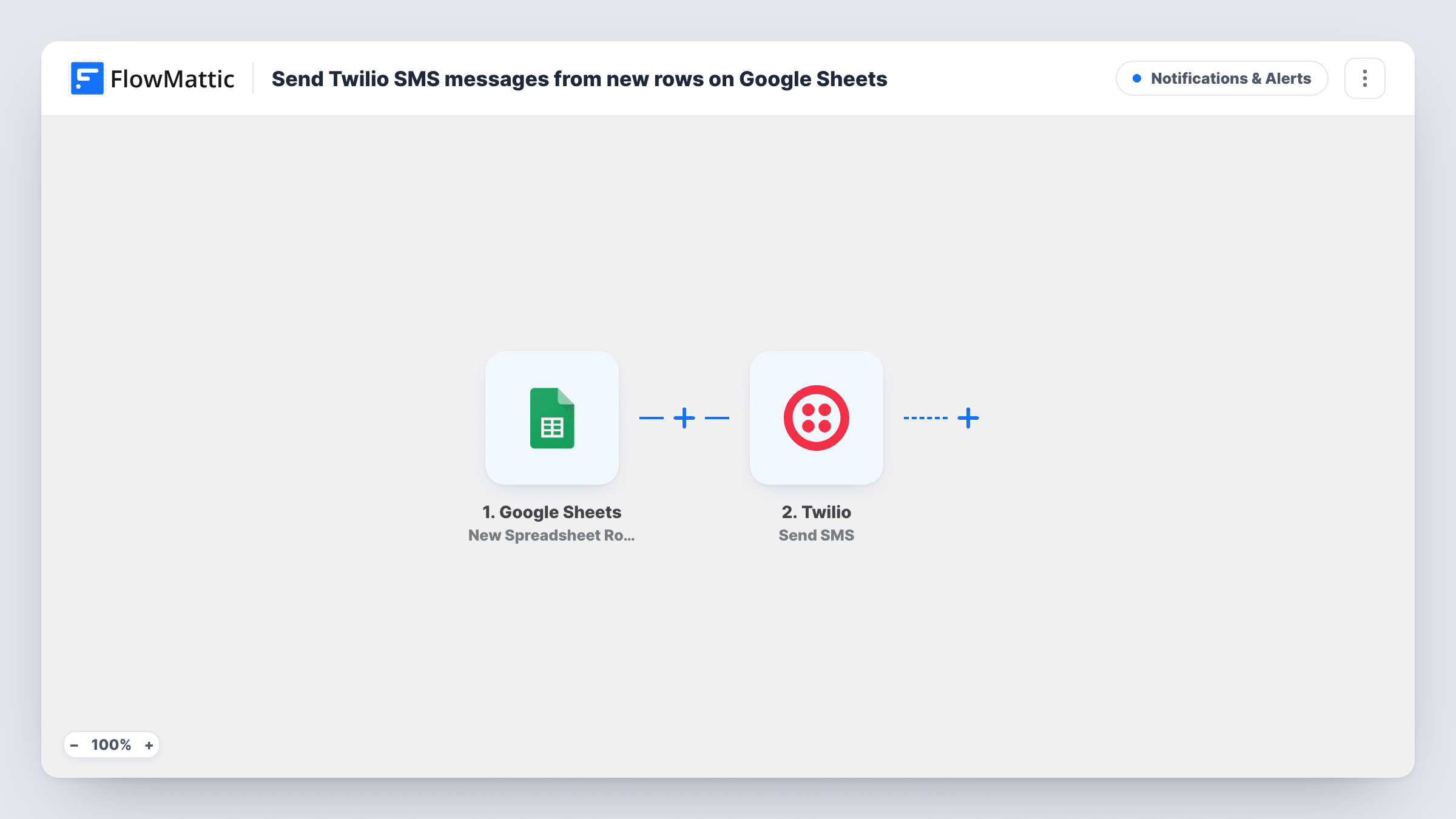
The Google Sheets trigger watches the spreadsheet you pick and fires when a new row is added. The values in that row's columns become data you can map. The Twilio step then sends an SMS to a number, using your Twilio account. You map the phone column as the recipient and build the message from fixed text and any other columns, such as a first name or a time.
Only new rows count. Editing a row you added earlier does not send another text. Each run shows in Task History with the row data and the reply Twilio returned, which helps when a number is wrong or badly formatted.
Appointment confirmations from a booking sheet
Staff add each booking as a row with the client's mobile and time. The client gets a text confirming the slot as soon as the row is saved.
Dispatch notes for drivers
A coordinator adds a delivery job to the sheet with the driver's number and the address, and the driver receives the job details by SMS.
Volunteer shift reminders
Each volunteer added to the rota sheet gets a text with their shift, so nobody needs to send messages one by one.
How this workflow runs
What happens at each step once the workflow is on, and what you need before you import it.
 Google Sheets New Spreadsheet Row
Fires when a new row is added to the Google Sheets spreadsheet you select. Each column of that row is available to map, so keep the phone number in its own column.
- Twilio Send SMS
Sends an SMS through your Twilio account. Map the row's phone column as the number to text and write the message, inserting column values where you want them.
What you need
- FlowMatticCore
- Google Sheets AccountAccount
- Twilio AccountAccount
After importing, map your own data. To keep the template universal, not every step is pre-filled. Open each step in the builder and connect your accounts and fields (channels, lists, sheets, recipients) before you switch the workflow on.
Make it yours
Changes worth making after you import it.
- Store phone numbers in international format, with the plus sign and country code, so Twilio can route each message.
- Add a Filter after the trigger that continues only when the phone column is not empty, so rows without a number never reach the Twilio step.
- Add a row with your own number after import to capture the sheet's columns, then map them in the Twilio step and confirm the text arrives.
Questions about this workflow
Will Twilio text everyone already in my Google Sheet when I turn this on?
No. The trigger fires for rows added after the workflow is active, so existing rows are left alone.
Does editing a row in the sheet send a second SMS?
No. Only an added row starts this workflow, because it listens for New Spreadsheet Row. Changing a row you already have sends nothing.
What do I need from Twilio?
A Twilio account connected to FlowMattic and a Twilio phone number to send from. Check your Twilio account for the countries and message volume it covers.
What happens if a row has a bad phone number?
Twilio returns an error for that run, and Task History shows it on the Twilio step. Fix the number in the sheet and send that message again by hand.
More Notifications & Alerts workflows
Other ready-to-import templates from the same category.




Import this workflow into your WordPress site
Download the JSON, import it from the Workflows screen and connect your accounts. Every run stays on your server, with no per-task fees.
30-day money-back guarantee Unlimited workflows and runs Self-hosted