

When extras purchase refunded in Buy Me a Coffee, add the user to Google Sheet and email user for feedback
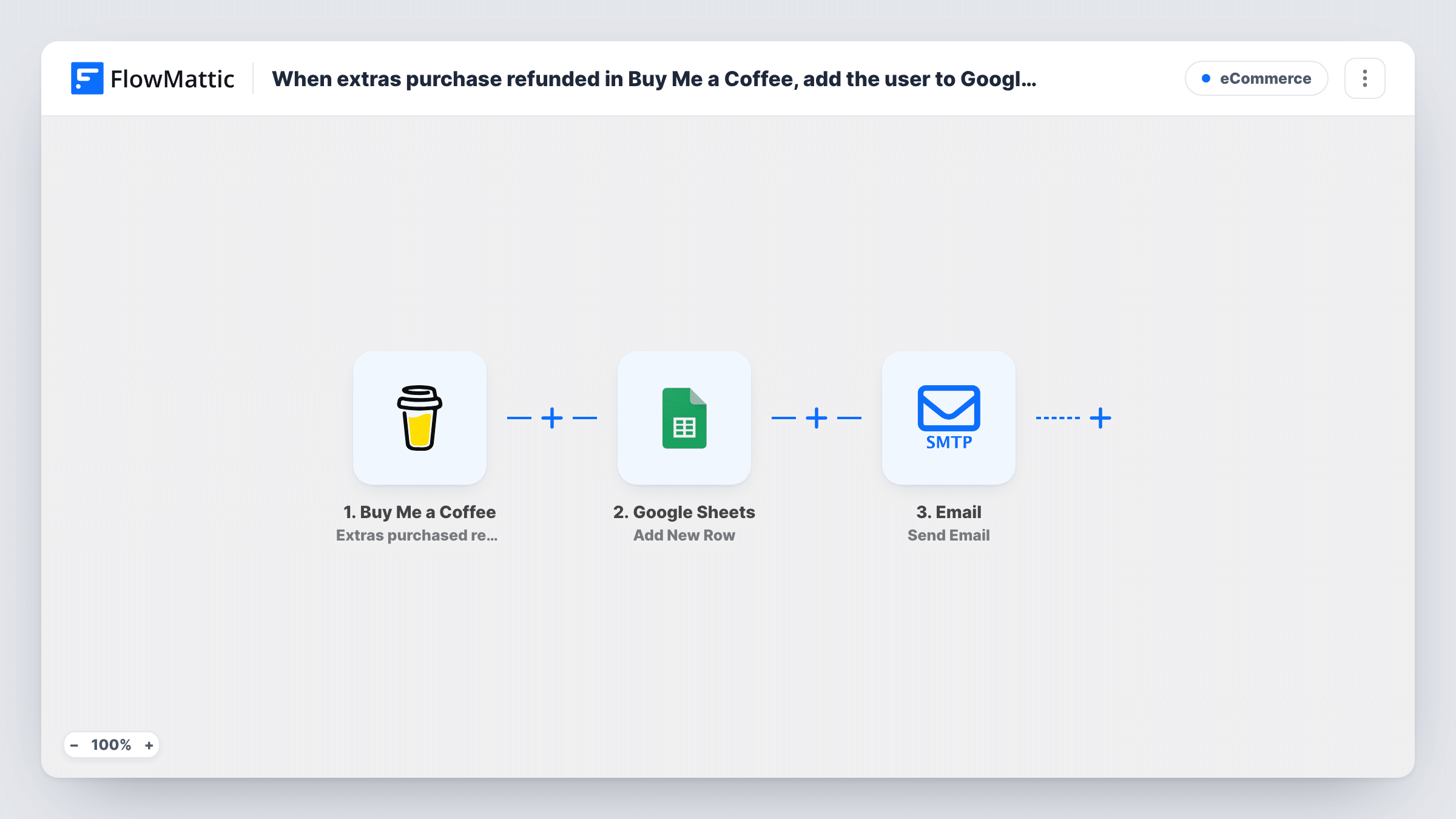
When a Buy Me a Coffee extras purchase is refunded, this workflow logs it in a Google Sheets row and sends the supporter an email asking what went wrong.
 Buy Me a Coffee
 Google Sheets
 Email
3 steps Setup ~5 min Used on 3.1k sites Free to import
What this workflow does
A refund on an extra, such as an ebook, a template or a one-off session, is a chance to learn why the purchase did not work out. Asking by hand is easy to forget once the refund has gone through. This workflow records every refunded extra and sends a short feedback request straight away.
The Buy Me a Coffee trigger fires when the extras purchase refunded webhook arrives. FlowMattic first adds a row to Google Sheets with the refund details you map, giving you a running log. Then the Email step sends a message to the supporter's address, which you map from the refund data.
The Email step is FlowMattic's own Email module. It sends through WordPress mail or an SMTP account you set up, so it does not need a separate email app. You write the subject and body, and can include the supporter's name and the extra they bought.
Finding out why a digital download was refunded
A creator selling a design pack asks each refunded buyer one question by email and reads the answers alongside the refund log.
Tracking refunds per extra
Sort the Google Sheet by the extra's name to see which offers get refunded most, then rework the description of that extra.
Refunded one-off coaching session
When a booked session extra is refunded, the email offers the supporter a chance to say what they hoped to get from it.
How this workflow runs
What happens at each step once the workflow is on, and what you need before you import it.
 Buy Me a Coffee Extras purchased refunded
Fires when Buy Me a Coffee sends the extras purchase refunded webhook. The refund data, including the supporter's details, is passed on to the next two steps.
- Google Sheets Add New Row
Adds a row to the Google Sheets spreadsheet you pick with the mapped refund details. Connect your Google account and map each column to a value from the refund.
 Email Send Email
Sends the feedback email through FlowMattic's Email module, using WordPress mail or your SMTP settings. Map the supporter's email as the recipient and write the message.
What you need
- FlowMatticCore
- Buy Me a Coffee AccountAccount
- Google Sheets AccountAccount
After importing, map your own data. To keep the template universal, not every step is pre-filled. Open each step in the builder and connect your accounts and fields (channels, lists, sheets, recipients) before you switch the workflow on.
Make it yours
Changes worth making after you import it.
- Set up SMTP in the Email step rather than relying on default WordPress mail, so feedback requests are less likely to land in spam.
- Add a Delay before the Email step if you would rather wait a day before asking a refunded supporter for feedback.
- Add a column in the sheet for the feedback you get back, and fill it in by hand when replies arrive.
Questions about this workflow
Which Buy Me a Coffee event starts this workflow?
Only the extras purchase refunded webhook. Donation, commission and wishlist refunds have their own Buy Me a Coffee triggers and do not run it.
Does the Buy Me a Coffee feedback email need Gmail or another mail app?
No. It uses FlowMattic's Email module, which sends through WordPress mail or an SMTP server you enter. You can swap in a Gmail step if you prefer.
Is the refund still logged in the sheet if the email bounces?
Yes. The Google Sheets row is added before the email is sent. Task History shows any error from the Email step.
More E-Commerce workflows
Other ready-to-import templates from the same category.



Import this workflow into your WordPress site
Download the JSON, import it from the Workflows screen and connect your accounts. Every run stays on your server, with no per-task fees.
30-day money-back guarantee Unlimited workflows and runs Self-hosted