

When a new customer is created in WooCommerce, create translated text-to-speech in CAMB AI
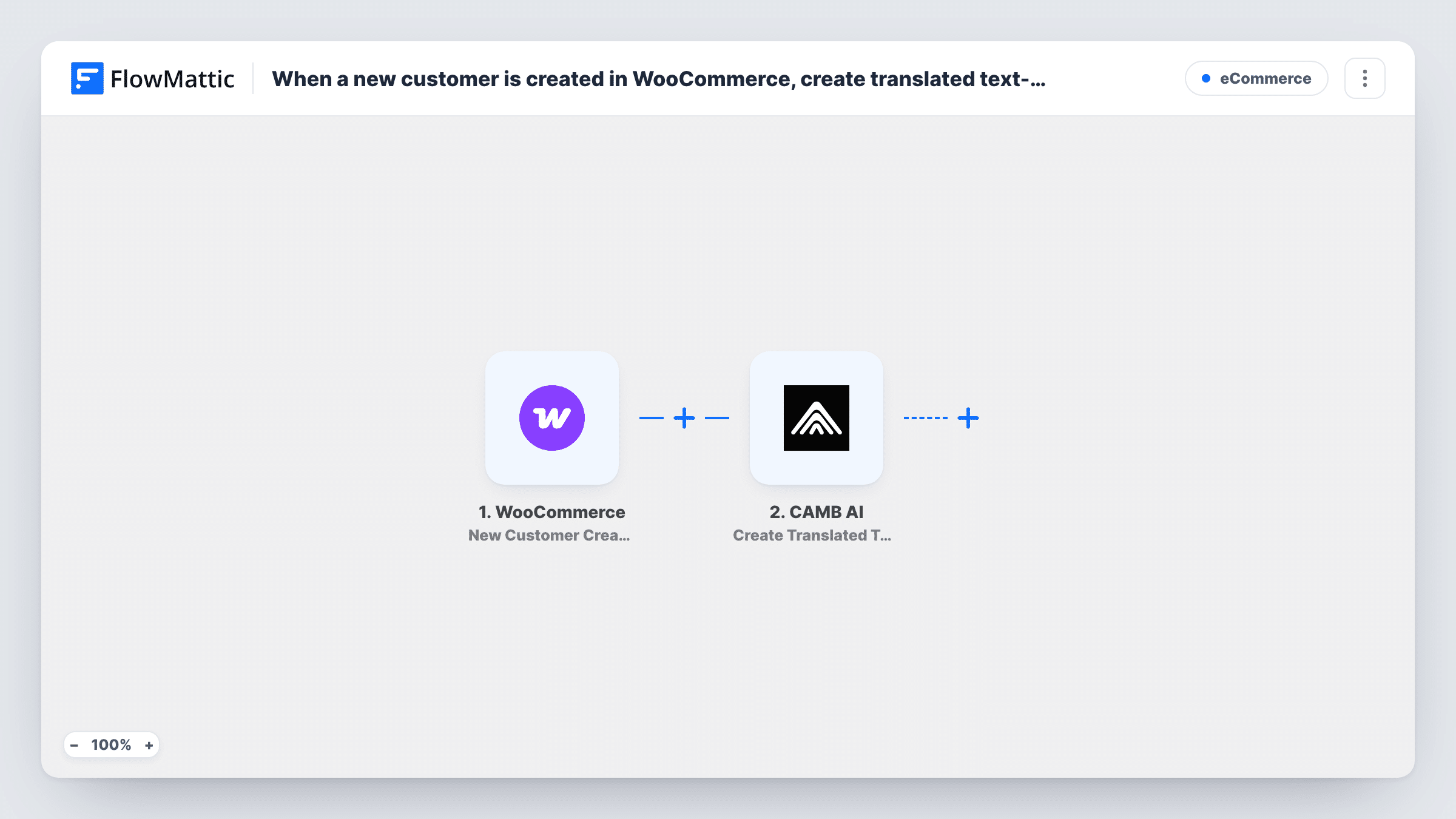
When a new customer profile is created in WooCommerce, this workflow sends text you write to CAMB AI’s Create Translated Text-to-Speech action, starting a spoken version in another language.
 WooCommerce
 CAMB AI
2 steps Setup ~5 min Used on 1.6k sites Free to import
What this workflow does
If your store sells to people who speak different languages, a spoken welcome in their own language is a personal touch. Recording one by hand for each new customer is not realistic. This workflow hands that job to CAMB AI as soon as a customer profile appears in your store.
The WooCommerce trigger is New Customer Created, which fires when a new customer profile is created. The customer's details become available to map. The CAMB AI step then runs Create Translated Text-to-Speech, which converts input text in a source language into speech audio in the language you set. You write the text, for example a greeting with the customer's first name mapped in.
The template ends after that request. CAMB AI lists separate actions to check a translated speech task's status and to download the finished audio, and neither is in this workflow. Nothing sends the audio to the customer either. Add those steps, with a Delay in between, once a test run shows what CAMB AI returns.
Spoken welcome for international shoppers
A store that ships abroad turns a short welcome message into speech in the language of its main export market for each new customer.
Preparing audio for a welcome email
Generate the translated greeting here, then add steps that fetch the audio and include a link to it in a welcome email.
Trying CAMB AI on real store events
Test how CAMB AI handles your welcome text and customer names before you build a full audio feature into your store.
How this workflow runs
What happens at each step once the workflow is on, and what you need before you import it.
 WooCommerce New Customer Created
Fires when a new customer profile is created in your WooCommerce store. The customer's details, such as their name, are available to map into the CAMB AI text.
- CAMB AI Create Translated Text-to-Speech
Sends the text you write to CAMB AI to be translated and turned into speech. Connect your CAMB AI account and use a test run to check the languages and what the step returns.
What you need
- FlowMatticCore
- WooCommerce PluginPlugin
- CAMB AI AccountAccount
After importing, map your own data. To keep the template universal, not every step is pre-filled. Open each step in the builder and connect your accounts and fields (channels, lists, sheets, recipients) before you switch the workflow on.
Make it yours
Changes worth making after you import it.
- Add a Delay after this step, then CAMB AI's Get Translated Text-to-Speech Status and Get Text-to-Speech Result, so the workflow collects the finished audio.
- Keep the welcome text short and avoid mapping fields that are often blank, so the spoken greeting still makes sense for every customer.
- Add a Filter after the trigger that continues only when the customer's billing country is one you want to greet in that language, after checking it appears in a test run.
Questions about this workflow
Does the WooCommerce customer receive the CAMB AI audio?
No, not as imported. The workflow only asks CAMB AI to create the translated speech. Add steps to fetch the result and send it if you want the customer to get it.
Does a guest checkout start this workflow?
The trigger fires when a new customer profile is created. Run a test guest order to see whether your store setup creates a profile in that case.
Which language is the WooCommerce welcome translated into?
The one you set in the CAMB AI step. As imported, every customer gets the same target language unless you add a Router or Filter based on their details.
Do I need a CAMB AI account for the WooCommerce welcome audio?
Yes. The translation and speech step runs through your CAMB AI account, which you connect in FlowMattic. WooCommerce must run on the same site as FlowMattic.
More E-Commerce workflows
Other ready-to-import templates from the same category.



Import this workflow into your WordPress site
Download the JSON, import it from the Workflows screen and connect your accounts. Every run stays on your server, with no per-task fees.
30-day money-back guarantee Unlimited workflows and runs Self-hosted