

Send a Slack notification when a new Pipe video is recorded
When a new video recording finishes in Pipe, this workflow posts a message to a Slack channel you pick, so your team learns about each new recording without checking the Pipe dashboard.
 Pipe
 Slack
2 steps Setup ~5 min Used on 449 sites Free to import
What this workflow does
Pipe collects video from people who record through your site or app: testimonials, support clips, applications. Those recordings are only useful if someone looks at them, and checking an account by hand is easy to forget. This workflow tells your team in Slack each time a new one arrives.
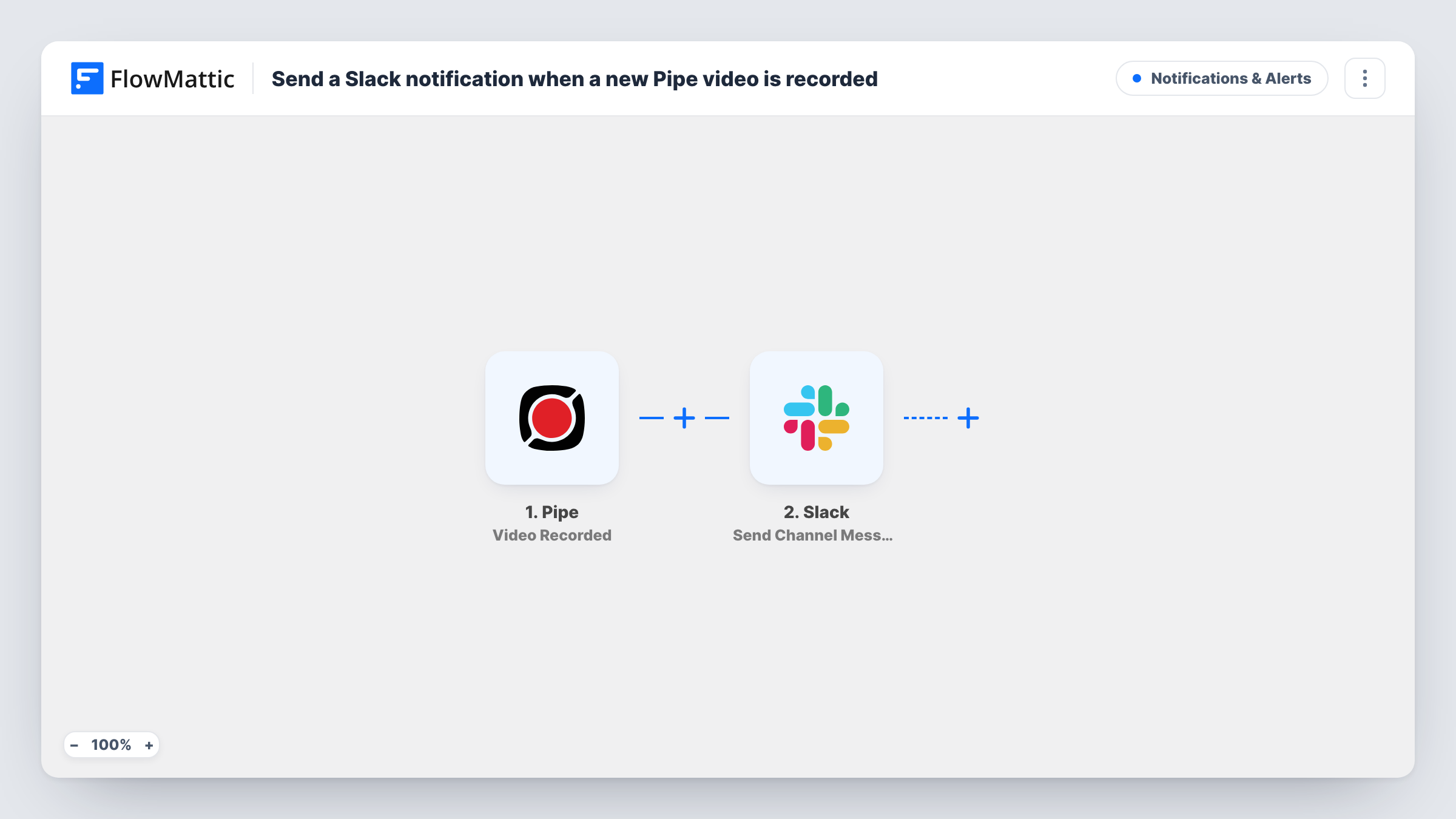
The Pipe trigger is Video Recorded. As FlowMattic describes it, it fires as soon as a new recording is finished, saved to the database and assigned to a worker for processing. FlowMattic then passes the recording's data to Slack, where Send Channel Message posts to the channel you choose. You write the message and map in the Pipe details you want people to see.
Because the trigger fires when the recording is saved, Pipe may still be processing the file when the message appears. If your team needs the converted video or a copy in storage, Pipe has other triggers for those later stages. Every run shows in Task History.
Customer testimonial collection
A marketing team asks happy customers to record a short clip through a Pipe recorder. Each finished recording posts to the #testimonials channel so someone can review it for use.
Video job applications
Candidates answer a screening question on video. The hiring channel in Slack gets a message per recording, so the recruiter knows when to start reviewing.
Bug reports recorded by users
Users record their screen or camera to show a problem. Support sees a Slack post for each new recording and can pick it up from there.
How this workflow runs
What happens at each step once the workflow is on, and what you need before you import it.
 Pipe Video Recorded
Fires when a new Pipe recording is finished and saved, before Pipe's processing is complete. The recording's data becomes available to map into the Slack message.
- Slack Send Channel Message
Sends your message to one Slack channel. Connect your Slack workspace, pick the channel and write the text, mapping in the Pipe recording details that help your team find the video.
What you need
- FlowMatticCore
- Pipe AccountAccount
- Slack AccountAccount
After importing, map your own data. To keep the template universal, not every step is pre-filled. Open each step in the builder and connect your accounts and fields (channels, lists, sheets, recipients) before you switch the workflow on.
Make it yours
Changes worth making after you import it.
- If the message should link to a finished, playable file, swap the trigger for Pipe's Video Converted event, which fires at a later stage than Video Recorded.
- Add a Filter after the trigger when only some recordings matter, comparing a value from Pipe's data that you spot in a test run.
- Record a short test video after import so FlowMattic captures Pipe's data, then choose which details to show in the Slack text.
Questions about this workflow
Is the Pipe video ready to watch when the Slack message arrives?
Not always. Video Recorded fires once the recording is saved and handed off for processing. Use the Video Converted trigger instead if you want the message after conversion.
What if Slack doesn't accept the Pipe notification?
The run records Slack's error on that step in Task History, and the recording itself is unaffected in Pipe. Check the channel choice and your Slack connection, then send another test recording.
Does every Pipe recording post to Slack?
Yes, as imported. There is no Filter, so each finished recording starts a run and sends one message. To post about only some recordings, put a Filter between the two steps.
More Notifications & Alerts workflows
Other ready-to-import templates from the same category.





Import this workflow into your WordPress site
Download the JSON, import it from the Workflows screen and connect your accounts. Every run stays on your server, with no per-task fees.
30-day money-back guarantee Unlimited workflows and runs Self-hosted