

Log incoming Braze webhook events to a Google Sheets spreadsheet
Every time a Braze webhook campaign sends its request to FlowMattic, this workflow adds the data as a new row in Google Sheets, giving you a running log of those events in a spreadsheet you control.
 Braze
 Google Sheets
2 steps Setup ~5 min Used on 1.1k sites Free to import
What this workflow does
Braze can call a webhook as part of a campaign, which is a handy way to get engagement data out of it. The catch is that something has to receive that call and keep the data. If your team wants a plain spreadsheet of who reached a campaign step, building an endpoint for that is overkill. This workflow gives Braze a URL to call and writes each call to a sheet.
The Braze trigger gives you a webhook URL. You paste it into a webhook campaign in Braze, and each time that campaign fires, Braze sends its request body to FlowMattic. The values in that body are then mapped into the Google Sheets step, which adds a new row to the spreadsheet and sheet you select.
What lands in each row depends on what you put in the Braze webhook body, such as user attributes or the campaign name. Every request adds its own row, so nothing is merged or overwritten. Task History keeps a record of each run if you need to check what arrived.
Track who reached a Canvas step
Place a webhook step inside a Braze journey that posts the user ID and email, and the sheet builds a list of everyone who got that far.
Share campaign activity with a client
An agency running Braze for a client logs each webhook call to a shared Google Sheet, so the client sees activity without a Braze login.
Hand-off list for a sales team
When a user hits a high-intent point in a Braze campaign, their details reach a sheet that the sales team reviews each morning.
How this workflow runs
What happens at each step once the workflow is on, and what you need before you import it.
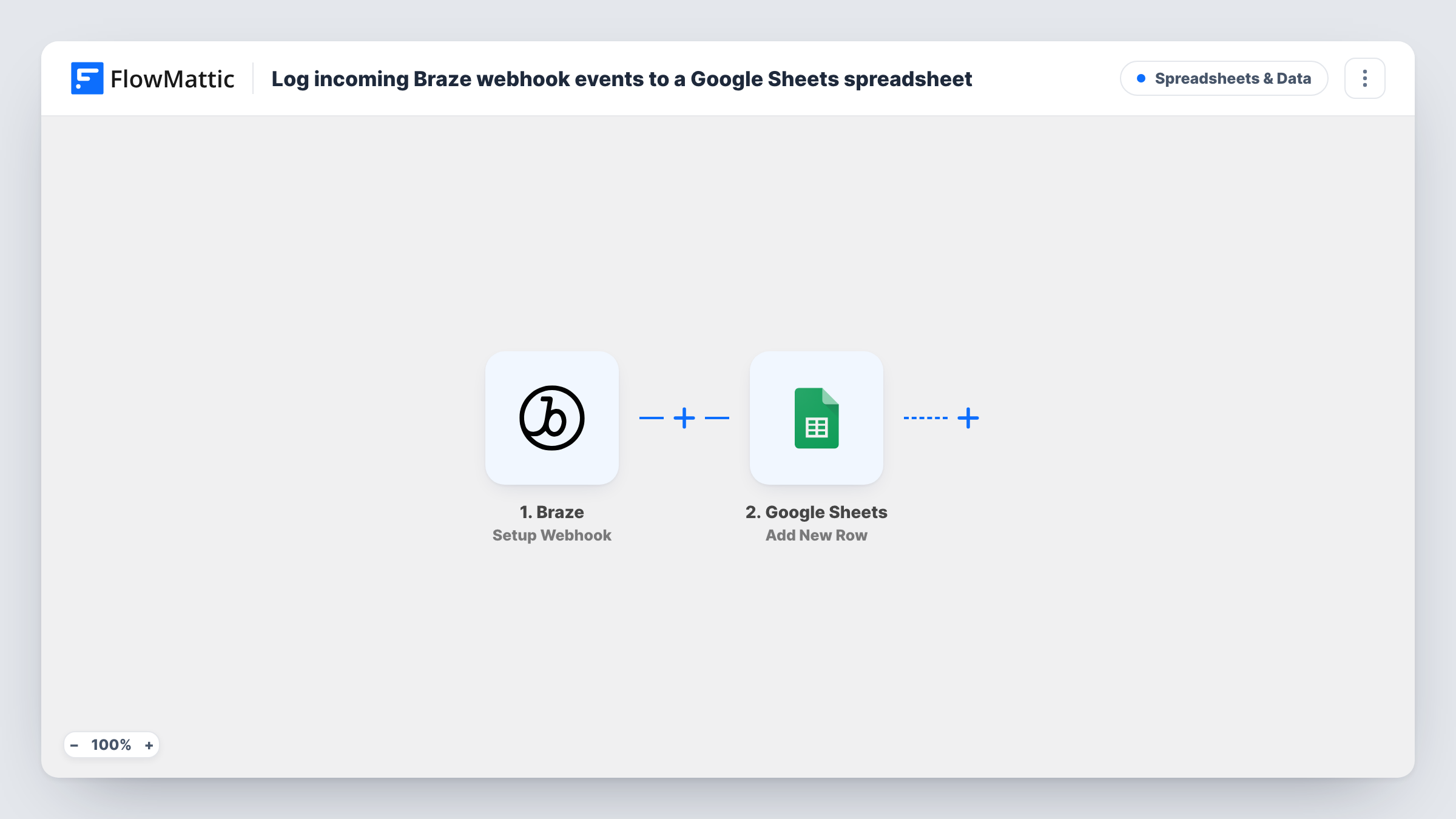
 Braze Setup Webhook
Gives you a FlowMattic webhook URL to use in a Braze webhook campaign. Each time that campaign sends a request, the workflow runs with the data in the request body.
- Google Sheets Add New Row
Writes one row per Braze request to the spreadsheet and tab you pick. Connect your Google account and map each value from the Braze request to a column.
What you need
- FlowMatticCore
- Braze AccountAccount
- Google Sheets AccountAccount
After importing, map your own data. To keep the template universal, not every step is pre-filled. Open each step in the builder and connect your accounts and fields (channels, lists, sheets, recipients) before you switch the workflow on.
Make it yours
Changes worth making after you import it.
- Put the values you want in the sheet into the Braze webhook body as named JSON keys. Clear names make each one easy to find when you map the Google Sheets columns.
- After import, send a test request from your Braze webhook campaign so FlowMattic captures a sample body before you map columns.
- Add a Filter after the trigger if one webhook URL serves several campaigns and only some should be logged, for example continue when a campaign name key matches.
Questions about this workflow
Where do I put the FlowMattic URL in Braze?
In the webhook URL field of a Braze webhook campaign, or a webhook step in a Canvas. Braze then calls FlowMattic each time a user reaches that message.
Which Braze data ends up in Google Sheets?
Only what the Braze webhook sends. You build the request body in Braze, and FlowMattic can map any value in it to a sheet column.
Does each Braze webhook call add a separate row?
Yes. The Google Sheets step adds a new row on every run, so repeated calls for the same user appear as repeated rows.
Can I log Braze events somewhere other than Google Sheets?
Yes. Keep the Braze trigger and replace the Sheets step, or add another step after it, for example an Airtable record or a Slack message.
More Spreadsheets & Data workflows
Other ready-to-import templates from the same category.




Import this workflow into your WordPress site
Download the JSON, import it from the Workflows screen and connect your accounts. Every run stays on your server, with no per-task fees.
30-day money-back guarantee Unlimited workflows and runs Self-hosted