

Log every new Detectify scan in a Google Sheets spreadsheet
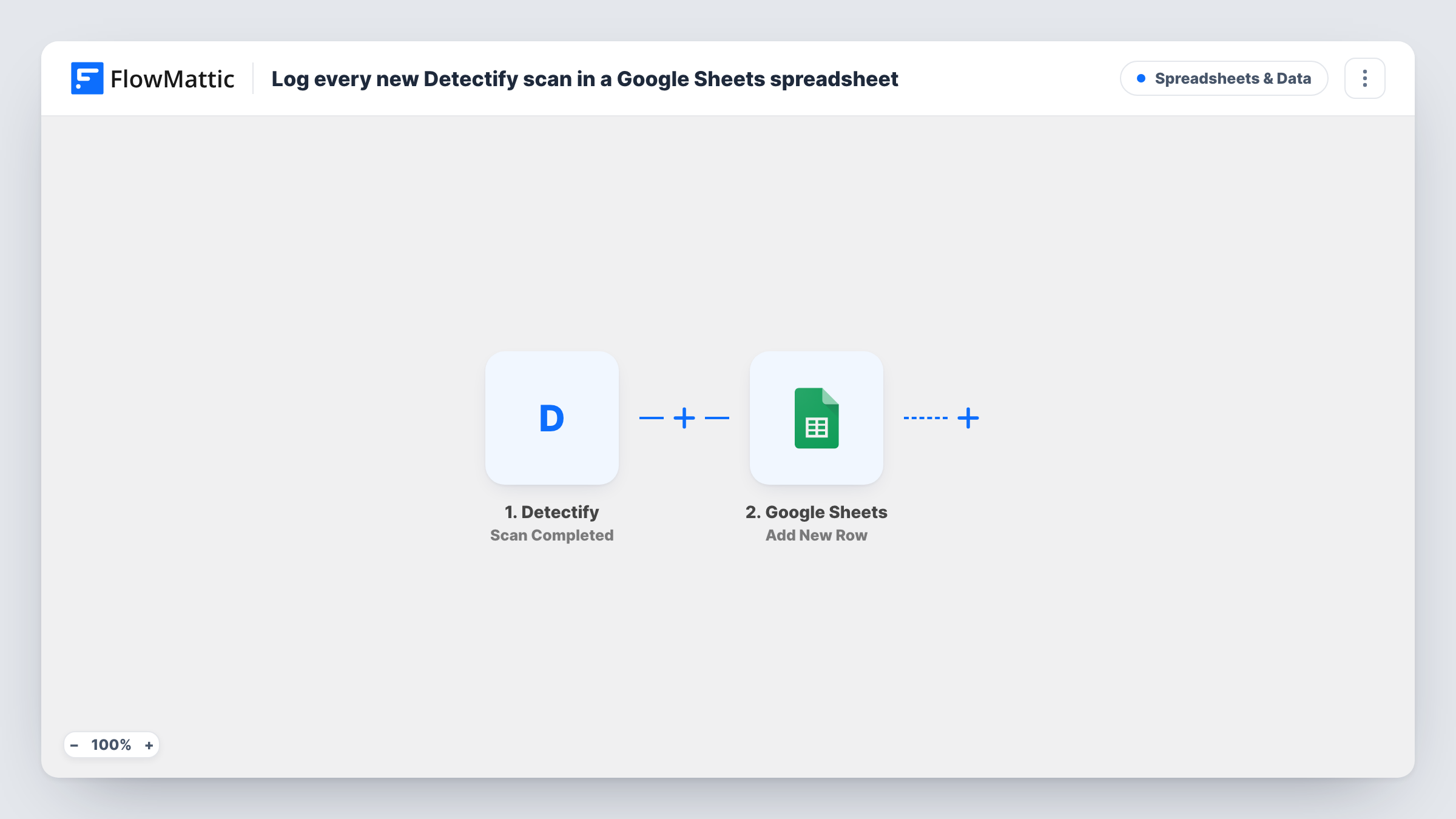
Each time a Detectify scan finishes running, this workflow adds a row to a Google Sheets spreadsheet with the scan details you map, building a running history of your security scans.
 Detectify
 Google Sheets
2 steps Setup ~5 min Used on 3.0k sites Free to import
What this workflow does
Security work needs a paper trail. Auditors, clients and managers ask when you last scanned and how often scans run. Detectify shows this in its own interface, but a spreadsheet is easier to share, annotate and attach to a report. This workflow writes a row for every completed scan.
The Detectify trigger fires when a scan finishes running. FlowMattic receives the data Detectify sends about that scan and passes it to Google Sheets, where Add New Row writes it to the spreadsheet and tab you choose. You decide which scan values go into which columns when you set up the step.
A row is added when the scan completes, not when it starts, so scans that are still running don't appear yet. The sheet logs scans, not individual findings. Detectify has a separate New Finding trigger if you want those in a sheet too. Task History records each run with the data received.
Evidence for security audits
A compliance lead keeps a sheet of every completed Detectify scan, with dates, to show auditors that scanning runs on schedule.
Client reporting for an agency
An agency that scans client sites with Detectify shares a Google Sheet per client listing each finished scan, so clients see the work being done.
Spotting gaps in scan coverage
Sort the sheet by the date and target columns you mapped to notice an asset that hasn't been scanned for a while, then schedule it in Detectify.
How this workflow runs
What happens at each step once the workflow is on, and what you need before you import it.
 Detectify Scan Completed
Runs when a scan finishes running in Detectify. The data Detectify sends about the completed scan is passed to Google Sheets for mapping.
- Google Sheets Add New Row
Logs the completed scan as a new row in the spreadsheet and tab you select. Connect your Google account and map each scan value to a column.
What you need
- FlowMatticCore
- Detectify AccountAccount
- Google Sheets AccountAccount
After importing, map your own data. To keep the template universal, not every step is pre-filled. Open each step in the builder and connect your accounts and fields (channels, lists, sheets, recipients) before you switch the workflow on.
Make it yours
Changes worth making after you import it.
- Run or wait for one scan to finish after import so FlowMattic captures real scan data, then map the columns from what arrived.
- Want individual vulnerabilities logged too? Set up a second workflow on Detectify's New Finding trigger that writes to another tab.
- Add a Slack or email step after the sheet row if your team should also hear when a scan completes.
Questions about this workflow
Does this log Detectify findings or just scans?
Just scans. The trigger is Scan Completed, so each row describes a finished scan. Use the New Finding trigger in another workflow for individual findings.
Are older Detectify scans added to the sheet?
No. Only scans that finish while the workflow is active start a run, so earlier scans need to be added another way.
Which scan details end up in Google Sheets?
Whichever values you map from the Detectify event. Check a test run to see what the event includes before you set up the columns.
Does each completed Detectify scan get its own row?
Yes. Add New Row adds a fresh row on every run and never edits earlier rows, so repeat scans of the same target appear as separate lines.
More Spreadsheets & Data workflows
Other ready-to-import templates from the same category.




Import this workflow into your WordPress site
Download the JSON, import it from the Workflows screen and connect your accounts. Every run stays on your server, with no per-task fees.
30-day money-back guarantee Unlimited workflows and runs Self-hosted