

When a new OptiMonk subscriber is captured, add them to ActiveCampaign and log the campaign in Google Sheets
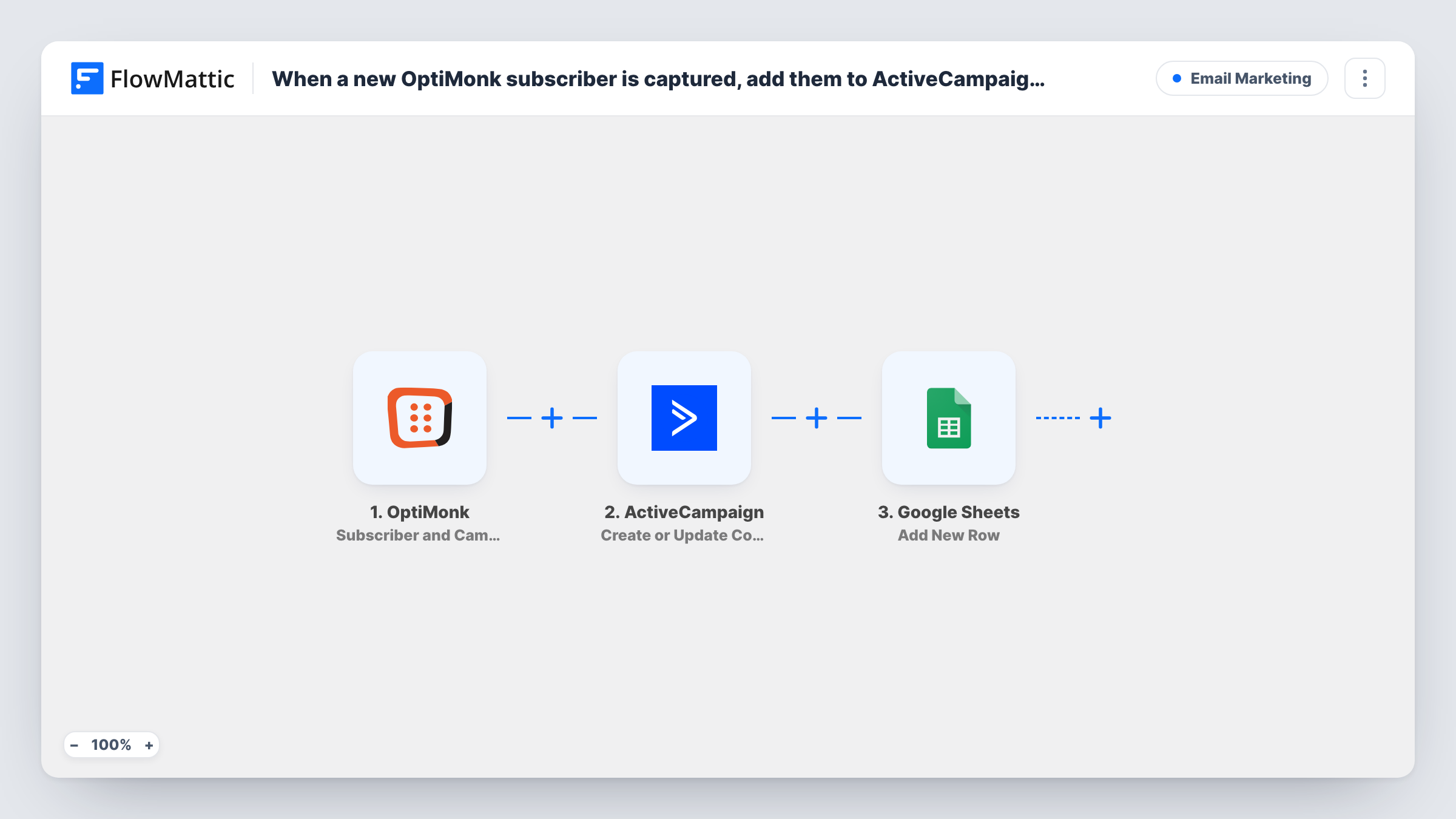
When an OptiMonk popup captures a subscriber, this workflow creates or updates the contact in ActiveCampaign, then logs the subscriber and campaign details in a Google Sheets row.
 OptiMonk
 ActiveCampaign
 Google Sheets
3 steps Setup ~5 min Used on 3.3k sites Free to import
What this workflow does
OptiMonk popups collect email addresses, but the leads only matter once they reach your email tool. You also want to know which popup brought each person in, and that record is easier to read in a spreadsheet than in two dashboards. This workflow handles both from a single OptiMonk event.
A run starts when OptiMonk adds new subscriber or campaign data, through its Subscriber and Campaign Data trigger. FlowMattic passes the subscriber's details to ActiveCampaign, where Create or Update Contact adds a new contact, or updates the existing one if that address is already in your account. The run then moves to Google Sheets and adds a row with the values you map, such as the email and the campaign it came from.
The sheet gets a row for every event, even when ActiveCampaign only updated a contact it already had. That makes the spreadsheet a log of captures, not a list of unique people. Task History shows each run and the response from both apps.
Compare popup performance by campaign
Each row records which OptiMonk campaign captured the subscriber, so you can count sign-ups per popup in the sheet and decide which ones to keep running.
Exit-intent leads into a welcome series
An exit-intent popup offers a discount code. The visitor lands in ActiveCampaign, where your own automation can send the welcome emails.
Shared lead log for an agency client
The client reads the Google Sheets log of captured leads without needing access to OptiMonk or ActiveCampaign.
How this workflow runs
What happens at each step once the workflow is on, and what you need before you import it.
 OptiMonk Subscriber and Campaign Data
Runs when OptiMonk sends new subscriber or campaign data, for example after a visitor fills in a popup. The subscriber and campaign values are passed to the next two steps.
- ActiveCampaign Create or Update Contact
Creates a contact in ActiveCampaign from the OptiMonk subscriber, or updates the contact if it already exists. Map the email address and any name fields your popup collects.
- Google Sheets Add New Row
Adds a row to the spreadsheet and tab you choose. Map the subscriber's email and the campaign values from OptiMonk to your columns, and connect your Google account.
What you need
- FlowMatticCore
- OptiMonk AccountAccount
- ActiveCampaign AccountAccount
- Google Sheets AccountAccount
After importing, map your own data. To keep the template universal, not every step is pre-filled. Open each step in the builder and connect your accounts and fields (channels, lists, sheets, recipients) before you switch the workflow on.
Make it yours
Changes worth making after you import it.
- Submit a test sign-up through your OptiMonk popup after import, so FlowMattic shows the real subscriber and campaign values while you map both steps.
- Add a column for the date of each run in the sheet. Sorting by it shows when each popup was most active.
- If you run popups for different lists, add a Router after the trigger with one route per campaign name, each with its own ActiveCampaign step. Use distinct names so routes don't overlap.
Questions about this workflow
What happens if the OptiMonk subscriber is already in ActiveCampaign?
ActiveCampaign keeps one contact and refreshes it with the popup details, so no duplicate is made. A new row is still added to Google Sheets for that capture.
Which OptiMonk campaign details can I log in the sheet?
Whatever OptiMonk sends with the event. Run a test capture after import and look at the trigger data to see which campaign values are available to map.
Does this add the contact to an ActiveCampaign list?
Check the Create or Update Contact step after import to see what it offers for your account. The template itself doesn't set a list, so test with one sign-up and look at the contact in ActiveCampaign.
Do OptiMonk sign-ups from before import reach ActiveCampaign?
No. Only new subscriber events after you turn the workflow on start a run.
More Email Marketing workflows
Other ready-to-import templates from the same category.







Import this workflow into your WordPress site
Download the JSON, import it from the Workflows screen and connect your accounts. Every run stays on your server, with no per-task fees.
30-day money-back guarantee Unlimited workflows and runs Self-hosted