

Sync new Bloomreach customers into a Mailchimp audience
Send customers from Bloomreach to a Mailchimp audience. Bloomreach posts its events to FlowMattic’s webhook, and each one adds the customer to Mailchimp or updates their existing record.
 Bloomreach
 Mailchimp
2 steps Setup ~5 min Used on 2.2k sites Free to import
What this workflow does
Bloomreach holds rich customer data, but your newsletters may go out from Mailchimp. Keeping the audience in step by exporting and importing lists is tedious and always a little out of date. This workflow sends each new customer across as Bloomreach reports them.
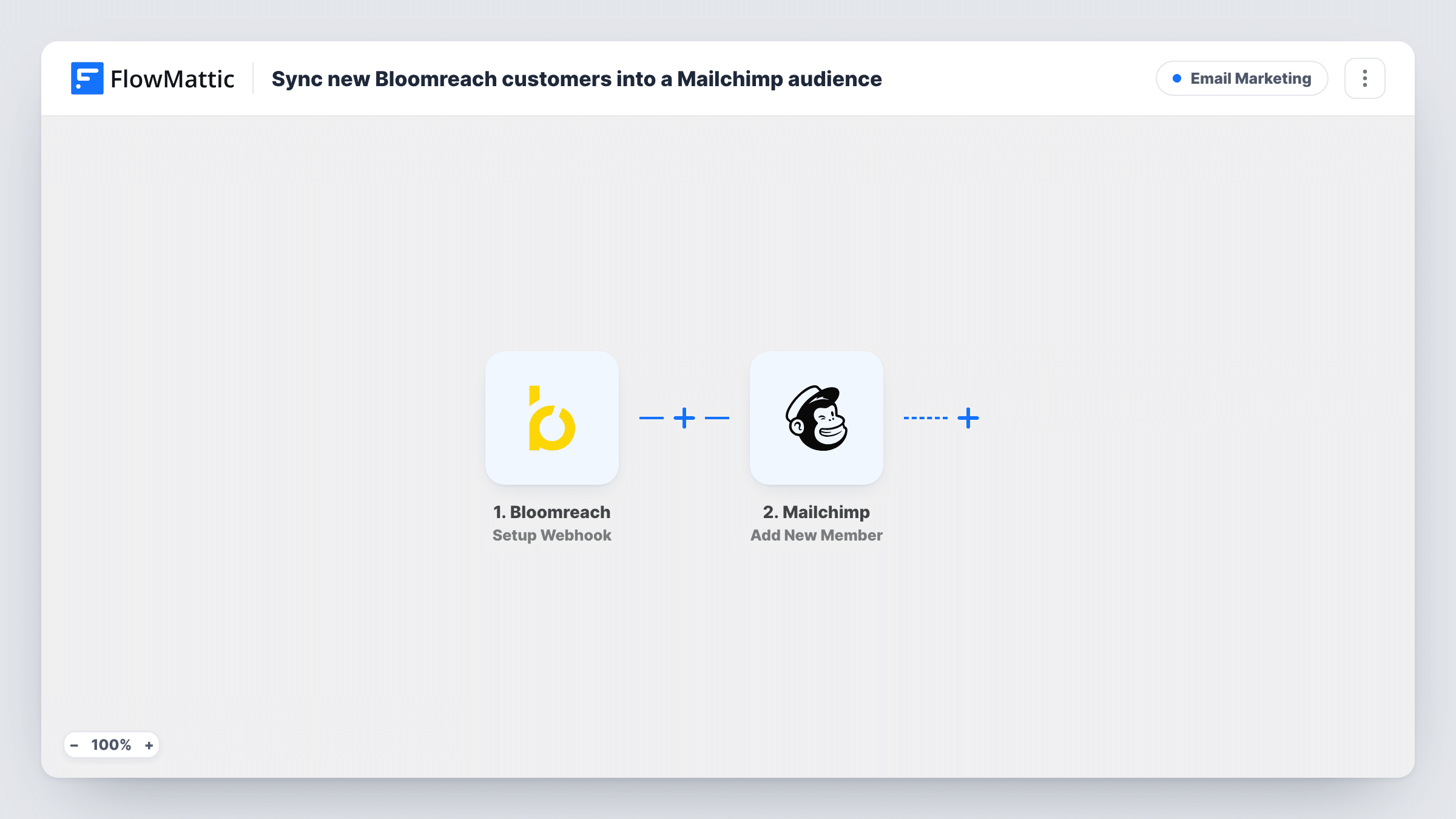
FlowMattic's Bloomreach trigger is Setup Webhook, which fires for the events your Bloomreach portal sends to it. You set Bloomreach up to post the new-customer event to the webhook URL FlowMattic gives you. The customer's details then go to Mailchimp, where Add New Member adds them to the audience you choose, or updates the member if that address is already there.
Which events reach the workflow is decided in Bloomreach, not here. If the webhook sends other events too, each one also adds or updates a Mailchimp member. Task History records every run, so you can see each payload from Bloomreach and Mailchimp's reply.
Store customers into a Mailchimp newsletter
An online shop tracks customers in Bloomreach and sends its monthly newsletter from Mailchimp. New customers join the audience without a weekly export.
Keeping a Mailchimp audience for a second team
Marketing works in Bloomreach while a regional team runs campaigns in Mailchimp. The webhook keeps the regional audience supplied with new customers.
Testing Mailchimp alongside Bloomreach
You want to try a Mailchimp campaign on recent customers before moving more email there. This workflow builds that audience as customers arrive.
How this workflow runs
What happens at each step once the workflow is on, and what you need before you import it.
 Bloomreach Setup Webhook
Gives you a webhook URL for Bloomreach and runs whenever your Bloomreach portal posts an event to it. Set the Bloomreach side to send the new-customer event, and the customer data becomes available to map.
- Mailchimp Add New Member
Adds the customer to your chosen Mailchimp audience, or updates them if they are already a member. Connect Mailchimp and map the email address, plus any name fields Bloomreach sends.
What you need
- FlowMatticCore
- Bloomreach AccountAccount
- Mailchimp AccountAccount
After importing, map your own data. To keep the template universal, not every step is pre-filled. Open each step in the builder and connect your accounts and fields (channels, lists, sheets, recipients) before you switch the workflow on.
Make it yours
Changes worth making after you import it.
- Send one test event from Bloomreach after import so FlowMattic captures the payload, then map the email address in the Mailchimp step.
- If Bloomreach sends several event types to the same URL, add a Filter after the trigger that continues only for the new-customer event.
- Respect consent: add a Filter that checks a marketing-consent value in the Bloomreach data, if your payload includes one, before customers reach Mailchimp.
Questions about this workflow
How does Bloomreach know to send customers to FlowMattic?
You configure it. The Setup Webhook trigger gives you a URL, and you set Bloomreach to post the events you want to that URL.
What if the Bloomreach customer is already in my Mailchimp audience?
Add New Member adds a new member, or updates the existing one when the address is already on the list. You won't get a duplicate.
Can other Bloomreach events reach Mailchimp by mistake?
Yes, if Bloomreach posts them to the same URL. Each event that arrives runs both steps, so limit what Bloomreach sends or add a Filter.
More Email Marketing workflows
Other ready-to-import templates from the same category.





Import this workflow into your WordPress site
Download the JSON, import it from the Workflows screen and connect your accounts. Every run stays on your server, with no per-task fees.
30-day money-back guarantee Unlimited workflows and runs Self-hosted