

Subscribe new Wisepops sign-ups to a FluentCRM list
Every email a Wisepops popup collects becomes a FluentCRM contact, created or updated by email address, and is then added to the FluentCRM lists you pick for your newsletters.
 Wisepops
 FluentCRM
3 steps Setup ~5 min Used on 307 sites Free to import
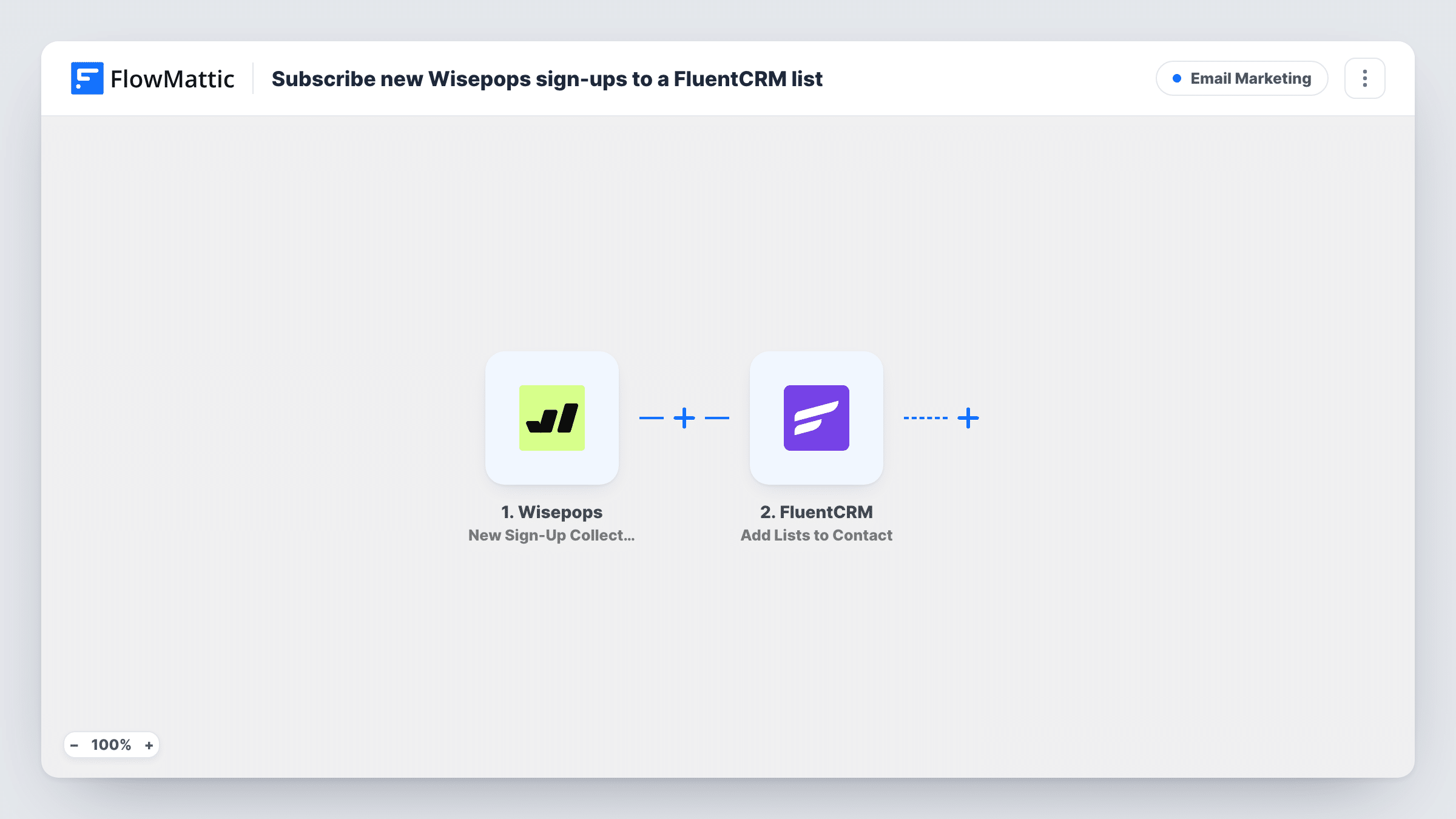
What this workflow does
A popup is often where a visitor first gives you an email address, and a sign-up that stays inside the popup tool never gets your emails. This workflow moves each Wisepops sign-up into FluentCRM on your WordPress site and files it on a list, so the person is ready for the campaigns you send from there.
The Wisepops trigger fires when one of your popups collects a new sign-up email. The address, plus any other fields your popup asks for, passes into the workflow.
The sign-up then goes through a pair of FluentCRM actions. Create or Update Contact looks up the email in FluentCRM: an unknown address becomes a new contact, and a known one is updated rather than duplicated. After that, Add Lists to Contact files the person on the lists you selected. Because the first step has already made sure the contact exists, the list step always has someone to work on.
Nothing is mapped in either FluentCRM action when you import. After import, map the Wisepops email, and the name if you collect it, into the contact step, then choose your lists in the second step and point it at the contact the first step returned. A test sign-up and a look at Task History confirm the contact and list landed where you expect.
Newsletter popup feeding a FluentCRM list
A food blog's Wisepops exit popup offers a weekly recipe email, and each sign-up lands on the FluentCRM newsletter list that the weekly campaign goes to.
Discount popup sign-ups on their own list
A shop that shows a first-order discount popup keeps those addresses on a separate FluentCRM list, so it can send the code and a short welcome series.
Lead magnet delivery from a popup
A consultant's popup offers a free checklist, and the FluentCRM list it adds people to starts an automation that emails the download link.
How this workflow runs
What happens at each step once the workflow is on, and what you need before you import it.
 Wisepops New Sign-Up Collected
Runs whenever one of your Wisepops campaigns captures a fresh email address. The email and any other fields the popup collects are passed to the FluentCRM steps.
- FluentCRM Create or Update Contact
Finds the contact in FluentCRM by email address, creating them if the address is new or updating them if it already exists. Map the Wisepops email, plus the name if your popup asks for it.
- FluentCRM Add Lists to Contact
Adds one or more FluentCRM lists to the contact from the previous step. The template leaves the lists unselected, so choose them after import and map the contact returned by Create or Update Contact.
What you need
- FlowMatticCore
- Wisepops AccountAccount
- FluentCRM PluginPlugin
After importing, map your own data. To keep the template universal, not every step is pre-filled. Open each step in the builder and connect your accounts and fields (channels, lists, sheets, recipients) before you switch the workflow on.
Make it yours
Changes worth making after you import it.
- Create the FluentCRM list before importing, so it's ready to select in the Add Lists to Contact step.
- If you run several Wisepops campaigns, put a Filter between the Wisepops trigger and Create or Update Contact that checks which popup the sign-up came from. Use a field your test sign-up actually shows.
- Pair the list with a FluentCRM automation that starts when a contact joins it, so each Wisepops sign-up gets a welcome email from your WordPress site.
Questions about this workflow
What happens if the Wisepops email is already a FluentCRM contact?
Create or Update Contact matches on email address, so the existing contact is updated rather than duplicated, and the list step then adds your chosen lists to that same contact.
Does the Wisepops to FluentCRM flow need the FluentCRM plugin?
Yes. FluentCRM is a WordPress plugin, and both action steps write to it. Install and activate it before you import, then create the lists you want to use.
Why does the template use two FluentCRM steps?
The list action can only attach lists to someone FluentCRM already holds. The Create or Update Contact step makes sure the Wisepops sign-up is in FluentCRM first, so the list step always has a contact to update.
Can each Wisepops popup add people to a different FluentCRM list?
Yes. Import one copy per popup with a Filter on the popup, or replace the single list step with a Router after Create or Update Contact, using routes on distinct popup values that can't both match, each ending in its own Add Lists to Contact step.
More Email Marketing workflows
Other ready-to-import templates from the same category.







Import this workflow into your WordPress site
Download the JSON, import it from the Workflows screen and connect your accounts. Every run stays on your server, with no per-task fees.
30-day money-back guarantee Unlimited workflows and runs Self-hosted