

Send a Slack alert when a LinkedCamp lead replies to a campaign
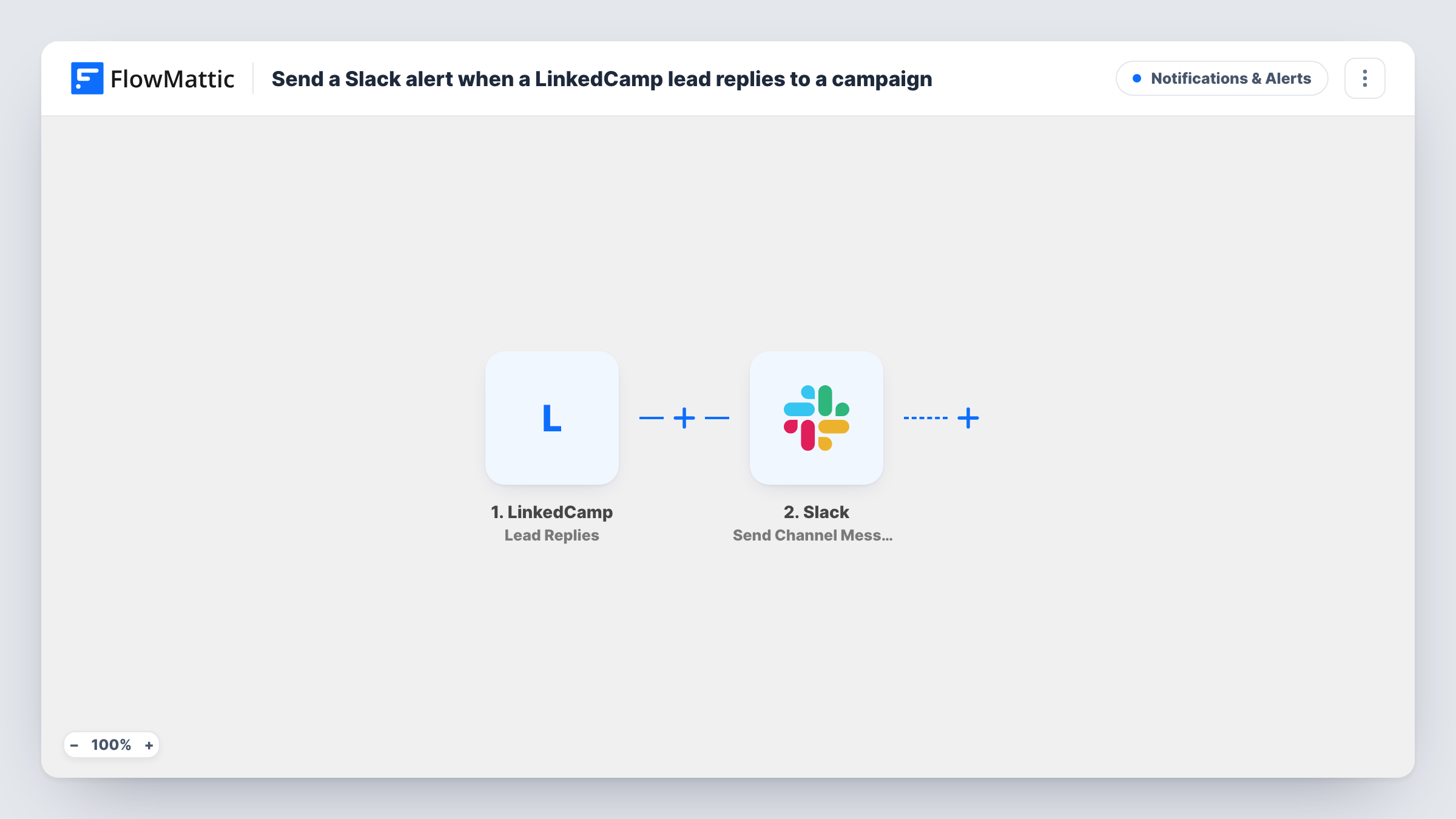
Whenever a lead replies to one of your LinkedCamp outreach campaigns, this workflow posts a message in the Slack channel you pick, so the person handling the conversation sees the reply right away.
 LinkedCamp
 Slack
2 steps Setup ~5 min Used on 1.7k sites Free to import
What this workflow does
LinkedIn outreach runs on volume, and the replies are the part that needs a human. If they only show up inside LinkedCamp, someone has to keep checking it, and a warm lead can wait hours for an answer. This workflow puts each reply in front of your team in Slack.
The LinkedCamp trigger, Lead Replies, fires when a lead replies. FlowMattic takes the data LinkedCamp sends about that lead and the reply and passes it to Slack. The Send Channel Message action posts a message to the channel you choose, and you write the text using mapped fields such as the lead's name or profile link.
Every reply from every campaign in the connected account starts a run, so busy campaigns mean more posts. If that is too much, a Filter can narrow it down. Task History records each alert, and the Slack response shows whether the post went through.
SDR team sharing one outreach account
Several reps work leads from the same LinkedCamp campaigns. A shared #linkedin-replies channel shows each new reply so someone claims it with a quick thread reply.
Agency running outreach for clients
You run LinkedIn campaigns on behalf of a client. Posting each reply in a Slack channel you share with them lets the client follow the conversations as they come in.
Founder doing outreach alone
You set campaigns in LinkedCamp and get on with your day. A Slack post on each reply tells you when to stop and answer someone who is interested.
How this workflow runs
What happens at each step once the workflow is on, and what you need before you import it.
 LinkedCamp Lead Replies
Fires when a lead replies in LinkedCamp. Details about the lead and their reply are passed on so you can include them in the Slack message.
- Slack Send Channel Message
Slack receives the alert in whichever public channel you select. Write the text and map the lead's details into it, such as their name, so the team knows who replied.
What you need
- FlowMatticCore
- LinkedCamp AccountAccount
- Slack AccountAccount
After importing, map your own data. To keep the template universal, not every step is pre-filled. Open each step in the builder and connect your accounts and fields (channels, lists, sheets, recipients) before you switch the workflow on.
Make it yours
Changes worth making after you import it.
- Send Channel Message is for regular channels. To post into a private channel, swap it for Slack's Send Private Channel Message action, or use Send Direct Message to alert one person.
- Add a Filter after the trigger that continues only for the campaign you care about most, if the LinkedCamp data includes the campaign name, so other campaigns stay out of Slack.
- Have a reply arrive on a test campaign after import so FlowMattic captures a sample, then check which fields hold the lead's name and message before you write the Slack text.
Questions about this workflow
Can the Slack alert include what the LinkedCamp lead wrote?
Only if LinkedCamp includes the reply text in the data it sends. Check the sample captured after a test reply; if a message field is there, map it into the Slack message.
Will every LinkedCamp campaign send replies to Slack?
Yes, as imported. The trigger has no campaign condition, so a reply in any campaign on the connected account starts a run. Add a Filter to limit it.
Can my team answer the lead from Slack?
No. The Slack post is only an alert. Replies to the lead still happen in LinkedCamp or on LinkedIn.
Does a lead who replies twice create two Slack posts?
Each reply that LinkedCamp reports starts its own run, so you can expect one post per reply rather than one per lead.
More Notifications & Alerts workflows
Other ready-to-import templates from the same category.





Import this workflow into your WordPress site
Download the JSON, import it from the Workflows screen and connect your accounts. Every run stays on your server, with no per-task fees.
30-day money-back guarantee Unlimited workflows and runs Self-hosted