

When a leave request is approved in Employment Hero, send a notification via WhatsApp Cloud API
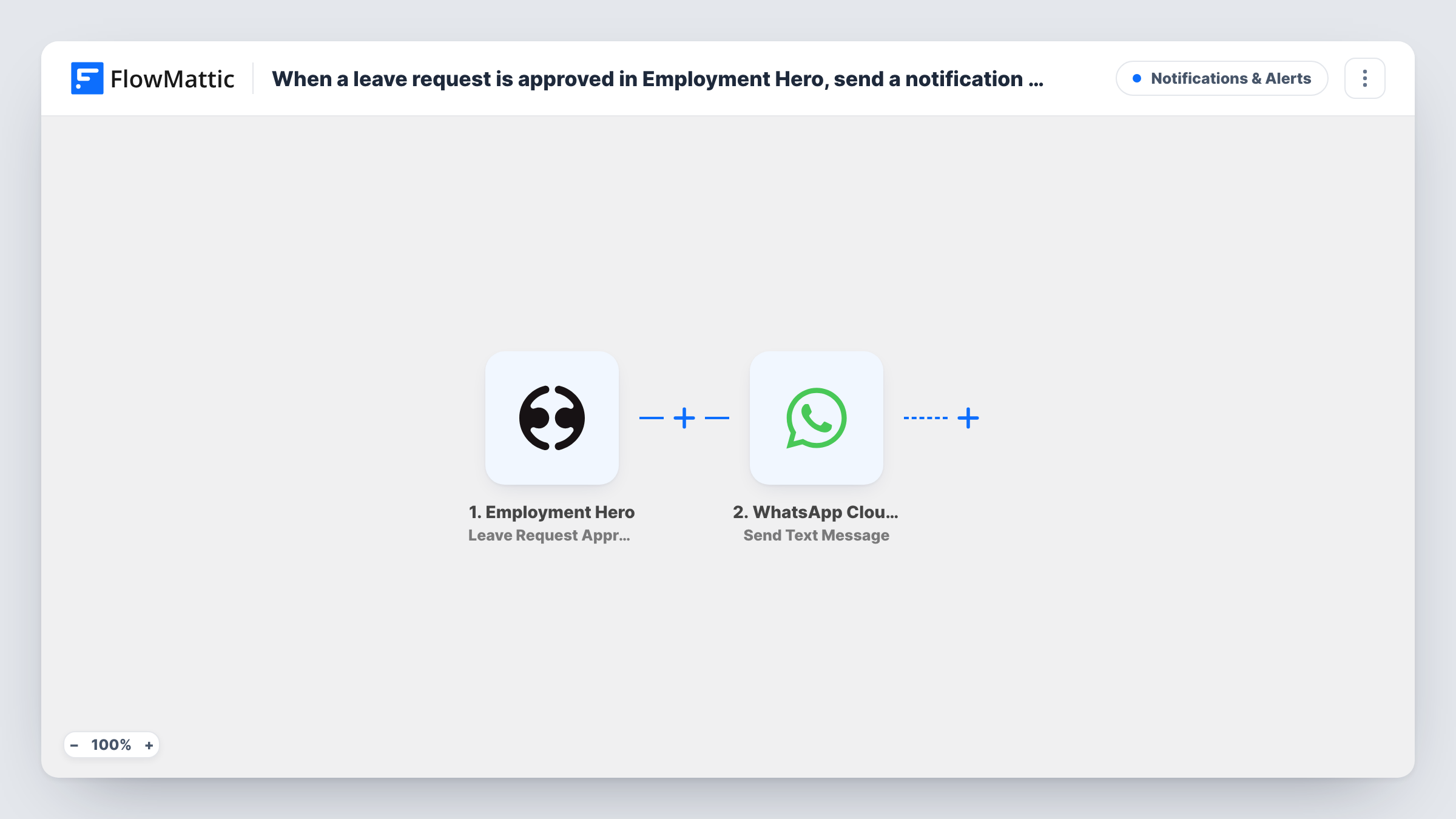
When a leave request is approved in Employment Hero, this workflow sends a WhatsApp text through the WhatsApp Cloud API, so the employee or a manager hears about the approval on their phone.
 Employment Hero
 WhatsApp Cloud API
2 steps Setup ~5 min Used on 1.7k sites Free to import
What this workflow does
Staff often wait on leave approvals before booking travel, and they don't always check the HR system. A WhatsApp message reaches them where they already are. This workflow sends one when a request is approved in Employment Hero.
The Employment Hero trigger fires when a leave request is approved, and the request details become available to map. Next, your connected business number sends a text through the WhatsApp Cloud API Send Text Message action. You set the recipient's number and write the text, adding details from the request such as the leave dates.
Two points before you rely on it. First, check what the trigger data contains: if it doesn't include the employee's phone number, you'll need a fixed number, such as a manager's, or another source for it. Second, WhatsApp only delivers a free-form text within 24 hours of the person messaging your business number. Employees who haven't messaged that number recently usually won't receive it, so switch to Send Template Message with an approved template.
Shift workers without a work email
Retail or warehouse staff rarely open the HR app. A WhatsApp text tells them their leave is confirmed so they can make plans.
Letting a rostering manager know
Send the approval to the manager who builds the roster, so they can fill the gap without waiting for a weekly HR report.
Small teams run from one phone
An owner who approves leave in Employment Hero gets a WhatsApp record of each approval on the business phone for quick reference.
How this workflow runs
What happens at each step once the workflow is on, and what you need before you import it.
 Employment Hero Leave Request Approved
Fires when a leave request is approved in Employment Hero. The request details are passed on so you can use them in the WhatsApp text and, if present, the employee's number.
- WhatsApp Cloud API Send Text Message
Sends a free-form WhatsApp text from your business number. Set the recipient and write the message with details from the leave request. Approve a test request and check Task History for WhatsApp's response.
What you need
- FlowMatticCore
- Employment Hero AccountAccount
- WhatsApp Cloud API AccountAccount
After importing, map your own data. To keep the template universal, not every step is pre-filled. Open each step in the builder and connect your accounts and fields (channels, lists, sheets, recipients) before you switch the workflow on.
Make it yours
Changes worth making after you import it.
- Switch the action to WhatsApp Cloud API Send Template Message and use an approved template, since employees usually haven't messaged your business number in the last 24 hours.
- Build a matching workflow on Employment Hero's Leave Request Declined trigger so staff hear about declined requests through the same channel.
- If the trigger data includes the leave type, add a Filter on it when you only want to send texts for certain kinds of leave.
Questions about this workflow
Does the Employment Hero trigger include the employee's phone number?
It depends on the data Employment Hero sends for the leave request. Approve a test request after import and look at the trigger data before mapping a recipient.
Why might an employee not get the WhatsApp leave approval text?
WhatsApp delivers free-form text only inside 24 hours of the person writing to your business number. Use an approved template message to reach people outside that window.
Is the leave approved in Employment Hero by this workflow?
No. Approval still happens in Employment Hero. The workflow only reacts after a request is approved and sends the text.
Does changing an approved leave request send another message?
This trigger fires on approval. Edits to a request have a separate Leave Request Updated trigger, which this template doesn't use.
More Notifications & Alerts workflows
Other ready-to-import templates from the same category.




Import this workflow into your WordPress site
Download the JSON, import it from the Workflows screen and connect your accounts. Every run stays on your server, with no per-task fees.
30-day money-back guarantee Unlimited workflows and runs Self-hosted