

Post a Slack message to the team when a new Masteriyo course is published
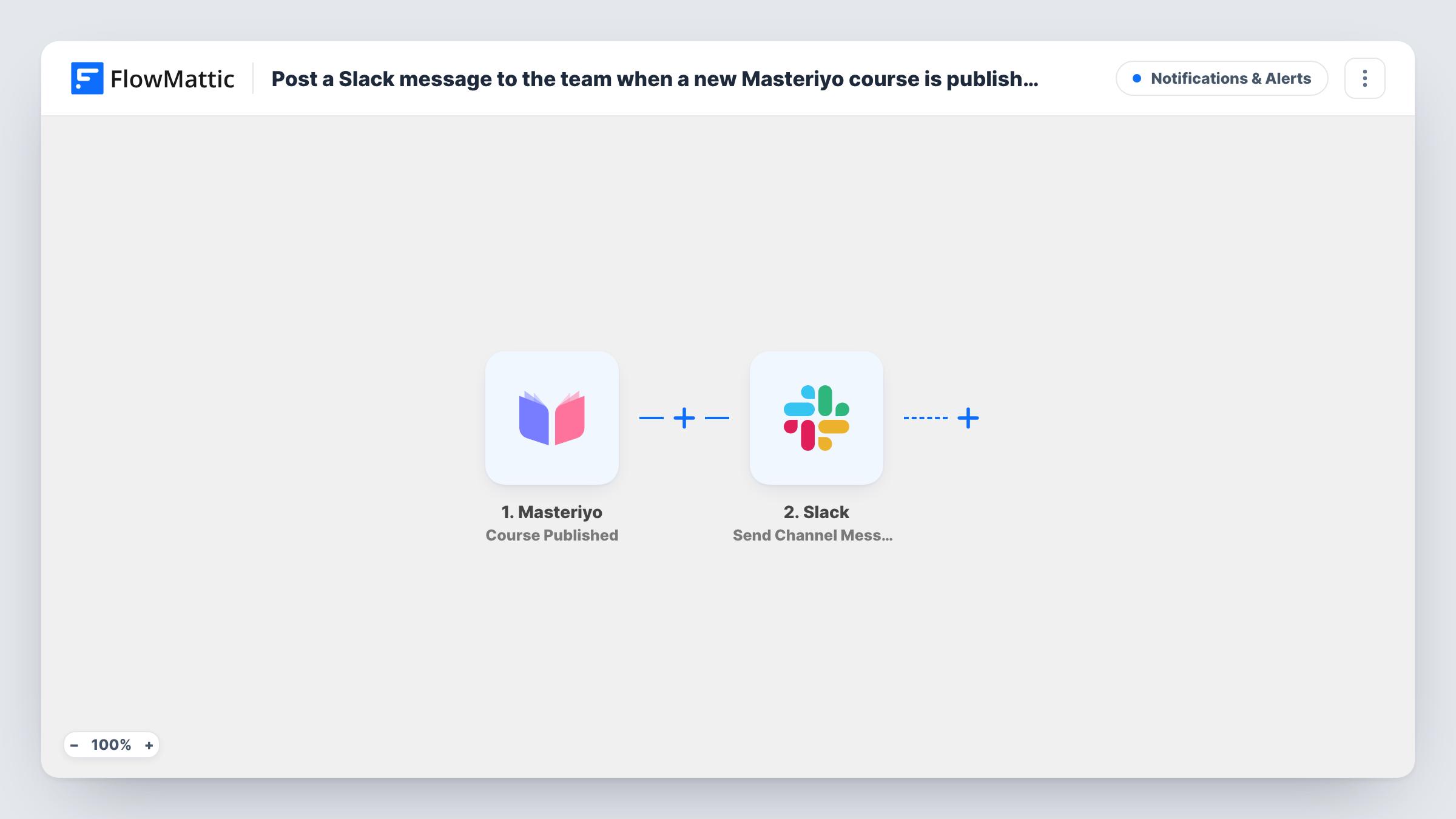
When a new course is published in Masteriyo on your WordPress site, this workflow posts a message about it to a Slack channel, so your team knows the course is live and can start promoting it.
 Masteriyo
 Slack
2 steps Setup ~5 min Used on 3.5k sites Free to import
What this workflow does
Publishing a course is usually the start of more work: marketing writes the launch email, support learns what students will ask, and instructors want to know it went out. If the news travels by word of mouth, someone hears about it late. This workflow tells the team in Slack as the course is published.
The Masteriyo trigger fires when a new course is published on your WordPress site. FlowMattic passes the course data to Slack, which posts a message to the channel you choose. You write the text and map in whichever course details the trigger provides.
Beyond the Slack post, nothing else happens. Your course, its lessons and its enrolment settings in Masteriyo stay as they are. Task History records each run, including the message Slack received.
Marketing kick-off for each launch
A post in #marketing tells the team a Masteriyo course just went live, so the launch email and social posts can go out the same day.
Online academies with several instructors
Each time an instructor publishes a course on your WordPress site, the whole academy team sees it in one Slack channel.
Support team preparation
Your support channel learns about each new course straight away, so agents can review it before the first student questions arrive.
How this workflow runs
What happens at each step once the workflow is on, and what you need before you import it.
 Masteriyo Course Published
Fires when a new course is published in Masteriyo on your WordPress site. The course data is passed to the Slack step so you can include it in the message.
- Slack Send Channel Message
Announces the course in a Slack channel of your choice. Write the text, map in Masteriyo course details from the trigger, and connect your Slack workspace on import.
What you need
- FlowMatticCore
- Masteriyo AccountAccount
- Slack AccountAccount
After importing, map your own data. To keep the template universal, not every step is pre-filled. Open each step in the builder and connect your accounts and fields (channels, lists, sheets, recipients) before you switch the workflow on.
Make it yours
Changes worth making after you import it.
- Publish a draft test course in Masteriyo after import so FlowMattic captures the course data, then map it in the Slack message and unpublish the test course.
- For a private team channel, replace the step with Slack's Send Private Channel Message action, since Send Channel Message is meant for regular channels.
- Add a second action, such as an email to your instructors, after the Slack step if people outside Slack also need to hear about new courses.
Questions about this workflow
Is a Slack message sent for every Masteriyo lesson or quiz I publish?
No. The trigger fires for courses being published, not lessons or quizzes inside them. Masteriyo has separate Lesson Published and Quiz Published triggers you could use in another workflow.
Do I need Masteriyo on the same WordPress site as FlowMattic?
Yes. The Course Published trigger listens to Masteriyo on the site where FlowMattic runs. You connect your Slack workspace in the second step.
Can the message include a link to the new Masteriyo course?
If the course data from the trigger includes its link, map it into the Slack text. A test run shows which course values are available.
More Notifications & Alerts workflows
Other ready-to-import templates from the same category.





Import this workflow into your WordPress site
Download the JSON, import it from the Workflows screen and connect your accounts. Every run stays on your server, with no per-task fees.
30-day money-back guarantee Unlimited workflows and runs Self-hosted