

Send a Slack alert to the team when a new Givebutter campaign is created
As soon as a campaign is created in Givebutter, this workflow posts a message to a Slack channel, so your fundraising and comms team hear about it without checking the Givebutter dashboard.
 Givebutter
 Slack
2 steps Setup ~5 min Used on 2.2k sites Free to import
What this workflow does
A new fundraising campaign usually needs work from several people: someone writes the emails, someone shares it on social, someone briefs volunteers. If those people learn about it late, the campaign starts quietly. This workflow tells your team in Slack the moment a campaign exists in Givebutter.
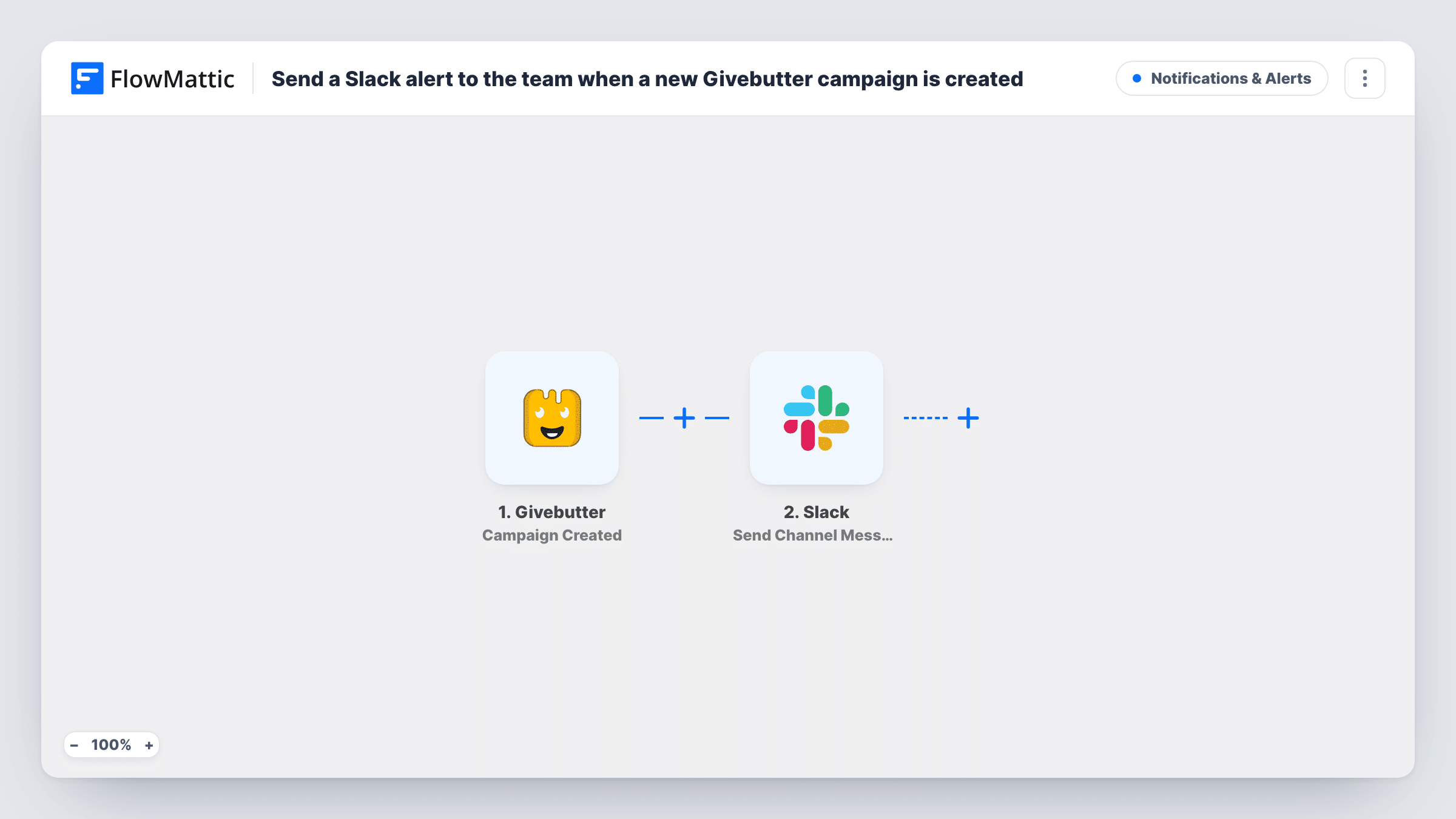
The Givebutter trigger fires when a campaign is created in your account. The campaign's details become available to map. The Slack step then posts a message to the channel you choose. You write the message and drop in whichever campaign values help your team.
The alert goes out on creation, not on launch, so a campaign you set up as a draft may be announced before it is public. Mention that in the message if your team should wait. Task History records every run along with the campaign data Givebutter sent.
Briefing the comms team
A development officer creates a year-end appeal in Givebutter. The #comms channel gets a message right away, so writers can start on the email and social posts.
Keeping chapters in the loop
A national charity posts each new campaign to a shared Slack channel, so regional staff see what headquarters has started.
Event fundraising prep
When an event campaign is created, volunteers coordinating the day see the alert in their Slack channel and can start planning.
How this workflow runs
What happens at each step once the workflow is on, and what you need before you import it.
 Givebutter Campaign Created
Fires whenever a campaign is created in your Givebutter account. The campaign details are passed on for use in the Slack message.
- Slack Send Channel Message
Connect your Slack workspace and choose the channel your fundraising team watches. Write the alert text and insert values from the new Givebutter campaign.
What you need
- FlowMatticCore
- Givebutter AccountAccount
- Slack AccountAccount
After importing, map your own data. To keep the template universal, not every step is pre-filled. Open each step in the builder and connect your accounts and fields (channels, lists, sheets, recipients) before you switch the workflow on.
Make it yours
Changes worth making after you import it.
- Run a test after import by creating a campaign in Givebutter, then check which campaign fields arrive and map them into the Slack text.
- Add a Delay before the Slack step if your team prefers to hear about campaigns after you've had time to finish setting them up.
- Add a second action after Slack, such as a Google Sheets row, if you also want a running log of every campaign you create.
Questions about this workflow
Does the Slack alert fire when a Givebutter campaign goes live?
It fires when the campaign is created. The template has no step that waits for the campaign to be published.
Will campaigns created before import be posted to Slack?
No. Only campaigns created after the workflow is turned on start a run.
Can I post the Givebutter alert to more than one Slack channel?
Yes. Add another Slack Send Channel Message step after the first and pick a different channel.
What does the Slack message say?
Whatever you write in the step. Combine fixed text with values from the Givebutter campaign, and run a test to see which values are available.
More Notifications & Alerts workflows
Other ready-to-import templates from the same category.



Import this workflow into your WordPress site
Download the JSON, import it from the Workflows screen and connect your accounts. Every run stays on your server, with no per-task fees.
30-day money-back guarantee Unlimited workflows and runs Self-hosted