

Send a Slack alert when a key Amplitude event is triggered
When a custom monitor you set up in Amplitude fires, FlowMattic posts a message to the Slack channel you pick, so your team hears about the product event you are watching without opening Amplitude.
 Amplitude
 Slack
2 steps Setup ~5 min Used on 2.4k sites Free to import
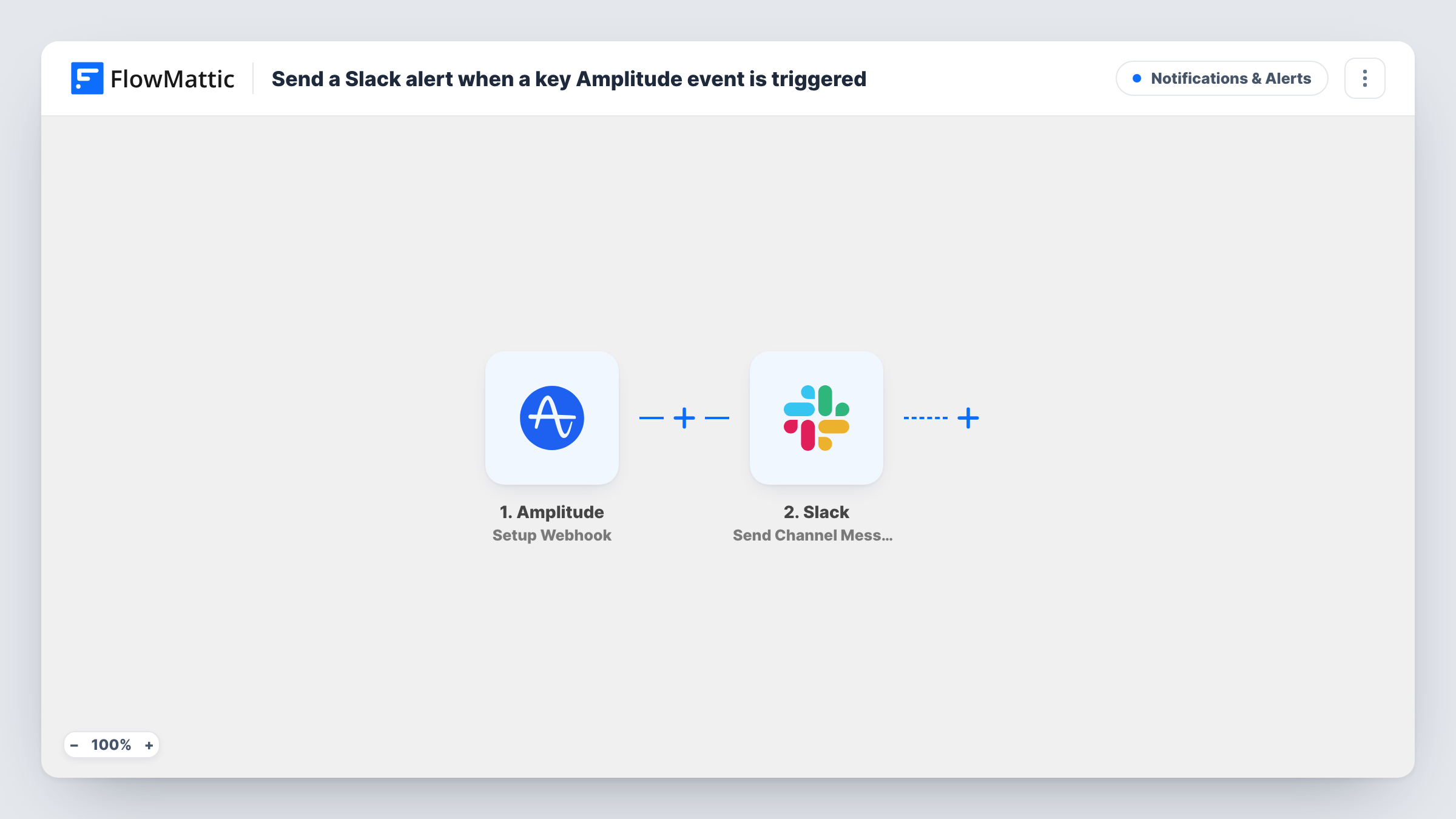
What this workflow does
Analytics dashboards only help when someone looks at them. If a sign-up flow breaks or a feature suddenly takes off, you want the people who can act to hear about it in the place they already talk. This workflow passes Amplitude's alerts straight into Slack.
The Amplitude trigger is Setup Webhook, which fires for custom monitors in Amplitude. You decide which event counts as key by building the monitor around it in Amplitude and pointing its webhook at the URL FlowMattic gives you. Each time the monitor sends an alert, FlowMattic receives the data and the Slack step posts a message to the channel you choose, with the alert details you map into the text.
Nothing is filtered as imported, so every alert the monitor sends becomes a Slack message. Send a test alert first, then check Task History to see which fields arrived and map the useful ones into the message.
Watch the checkout funnel
Build an Amplitude monitor on your purchase completed event. When it alerts, the growth team's Slack channel gets a message with the monitor details within the same run.
Spot a feature launch taking off
Set a monitor on the event a new feature fires. Product managers see the alert in their launch channel instead of checking the Amplitude chart through the day.
Catch a broken sign-up step
Monitor the sign-up completed event so engineering hears in Slack when Amplitude's monitor flags a change, and can check the form while the alert is fresh.
How this workflow runs
What happens at each step once the workflow is on, and what you need before you import it.
 Amplitude Setup Webhook
Gives you a webhook URL to add to a custom monitor in Amplitude. Each alert that monitor sends starts a run and passes its data to the Slack step.
- Slack Send Channel Message
Puts the alert in front of your team as a message in the Slack channel set on this step. Map the alert data from Amplitude into the message text so readers know which monitor fired, and connect your Slack workspace on import.
What you need
- FlowMatticCore
- Amplitude AccountAccount
- Slack AccountAccount
After importing, map your own data. To keep the template universal, not every step is pre-filled. Open each step in the builder and connect your accounts and fields (channels, lists, sheets, recipients) before you switch the workflow on.
Make it yours
Changes worth making after you import it.
- Add a Filter after the trigger that continues only for the monitor you care most about, if several Amplitude monitors post to the same webhook URL.
- To reach one person instead of a channel, swap the step for Slack's Send Direct Message action. Alerts meant for a private channel need the Send Private Channel Message action instead.
- Add a Router with one route per monitor, each with its own Slack step, so alerts for different teams go to different channels.
Questions about this workflow
Which Amplitude events will post to Slack?
Only alerts from the Amplitude custom monitors you connect to this webhook. The trigger does not watch every tracked event, so build a monitor around each event you consider key.
Can Amplitude alerts land in a private Slack channel?
Not with this action as imported. Send Channel Message posts to a channel you pick. Slack has a separate Send Private Channel Message action in FlowMattic for private channels.
Will one Amplitude monitor post more than once?
Yes, if it alerts more than once. Each alert Amplitude sends to the webhook starts a new run, and each run posts its own Slack message.
Do I need a paid Slack plan for this Amplitude alert workflow?
The workflow only needs a Slack workspace you can connect to FlowMattic and a channel to post in. Check your Amplitude plan for which monitor and webhook features it includes.
More Notifications & Alerts workflows
Other ready-to-import templates from the same category.




Import this workflow into your WordPress site
Download the JSON, import it from the Workflows screen and connect your accounts. Every run stays on your server, with no per-task fees.
30-day money-back guarantee Unlimited workflows and runs Self-hosted