

Send a Slack notification when a new comment is added in Stormboard
Each time someone comments on an idea in Stormboard, this workflow posts a message to a Slack channel you choose, so people who are not watching the board still see the discussion as it happens.
 Stormboard
 Slack
2 steps Setup ~5 min Used on 1.5k sites Free to import
What this workflow does
Comments on a Stormboard idea are where people question it, add detail or agree on next steps. Unless you keep the board open, you only find them when you next visit. If your team talks in Slack all day, the quicker route is to have each comment show up there.
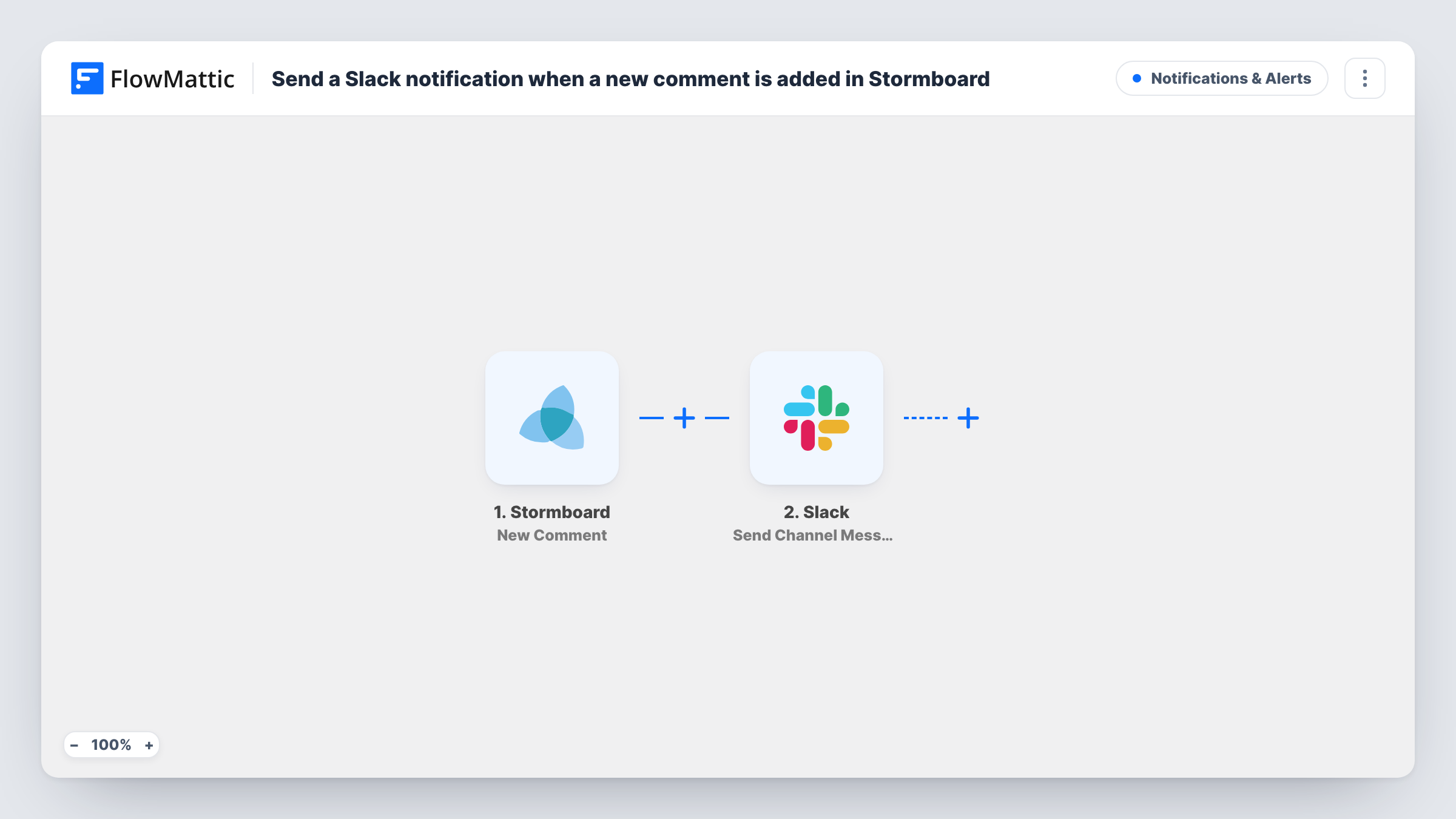
The Stormboard trigger, New Comment, fires when a comment is created on an idea. FlowMattic takes the comment data Stormboard sends and hands it to the next step. The Slack step, Send Channel Message, posts a message to the channel you pick, built from the comment values you map into it.
There is no Filter in the template, so every new comment the trigger receives produces one Slack message. After import, connect both accounts, add a test comment to see which values Stormboard passes on, then write the message text. Task History keeps a record of each run and what each step sent or received.
Feedback on ideas during a long brainstorm
A board stays open for a week of input. Each comment lands in the project's Slack channel, so the owner of an idea sees the feedback without checking the board every hour.
Client comments on a shared board
An agency invites a client to comment on concepts in Stormboard. Every client remark appears in the account team's Slack channel, where they can agree on a reply.
Remote retrospective follow-up
After a retro, teammates keep adding comments to the action ideas. The Slack channel collects those late remarks so nobody misses a question about an action.
How this workflow runs
What happens at each step once the workflow is on, and what you need before you import it.
 Stormboard New Comment
Fires when a comment is created on an idea in Stormboard. Connect your Stormboard account and complete the trigger settings. The comment details Stormboard sends become available to map into the Slack message.
- Slack Send Channel Message
Sends the comment on to Slack as a channel message. Connect your Slack workspace, pick the channel and build the message from the Stormboard comment values. A test run shows which values you can use.
What you need
- FlowMatticCore
- Stormboard AccountAccount
- Slack AccountAccount
After importing, map your own data. To keep the template universal, not every step is pre-filled. Open each step in the builder and connect your accounts and fields (channels, lists, sheets, recipients) before you switch the workflow on.
Make it yours
Changes worth making after you import it.
- Put the idea's text or link next to the comment in the Slack message, if Stormboard sends them, so readers know which idea the comment belongs to.
- Add a Filter after the trigger when you only want comments from certain boards or authors in Slack. Comments that fail the condition end the run there.
- Send comments from different boards to different Slack channels by swapping in a Router, with one route and one Slack step per board.
Questions about this workflow
Will every Stormboard comment be posted to Slack?
Yes, every comment the trigger receives runs the workflow. There is no Filter as imported, so add one after the trigger if you want only some comments in the channel.
Are Stormboard comments made before I import this posted to Slack?
No. The trigger reacts to comments created after the workflow is turned on. Earlier comments stay on the board only.
Can I reply in Slack and have it appear in Stormboard?
Not with this template. It only sends information from Stormboard to Slack. Replies in the Slack thread stay in Slack.
Can the Slack message mention a teammate?
You write the message text yourself, so you can include a Slack mention for the person who should see it. Check the result with a test comment.
More Notifications & Alerts workflows
Other ready-to-import templates from the same category.




Import this workflow into your WordPress site
Download the JSON, import it from the Workflows screen and connect your accounts. Every run stays on your server, with no per-task fees.
30-day money-back guarantee Unlimited workflows and runs Self-hosted