

Send a Slack alert to the team for every new Epos Now transaction
Every transaction made in Epos Now posts a message to a Slack channel, so owners and managers can follow sales as they happen without logging in to the till system.
 Epos Now
 Slack
2 steps Setup ~5 min Used on 2.0k sites Free to import
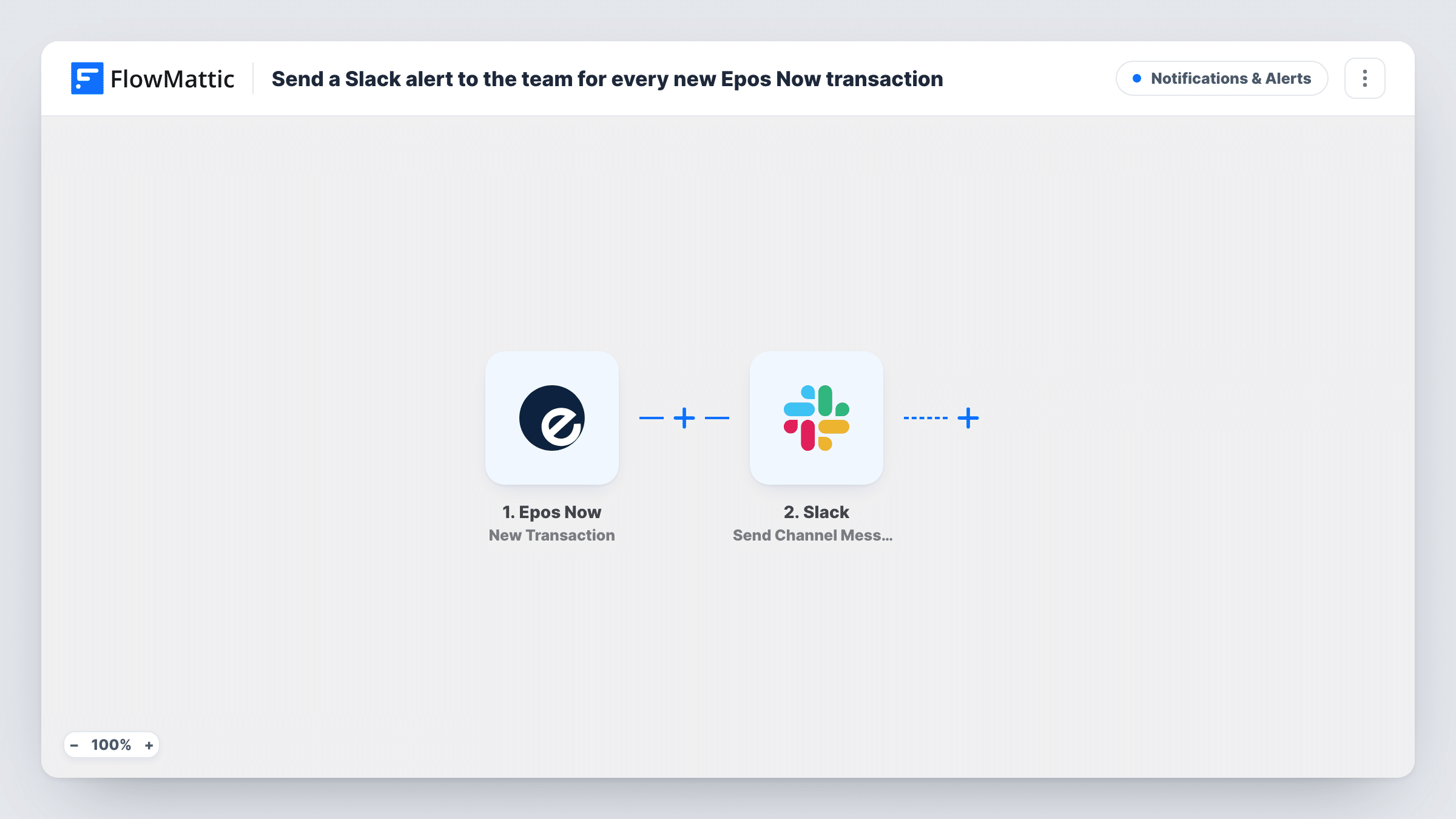
What this workflow does
When you aren't on the shop floor, the only way to see how trade is going is to open the Epos Now back office. Many owners and managers already spend the day in Slack. This workflow posts each sale to a channel there, so the team sees activity as it happens.
Each sale rung up in Epos Now starts a run through its New Transaction trigger. FlowMattic then uses Slack's Send Channel Message action to post to the channel you choose. You write the message and map transaction details into it, such as the total and the time of sale. A test run shows which fields Epos Now sends.
The template posts for every transaction, with no Filter. On a busy day that is a lot of messages, so pick a channel set aside for sales, or add a Filter to post only larger sales.
Owner away from the shop
A café owner working from home follows each sale in a Slack channel and can see when the lunch rush starts.
Multi-site managers
An area manager reads one Slack channel to see sales coming in from a shop, without opening Epos Now on a laptop.
Large sale alerts
With a Filter on the transaction total, only big sales reach the channel, so the team can thank the customer or check stock.
How this workflow runs
What happens at each step once the workflow is on, and what you need before you import it.
 Epos Now New Transaction
Runs each time a transaction is made in your Epos Now account. The transaction details become available to map into the Slack message.
- Slack Send Channel Message
Sends the sale summary as a message to a Slack channel. Connect your Slack workspace, pick a public channel, and write the message using the Epos Now transaction fields.
What you need
- FlowMatticCore
- Epos Now AccountAccount
- Slack AccountAccount
After importing, map your own data. To keep the template universal, not every step is pre-filled. Open each step in the builder and connect your accounts and fields (channels, lists, sheets, recipients) before you switch the workflow on.
Make it yours
Changes worth making after you import it.
- Add a Filter after the trigger that continues only when the transaction total is greater than an amount you set. Keep in mind the Filter compares whole numbers, so 49.99 is treated as 49.
- Sales figures you'd rather keep to a few people can go to a private channel through Slack's Send Private Channel Message action, or to one manager through Send Direct Message.
- Put the total first in the message text so the amount shows in Slack notifications on phones.
Questions about this workflow
Will every Epos Now sale post to Slack?
Yes. There is no Filter in the template, so each transaction posts one message. Add a Filter after the trigger to limit it by total or another field.
Can Epos Now sales post to a private Slack channel?
The shipped action, Send Channel Message, isn't the one for that. Replace it with Slack's Send Private Channel Message action and choose your private channel there.
Which Epos Now details can I put in the Slack message?
Whatever fields the New Transaction trigger returns. Make a test sale after import, then pick the fields you want from the captured data.
More Notifications & Alerts workflows
Other ready-to-import templates from the same category.





Import this workflow into your WordPress site
Download the JSON, import it from the Workflows screen and connect your accounts. Every run stays on your server, with no per-task fees.
30-day money-back guarantee Unlimited workflows and runs Self-hosted