

Create or update MailerLite subscribers for new enrollments into a LearnDash course
Each time a user is enrolled into a LearnDash course, FlowMattic creates them as a MailerLite subscriber, or updates their existing record, so your course roster and your email list stay in line.
 LearnDash
 MailerLite
2 steps Setup ~5 min Used on 2.3k sites Free to import
What this workflow does
Your LearnDash students and your MailerLite subscribers are often the same people, but the two lists drift apart when you update them by hand. A new student who never reaches MailerLite misses your course emails. This workflow sends each new enrollment to MailerLite.
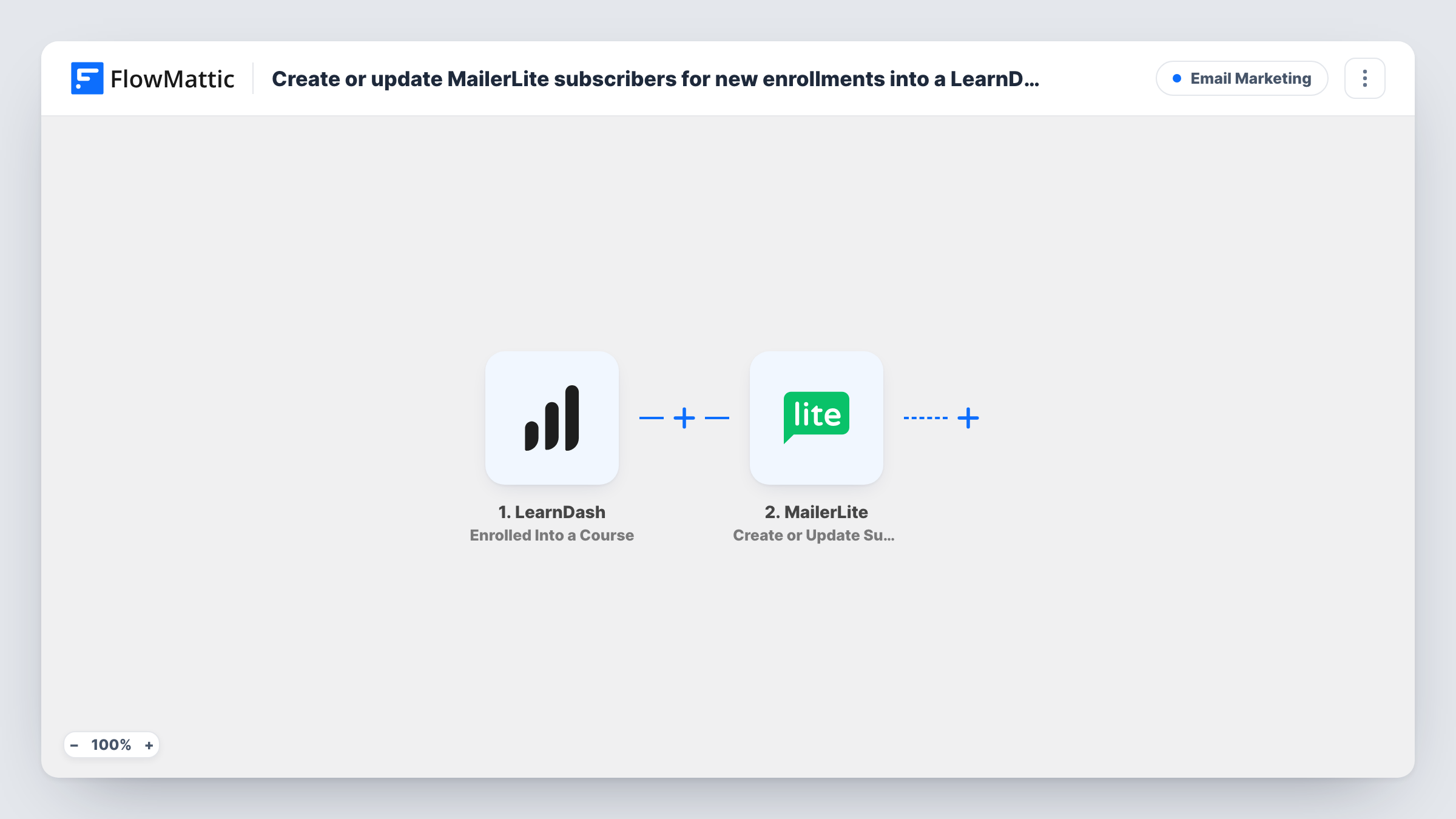
The LearnDash trigger, Enrolled Into a Course, fires when a user is enrolled into a course on your site. The user's details and the course information become values you can map.
The MailerLite step is Create or Update Subscriber. It creates a new subscriber, or updates an existing one, with the email and any custom fields you map. That makes it safe for students who are already on your list or who enroll in more than one course: their record is updated, not duplicated. Every enrollment runs the workflow, and Task History shows each run with MailerLite's reply.
Course updates for enrolled students
You email students about new lessons from MailerLite, and every enrollment adds the student to the list you send to.
Tracking the latest course per student
Map the course name into a MailerLite custom field so each subscriber shows the course they most recently joined.
Upsells after a free course
Students of a free LearnDash course become MailerLite subscribers, ready for the email that introduces your paid course.
How this workflow runs
What happens at each step once the workflow is on, and what you need before you import it.
 LearnDash Enrolled Into a Course
Fires when a user is enrolled into a course in LearnDash. The user's name, email and the course details are passed on to the MailerLite step for mapping.
- MailerLite Create or Update Subscriber
Creates the student as a MailerLite subscriber, or updates them if they already exist. Connect MailerLite, map the email and name, and add any custom fields such as the course title.
What you need
- FlowMatticCore
- LearnDash PluginPlugin
- MailerLite AccountAccount
After importing, map your own data. To keep the template universal, not every step is pre-filled. Open each step in the builder and connect your accounts and fields (channels, lists, sheets, recipients) before you switch the workflow on.
Make it yours
Changes worth making after you import it.
- Add MailerLite's Add Subscriber to a Group action after this step to place students in a group per course. The subscriber exists by then, so the group step has a record to work with.
- Use a Filter after the trigger if only some LearnDash courses should send students to MailerLite.
- Run a test enrollment after import so FlowMattic captures the LearnDash data, then finish mapping the MailerLite fields before you switch the workflow on.
Questions about this workflow
What happens if the LearnDash student is already a MailerLite subscriber?
Create or Update Subscriber updates the existing subscriber with the values you mapped, so no duplicate is made.
Will a student enrolled in two LearnDash courses run the workflow twice?
Yes. Each enrollment is its own run. The second run updates the same MailerLite subscriber, so a course field will show the latest course.
Are students who enrolled earlier sent to MailerLite?
No. Only enrollments after the workflow is turned on start a run. Import earlier students into MailerLite separately.
Do admin-added LearnDash enrollments reach MailerLite too?
Yes. The trigger fires whenever a user is enrolled into a course, so an admin enrollment counts the same as one from a purchase.
More Email Marketing workflows
Other ready-to-import templates from the same category.








Import this workflow into your WordPress site
Download the JSON, import it from the Workflows screen and connect your accounts. Every run stays on your server, with no per-task fees.
30-day money-back guarantee Unlimited workflows and runs Self-hosted