

Subscribe new Cardz contacts to a Mailchimp audience for follow-up
When someone leaves their email through a Cardz email block on your digital business card, this workflow adds them to your Mailchimp audience, or updates them if they are already there, ready for your follow-up emails.
 Cardz
Cardz
 Mailchimp
2 steps Setup ~5 min Used on 374 sites Free to import
What this workflow does
A digital business card gets handed out at meetings, events and in email signatures. When people use its email block to leave their address, those contacts sit in Cardz until you export them. This workflow moves each one into Mailchimp as soon as it is captured, so your follow-up can start from the list you already send from.
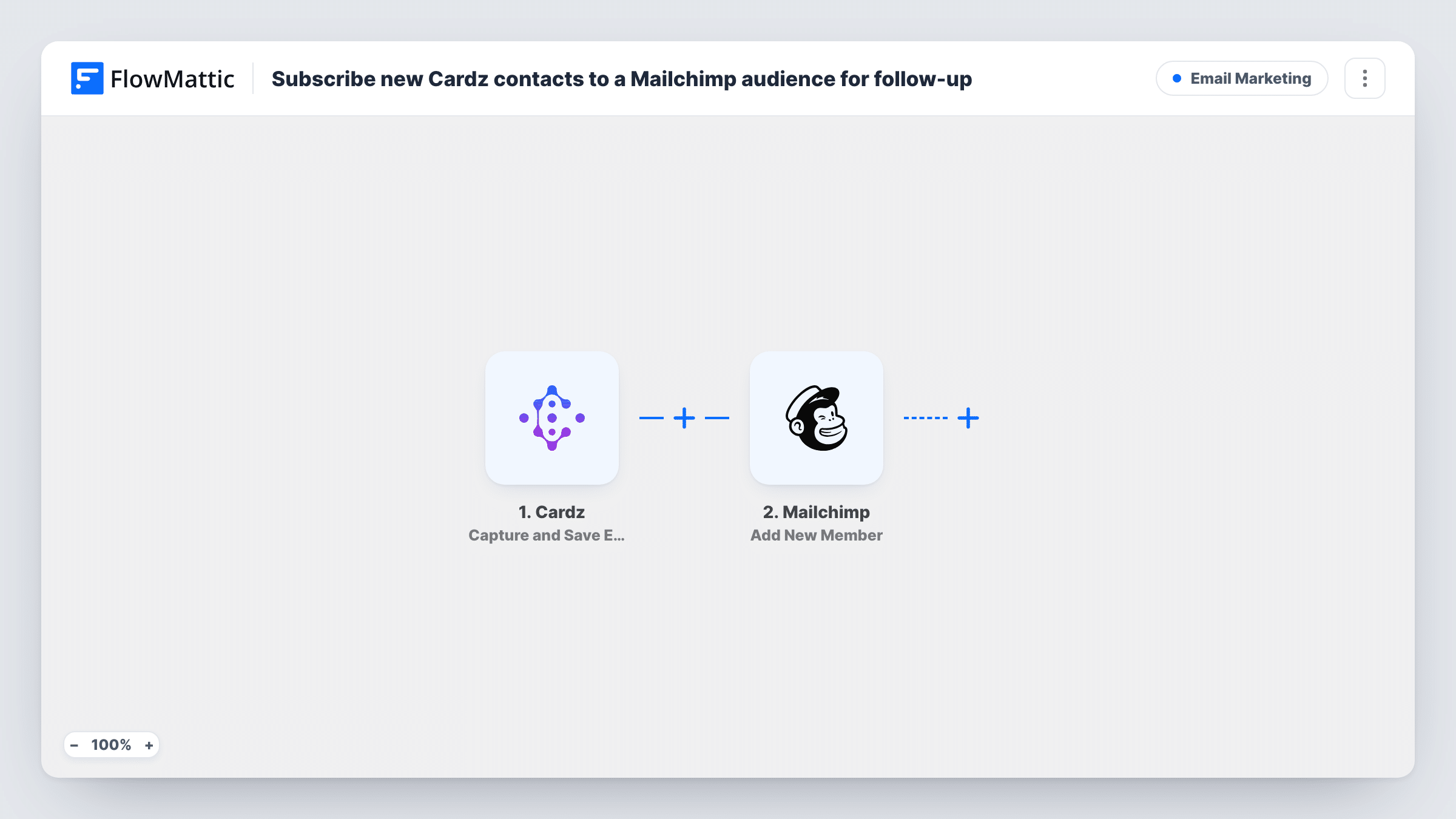
The Cardz trigger fires on the Capture and Save Email Block Event, which is when a visitor saves their details through an email block on your card. FlowMattic passes that data to Mailchimp. The Add New Member action adds the address to the audience you choose, or updates the member if that address is already on the list.
Only captures made after you turn the workflow on are sent across. Any welcome or nurture emails come from your own Mailchimp setup, such as an automation for new members of that audience; this workflow only gets the contact into the list. Each run, with the reply Mailchimp sent back, is listed in Task History.
Trade show contacts
Visitors to your booth scan your card and leave their email. They land in a Mailchimp audience you set up for the event, and you send one follow-up email to everyone after the show.
Consultant's card in an email signature
Prospects who click through from your signature and leave their address join your newsletter audience without you copying them over.
Sales team cards feeding one list
Each rep's Cardz card captures emails at meetings, and the workflow keeps the company's Mailchimp audience current from all of them.
How this workflow runs
What happens at each step once the workflow is on, and what you need before you import it.
 Cardz Capture and Save Email Block Event
Fires when a visitor saves their email through an email block on your Cardz card. The captured details become available to map in the Mailchimp step.
- Mailchimp Add New Member
Adds the email address to your Mailchimp audience as a new member, or updates the member if the address already exists. Map the Cardz email and any name fields, and connect your Mailchimp account.
What you need
- FlowMatticCore
- Cardz AccountAccount
- Mailchimp AccountAccount
After importing, map your own data. To keep the template universal, not every step is pre-filled. Open each step in the builder and connect your accounts and fields (channels, lists, sheets, recipients) before you switch the workflow on.
Make it yours
Changes worth making after you import it.
- Capture one test email on your own Cardz card after import, so FlowMattic picks up the event's fields before you map them in the Mailchimp step.
- Use a Mailchimp automation triggered by new audience members to send the actual follow-up email, since this workflow only adds the contact.
- Want a plain record of every capture as well? Add a Google Sheets Add New Row step after Mailchimp and map the same Cardz fields, so you can see each contact even if Mailchimp returns an error.
Questions about this workflow
What if the Cardz contact is already in my Mailchimp audience?
Mailchimp's Add New Member action updates that member rather than adding the address twice. The values you map replace what Mailchimp holds, so a blank field in the Cardz data could overwrite a value you had.
Does this send an email to the new Cardz contact?
No. It only adds the person to your Mailchimp audience. Any email they receive comes from a campaign or automation you set up in Mailchimp.
Are contacts captured before I import this added to Mailchimp?
No. The trigger only picks up email block captures that happen while the workflow is on. Export older Cardz contacts and import them into Mailchimp separately.
Do I need anything in Cardz for this to work?
Your card needs an email block that visitors can fill in, since that is the event the trigger listens for. Connect your Cardz account when you import the workflow.
More Email Marketing workflows
Other ready-to-import templates from the same category.



Import this workflow into your WordPress site
Download the JSON, import it from the Workflows screen and connect your accounts. Every run stays on your server, with no per-task fees.
30-day money-back guarantee Unlimited workflows and runs Self-hosted