

When a new user is added to WordPress, add a new member to Mailchimp list
When a user account is created on your WordPress site, this workflow adds that person to the Mailchimp audience you choose, or updates them if they are already a member, so your list keeps pace with site sign-ups.
 WordPress
 Mailchimp
2 steps Setup ~5 min Used on 3.1k sites Free to import
What this workflow does
Your site's user list and your Mailchimp audience drift apart unless someone syncs them. People register, never get your newsletter, and the CSV export you meant to run each month gets skipped. This workflow copies each new WordPress user into Mailchimp the moment the account exists.
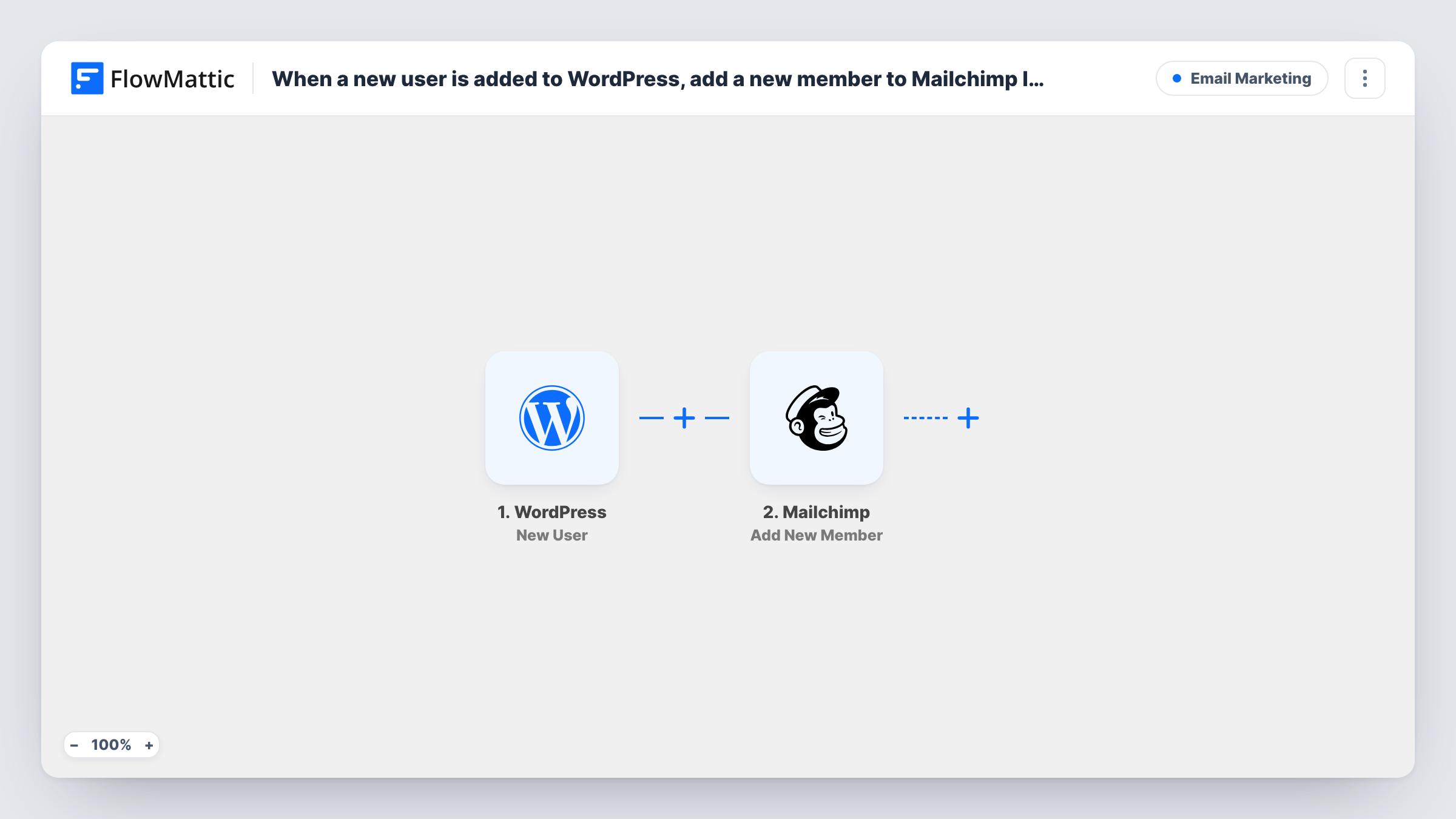
The WordPress trigger, New User, runs when a user is registered on the site where FlowMattic is installed. It hooks into WordPress user creation, so accounts made through the registration page, a membership or shop plugin, or the admin screen all count. The user's details and stored meta pass to Mailchimp, where Add New Member puts the email on your list, or updates the existing member if the address is already there.
As imported there is no Filter, so every new account is sent. Check that people agreed to marketing email before you add them, and use the tips below to narrow who gets through. Task History shows each run and Mailchimp's reply.
Online course students
Students create a WordPress account to access lessons. Each one joins the Mailchimp audience you use for course announcements and new-module emails.
Customers who register at checkout
A WordPress shop creates an account for buyers who choose to register. They are added to Mailchimp, so your product updates reach account holders.
Members of a private community
New members of a members-only site land in Mailchimp, where you send the monthly community round-up.
How this workflow runs
What happens at each step once the workflow is on, and what you need before you import it.
 WordPress New User
Fires whenever WordPress creates a new user account on this site. The user's email, login name and stored user meta become available to map into Mailchimp.
- Mailchimp Add New Member
Adds the new user to the Mailchimp list you choose, or updates the member if that email is already on it. Connect your Mailchimp account and map the WordPress email, plus any name values you want.
What you need
- FlowMatticCore
- Mailchimp AccountAccount
After importing, map your own data. To keep the template universal, not every step is pre-filled. Open each step in the builder and connect your accounts and fields (channels, lists, sheets, recipients) before you switch the workflow on.
Make it yours
Changes worth making after you import it.
- Add a Filter after the trigger on the user's role, found in the user meta, so administrator and editor accounts never reach your Mailchimp audience.
- Use a Router with one route per user role, each with its own Mailchimp step, when customers and members belong in different audiences.
- Create a test user from the WordPress admin screen after import, then confirm the member appears in Mailchimp before you turn the workflow on for real sign-ups.
Questions about this workflow
What if the new WordPress user is already in my Mailchimp audience?
Add New Member updates an existing member instead of adding a duplicate, so the person stays on the list once with the latest details you map.
Do users I add from the WordPress admin screen go to Mailchimp too?
Yes. The trigger runs for every new user account, however it is created. Add a Filter on role or another value to leave some accounts out.
Are existing WordPress users sent to Mailchimp when I turn this on?
No. Only accounts created after activation are sent. Move your current users with a one-off export and import.
Does deleting a WordPress user remove them from Mailchimp?
No. This workflow only reacts to new accounts. A deleted user stays in your Mailchimp audience until you remove them there.
More Email Marketing workflows
Other ready-to-import templates from the same category.





Import this workflow into your WordPress site
Download the JSON, import it from the Workflows screen and connect your accounts. Every run stays on your server, with no per-task fees.
30-day money-back guarantee Unlimited workflows and runs Self-hosted