

When an Optimizely bounce is recorded, log it in Google Sheets and notify the team in Slack
Each new bounce event in Optimizely is written to a Google Sheets row and announced in a Slack channel, giving you a running bounce log and a prompt for whoever looks after your sending.
 Optimizely
 Google Sheets
 Slack
3 steps Setup ~5 min Used on 3.0k sites Free to import
What this workflow does
Bounces tell you an address could not be reached. When nobody looks at them, the same dead addresses stay on your lists. Seeing each bounce in a shared sheet and in team chat makes it easier to spot a pattern and act on it.
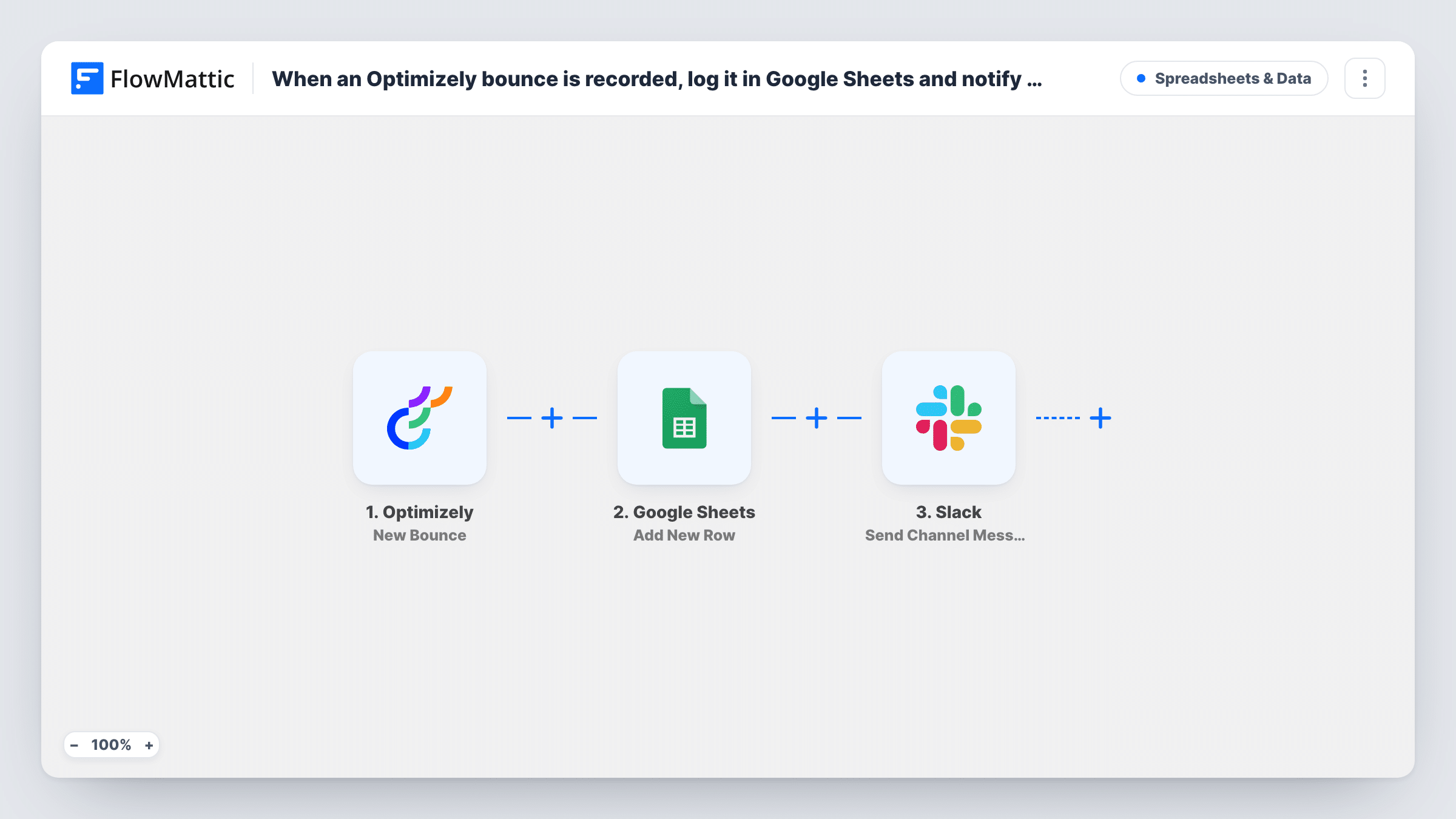
The Optimizely trigger picks up every bounce event Optimizely records from now on. FlowMattic writes the bounce data as a new row in Google Sheets, with your columns mapped to values from the event such as the recipient and the time. Next, a message goes to the Slack channel you select, with whichever event values you place in the text.
Every bounce posts its own message, so a large send with many bad addresses can produce many Slack messages in a short time. The tips below show how to keep the sheet complete while limiting the chat noise.
Weekly list cleanup
An email manager opens the bounce sheet each Friday, sorts by address and removes those addresses from the next import.
Catching a bad import early
Slack shows bounces arriving one after another right after a new list is used, so the team pauses the send and checks the file.
Reporting bounces to a client
An agency shares the Google Sheet with the client, who sees every bounce from their campaigns without an Optimizely login.
How this workflow runs
What happens at each step once the workflow is on, and what you need before you import it.
 Optimizely New Bounce
Starts a run whenever Optimizely creates a new bounce event. The values in the event are passed on to the sheet and the Slack message.
- Google Sheets Add New Row
Writes the bounce to a new row in the spreadsheet you choose. Connect Google, pick the sheet, and map the event values to your column headings.
- Slack Send Channel Message
Posts a message about the bounce to a Slack channel you select. Compose the text and insert values from the Optimizely event so readers know which address bounced.
What you need
- FlowMatticCore
- Optimizely AccountAccount
- Google Sheets AccountAccount
- Slack AccountAccount
After importing, map your own data. To keep the template universal, not every step is pre-filled. Open each step in the builder and connect your accounts and fields (channels, lists, sheets, recipients) before you switch the workflow on.
Make it yours
Changes worth making after you import it.
- To log every bounce but alert Slack less often, delete the Slack step here and build a second workflow on a schedule that reads the sheet and posts a daily summary.
- Add a Filter between the Google Sheets step and the Slack step on a bounce event value, such as a bounce type, so every bounce gets its row but only the kind your team acts on is posted.
- Use Slack's Send Private Channel Message action instead if the alerts belong in a private channel, or Send Direct Message to tell one person.
Questions about this workflow
Are older Optimizely bounces copied into the sheet?
No. Only bounce events created after the workflow is turned on start a run, so earlier bounces stay in Optimizely.
Will busy Optimizely sends flood my Slack channel?
Each bounce posts one message, so a send with many bad addresses produces many messages. A Filter between the Google Sheets step and the Slack step, or a daily summary instead, keeps the channel readable.
Do I need to prepare the Google Sheet for Optimizely bounces?
Yes. Make a spreadsheet with column headings for the bounce values you want to keep, then pick it in the Add New Row step and map the event values to those headings after a test bounce.
Which bounce details can I put in the sheet and the Slack message?
Whatever the Optimizely bounce event contains. Trigger a test bounce after import and the captured values appear for mapping in both steps.
More Spreadsheets & Data workflows
Other ready-to-import templates from the same category.




Import this workflow into your WordPress site
Download the JSON, import it from the Workflows screen and connect your accounts. Every run stays on your server, with no per-task fees.
30-day money-back guarantee Unlimited workflows and runs Self-hosted