

Log every new UpGuard data leak in a Google Sheets risk register
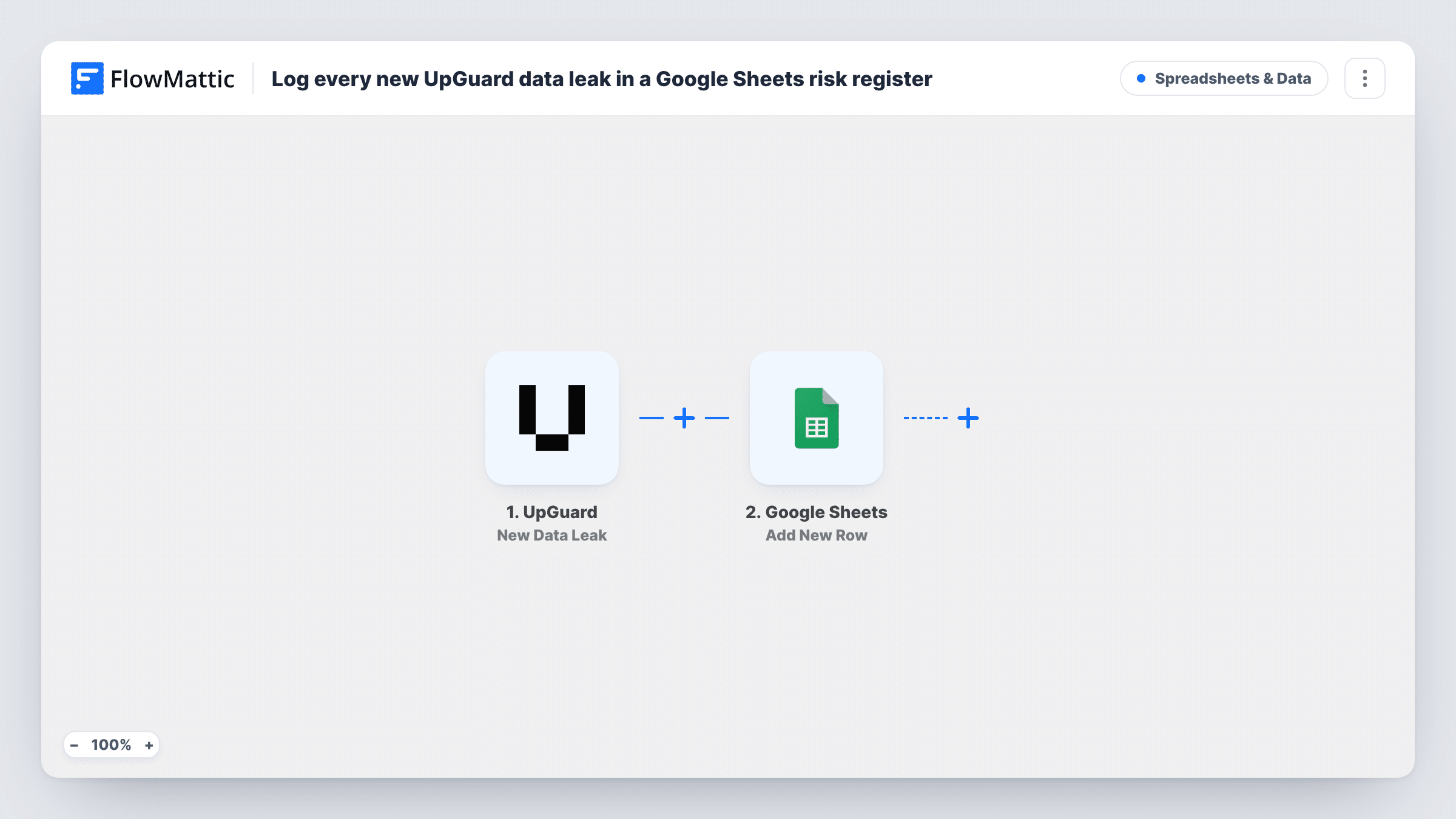
Each time UpGuard publishes a new data leak, this workflow adds it as a row in your Google Sheets risk register, so every exposure is written down where your team reviews risk.
 UpGuard
 Google Sheets
2 steps Setup ~5 min Used on 3.0k sites Free to import
What this workflow does
A risk register only helps if it is complete. When data leak findings stay inside the UpGuard dashboard, someone has to remember to copy each one over, and the register drifts out of date. This workflow writes each new leak into the sheet for you.
The UpGuard trigger fires when a new data leak is published in your account. FlowMattic receives the leak details and passes them to Google Sheets. The Add New Row action then appends one row to the register sheet you select, with the leak details mapped to your columns.
The workflow only records. It doesn't assign an owner, rate severity or change anything in UpGuard. Your team adds those judgements in their own columns of the sheet. Each run is listed in Task History with the data UpGuard sent and the result from Google Sheets.
Audit evidence for a security review
Auditors ask how you track exposures. The sheet shows each UpGuard data leak with the date it was logged, next to your team's notes on how it was handled.
Weekly risk meeting agenda
Before the meeting, sort the register by date and walk through the leaks added since last week, with status and owner columns your team fills in.
Sharing findings with legal or compliance
People outside the security team can read the Google Sheet without an UpGuard login, so they see new leak entries as they are logged.
How this workflow runs
What happens at each step once the workflow is on, and what you need before you import it.
 UpGuard New Data Leak
Runs when UpGuard publishes a new data leak for your account. The leak details from that event are passed on for mapping into the register.
- Google Sheets Add New Row
Appends a row for the leak to the risk register spreadsheet and sheet you select. Map UpGuard's leak details to your columns and connect your Google account.
What you need
- FlowMatticCore
- UpGuard AccountAccount
- Google Sheets AccountAccount
After importing, map your own data. To keep the template universal, not every step is pre-filled. Open each step in the builder and connect your accounts and fields (channels, lists, sheets, recipients) before you switch the workflow on.
Make it yours
Changes worth making after you import it.
- Leave extra columns such as owner, severity and status unmapped, so your team can fill them in by hand next to each logged UpGuard leak.
- Add a Slack or email step after Google Sheets if a new leak should also alert someone, not just wait in the register.
- UpGuard has other FlowMattic triggers, such as New Identity Breach. Import this workflow a second time with that trigger to log breaches in the same register.
Questions about this workflow
Does the workflow log UpGuard leaks found before I turn it on?
No. It reacts to new data leaks published after the workflow is active. Add older findings to the sheet yourself.
Can I see the severity of each UpGuard leak in the sheet?
Only if UpGuard includes it in the trigger data. Run a test after import and look at the fields the trigger returns, then map whichever ones you need.
Does it change anything in UpGuard?
No. The trigger reads the new leak and the only action writes to Google Sheets. Nothing is resolved or updated in UpGuard.
Is Google Sheets a safe place for leak details?
That depends on who can open the spreadsheet. Keep sharing limited to the people who handle risk, and map only the fields your register needs.
More Spreadsheets & Data workflows
Other ready-to-import templates from the same category.




Import this workflow into your WordPress site
Download the JSON, import it from the Workflows screen and connect your accounts. Every run stays on your server, with no per-task fees.
30-day money-back guarantee Unlimited workflows and runs Self-hosted