

Log every new Okta system event in a Google Sheets spreadsheet
Every new event in your Okta org is written to a Google Sheets spreadsheet as its own row, giving you a plain, searchable record of identity activity outside the Okta admin console.
 Okta
 Google Sheets
2 steps Setup ~5 min Used on 2.6k sites Free to import
What this workflow does
Okta records sign-ins, password changes, app assignments and much more. Reviewing that activity normally means opening the admin console and searching its log. A spreadsheet copy lets you sort, filter and share the history with people who don't have Okta admin access.
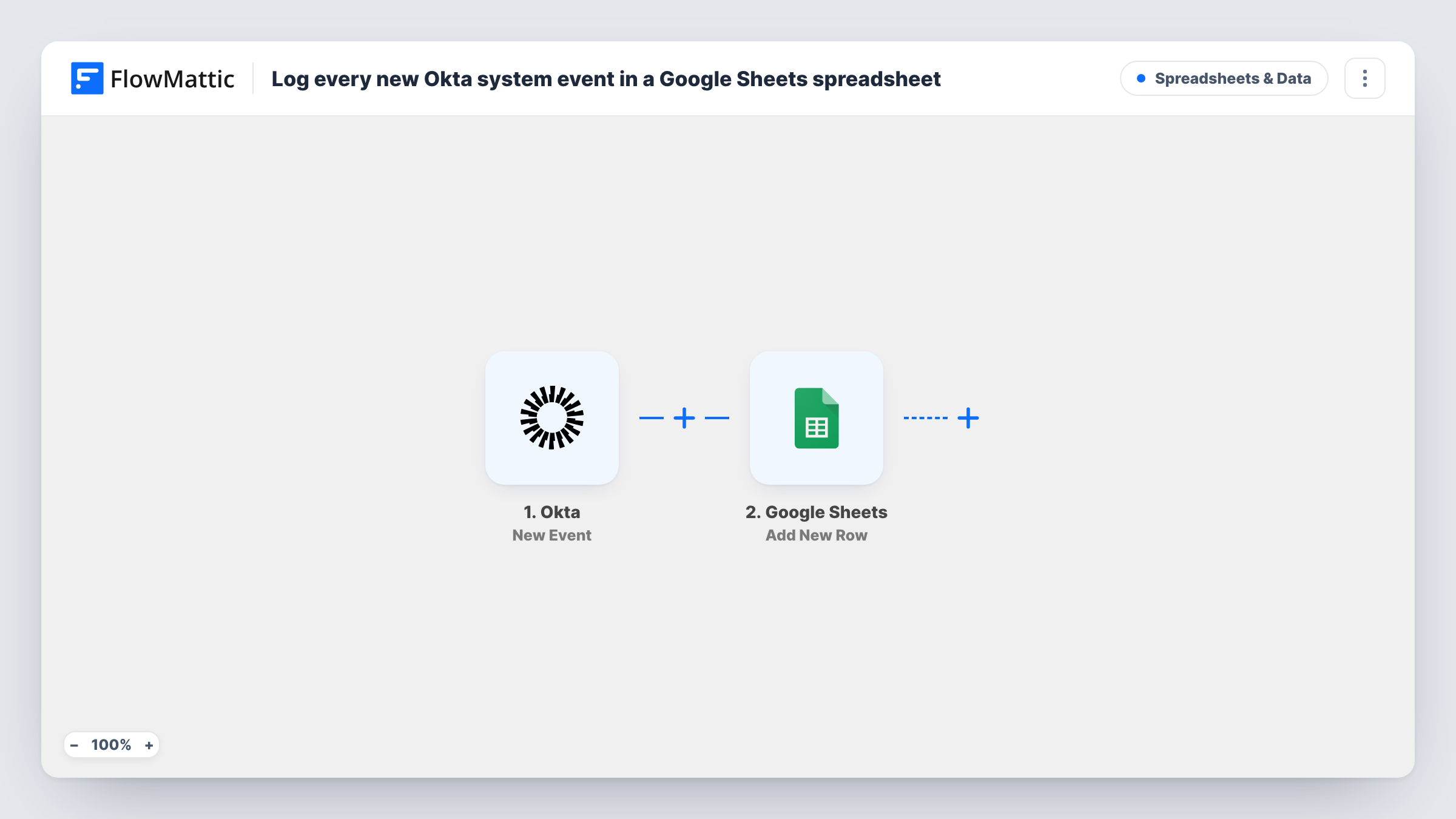
The Okta trigger fires for each new event that occurs in Okta. FlowMattic takes the event data and sends it to Google Sheets, where Add New Row appends it to the sheet you pick. You map which event details fill which columns, for example the event type, the user and the time.
There is no Filter in the template, so every event the trigger receives becomes a row. An active org can generate a lot of events, so think about whether you want all of them before you switch it on. Task History shows each run and the result from Google Sheets.
Simple audit trail for a small IT team
A team without a SIEM keeps Okta activity in a sheet they can search by user or date when someone asks who changed what.
Reviewing access changes each month
Filter the spreadsheet by event type to list app assignments and removals from the past month for an access review.
Sharing activity with an auditor
Give an auditor view access to the sheet so they can check Okta events without an Okta admin account.
How this workflow runs
What happens at each step once the workflow is on, and what you need before you import it.
 Okta New Event
Runs for each new event that occurs in your Okta org. The event details are passed on so you can map them into spreadsheet columns.
- Google Sheets Add New Row
Appends the Okta event to the spreadsheet and sheet you choose as one new row. Map event fields to your columns and connect your Google account on import.
What you need
- FlowMatticCore
- Okta AccountAccount
- Google Sheets AccountAccount
After importing, map your own data. To keep the template universal, not every step is pre-filled. Open each step in the builder and connect your accounts and fields (channels, lists, sheets, recipients) before you switch the workflow on.
Make it yours
Changes worth making after you import it.
- Add a Filter after the trigger that continues only for the event types you care about, such as sign-in failures or user deactivations, to keep the sheet readable.
- Use a Router to send different Okta event types to different sheets, for example sign-ins to one tab and admin changes to another.
- Map the event time into its own column so you can sort rows by when they happened in Okta, not only by when they were added.
Questions about this workflow
Does every Okta event end up in the Google Sheet?
Yes, as imported. The template has no Filter, so each event the Okta trigger fires for becomes a row. A Filter placed before the sheet step can limit which Okta events get logged.
Does it copy my existing Okta system log?
No. Only events that occur after the workflow is turned on are added. Export older log entries from Okta if you need them in the sheet.
Can the sheet show which user an Okta event belongs to?
If the event data includes the user, yes. Trigger a test event after import, then map the user fields you see in the trigger's output to a column.
Will the spreadsheet get very large?
It can. Each event adds a row, and a busy Okta org produces many events. A Filter on event type keeps only the rows you need.
More Spreadsheets & Data workflows
Other ready-to-import templates from the same category.




Import this workflow into your WordPress site
Download the JSON, import it from the Workflows screen and connect your accounts. Every run stays on your server, with no per-task fees.
30-day money-back guarantee Unlimited workflows and runs Self-hosted