

When a form is submitted in Getsitecontrol, store data in Airtable
Each time a visitor submits a Getsitecontrol form on your site, FlowMattic creates a new record in the Airtable base and table you choose, holding the answers they gave.
 Getsitecontrol
 Airtable
2 steps Setup ~5 min Used on 1.2k sites Free to import
What this workflow does
Getsitecontrol widgets collect emails, feedback and survey answers on your website. Keeping those answers in Airtable lets you sort them, add your own columns and share a view with your team. This workflow moves each submission into Airtable without exports.
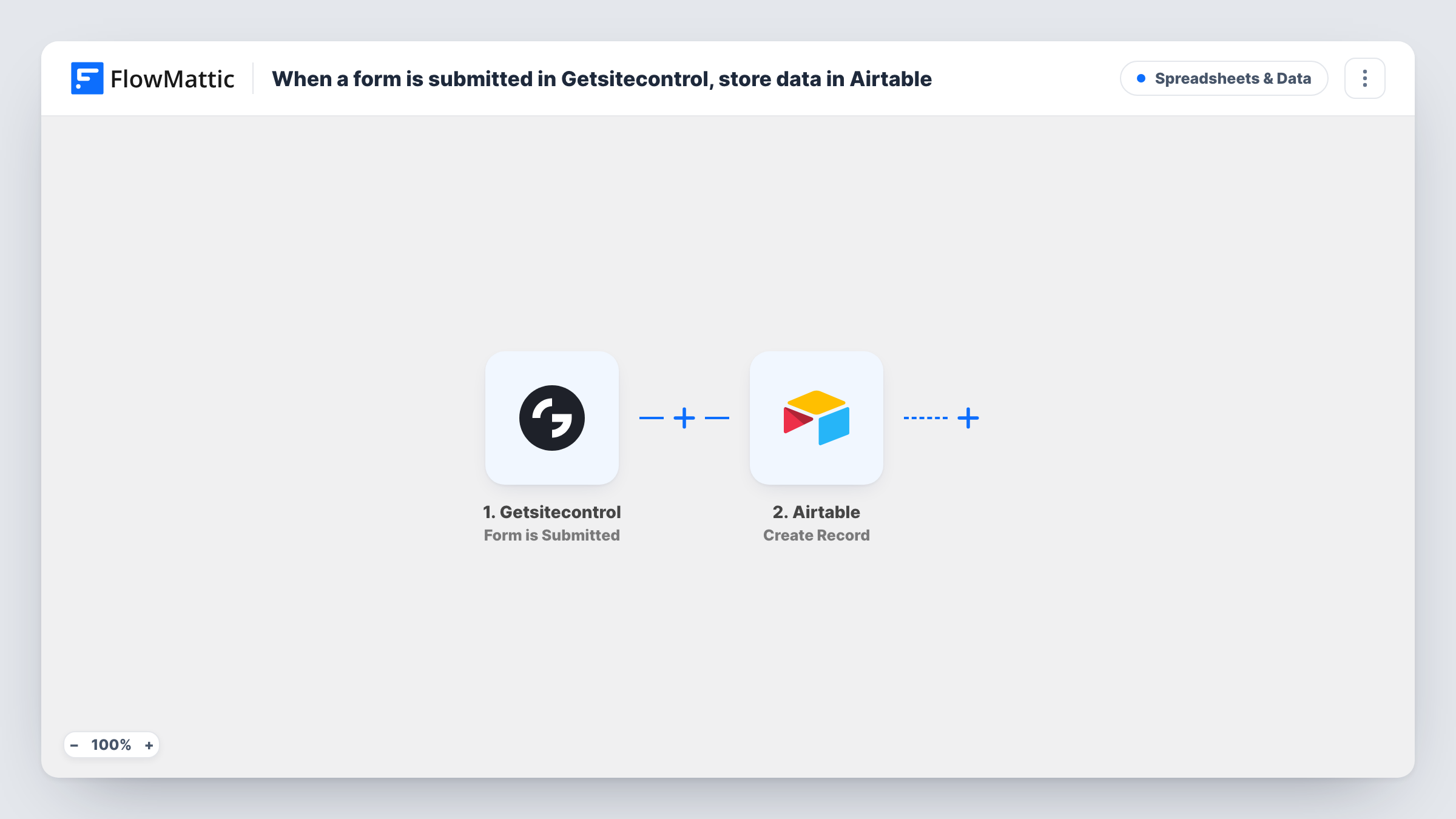
The Getsitecontrol trigger, Form is Submitted, fires when a form is submitted. FlowMattic then runs Create Record in Airtable, adding one new record to the base and table you pick. You decide which Getsitecontrol answer goes into which Airtable field.
Each submission makes its own record, so a visitor who submits twice appears twice. Task History keeps a log of each run, which helps when a field doesn't land where you expected.
Exit-intent survey answers
Answers from a Getsitecontrol exit survey land in an Airtable table, where you tag each reason for leaving and count them in a grouped view.
Collecting feature requests
A feedback widget on your app's site sends each request to Airtable, and your product team adds status and priority fields next to it.
Contest entries
Entries from a Getsitecontrol giveaway form become Airtable records, so you can filter eligible entries and pick a winner from the table.
How this workflow runs
What happens at each step once the workflow is on, and what you need before you import it.
 Getsitecontrol Form is Submitted
Fires when a visitor submits a Getsitecontrol form on your website. The submitted answers are passed on to the Airtable step.
- Airtable Create Record
Adds one record to the Airtable base and table you choose. Map each Getsitecontrol answer to the matching Airtable field and connect your Airtable account.
What you need
- FlowMatticCore
- Getsitecontrol AccountAccount
- Airtable AccountAccount
After importing, map your own data. To keep the template universal, not every step is pre-filled. Open each step in the builder and connect your accounts and fields (channels, lists, sheets, recipients) before you switch the workflow on.
Make it yours
Changes worth making after you import it.
- Add a Created time field in your Airtable table, so every record shows when the Getsitecontrol submission arrived without mapping a date.
- Run several Getsitecontrol widgets? Add a Filter after the trigger on a value that tells the forms apart, so only one widget's answers reach this table.
- Submit a test entry after import so FlowMattic captures the field names, then match each one to an Airtable field before you turn the workflow on.
Questions about this workflow
Will a repeat Getsitecontrol submission update the earlier Airtable record?
No. Create Record always adds a new record, so a person who submits twice has two records. Use Airtable's grouping or a search step if you need to find duplicates.
Do my Airtable field types have to match the Getsitecontrol answers?
They should. Text answers fit text fields best. If a field expects a number, a date or a set option, send a matching value, then check Task History after a test.
Are older Getsitecontrol submissions copied into Airtable?
No. Only forms submitted after the workflow is on create records. Bring in older answers with an export and an Airtable CSV import.
More Spreadsheets & Data workflows
Other ready-to-import templates from the same category.




Import this workflow into your WordPress site
Download the JSON, import it from the Workflows screen and connect your accounts. Every run stays on your server, with no per-task fees.
30-day money-back guarantee Unlimited workflows and runs Self-hosted