

Create a Freshdesk ticket from each new Okta event
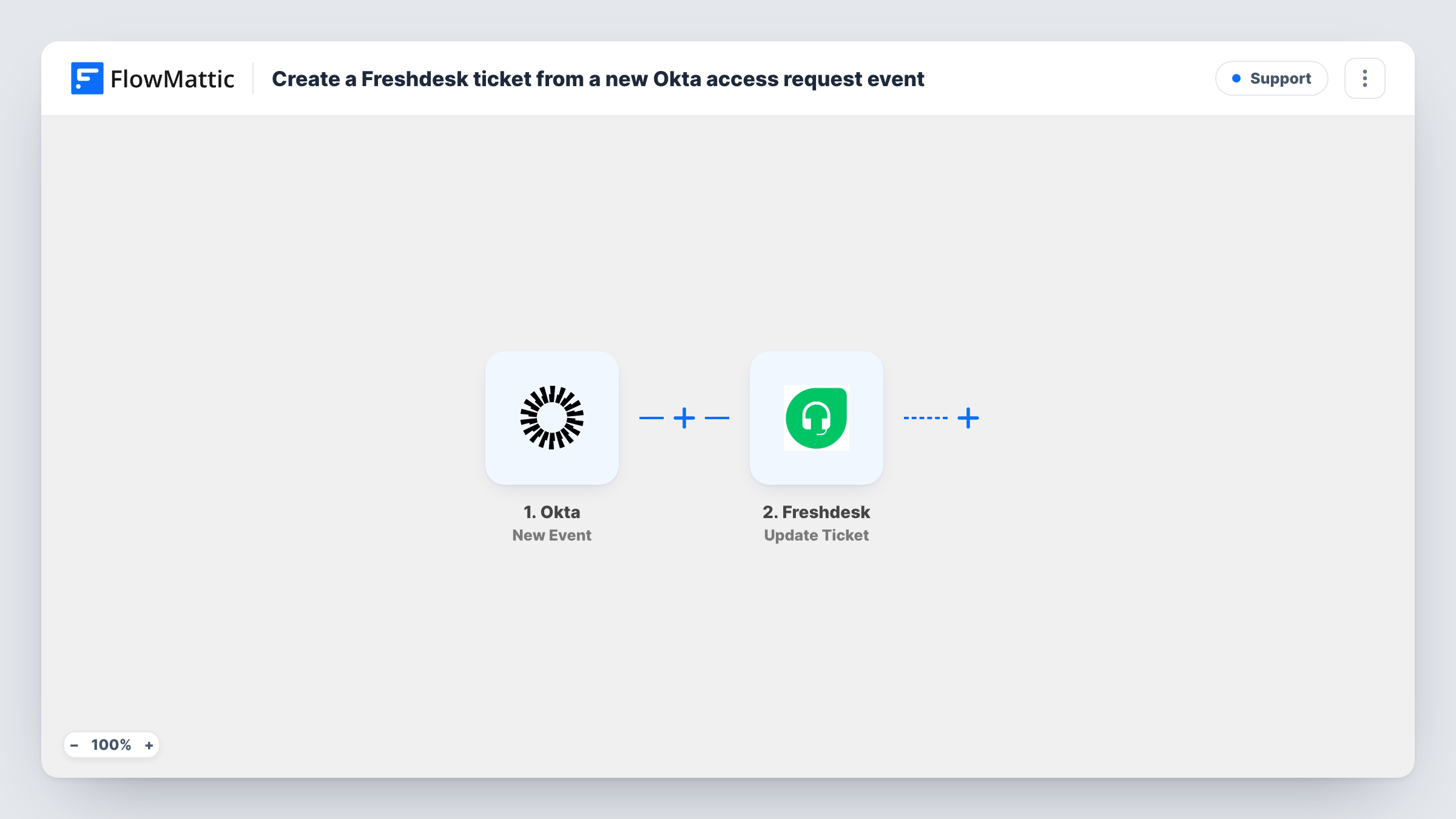
Every event Okta sends to FlowMattic opens a Freshdesk ticket through an API by FlowMattic POST request that you point at your Freshdesk account and fill with the event’s details.
 Okta
 API by FlowMattic
2 steps Setup ~5 min Used on 3.0k sites Free to import
What this workflow does
Identity events often need a person to look at them: a user locked out, an app assignment to confirm, an admin change to review. Raising a helpdesk ticket for each one gives your IT team an owner, a status and a history for every event instead of a stream of logs.
The Okta New Event trigger starts a run for each event Okta delivers to FlowMattic. Which events arrive is up to you: in Okta you choose the event types the hook sends, and each one that comes through creates a ticket. Whatever details Okta includes about the event are available to map.
FlowMattic's Freshdesk integration has triggers but no actions, so the ticket is created with API by FlowMattic. Nothing in the request is set yet. After import you enter the Freshdesk ticket endpoint for your helpdesk, add your Freshdesk API authentication, and build the ticket body from the Okta data, following Freshdesk's API documentation for the required fields.
Send a test event from Okta, then open Task History to read the response Freshdesk returned. A successful call shows the new ticket; an error response tells you which field or credential to fix.
Lockout tickets for the service desk
An IT team subscribes the Okta hook to account lockout events, so each locked-out employee becomes a Freshdesk ticket an agent can pick up and close.
Audit trail for admin changes
A security lead sends Okta admin privilege changes to the hook, and every change gets a ticket that records who reviewed it.
App access requests in one queue
A company whose staff request app access in Okta handles each request as a Freshdesk ticket beside the rest of its IT work.
How this workflow runs
What happens at each step once the workflow is on, and what you need before you import it.
 Okta New Event
Runs for each event Okta delivers to this workflow. Choose in Okta which event types it sends; each event's details are passed to the POST step for mapping.
- API by FlowMattic POST
Sends a POST request that creates the Freshdesk ticket. It ships unmapped: after import add your Freshdesk ticket endpoint and API credentials, then build the ticket body from the Okta event data.
What you need
- FlowMatticCore
- Okta AccountAccount
After importing, map your own data. To keep the template universal, not every step is pre-filled. Open each step in the builder and connect your accounts and fields (channels, lists, sheets, recipients) before you switch the workflow on.
Make it yours
Changes worth making after you import it.
- Subscribe the Okta hook only to the event types your team should act on, since every event that reaches the workflow opens a ticket.
- Put the Okta event type and the affected user in the ticket subject, so agents can sort the Freshdesk queue without opening each ticket.
- Put a Filter between the Okta trigger and the POST step on the event type value if you later share one Okta hook with other workflows and only some events should become tickets.
Questions about this workflow
Why use API by FlowMattic instead of a Freshdesk action?
FlowMattic's Freshdesk integration offers triggers such as New Ticket, but no actions. A POST request to Freshdesk's API is how this workflow creates the ticket.
Which Okta events will create Freshdesk tickets?
Every event Okta sends to the workflow. You control that list in Okta when you choose the event types for the hook, so keep it to the ones that need a ticket.
What goes into the Freshdesk POST request?
Nothing yet. The step ships empty, so you add the endpoint, your API credentials and the ticket fields Freshdesk requires, mapping values from the Okta event.
How do I know a Freshdesk ticket was created?
Check that run's entry in Task History, where the POST step shows Freshdesk's response, which includes the new ticket on success or an error message when something is missing.
More Support workflows
Other ready-to-import templates from the same category.








Import this workflow into your WordPress site
Download the JSON, import it from the Workflows screen and connect your accounts. Every run stays on your server, with no per-task fees.
30-day money-back guarantee Unlimited workflows and runs Self-hosted