

When new contact is created in Freshdesk, get the contact by email in FluentCRM, and add details to Google Spreadsheet
When a contact is created in Freshdesk, this workflow looks up the same email in FluentCRM and adds a Google Sheets row with details from both, giving support and marketing one record to check.
 Freshdesk
 FluentCRM
 Google Sheets
3 steps Setup ~5 min Used on 1.6k sites Free to import
What this workflow does
Your help desk and your email marketing usually hold different facts about the same person. Freshdesk knows who contacted support. FluentCRM knows their tags, lists and status on your WordPress site. This workflow lines them up in a spreadsheet each time someone new appears in Freshdesk.
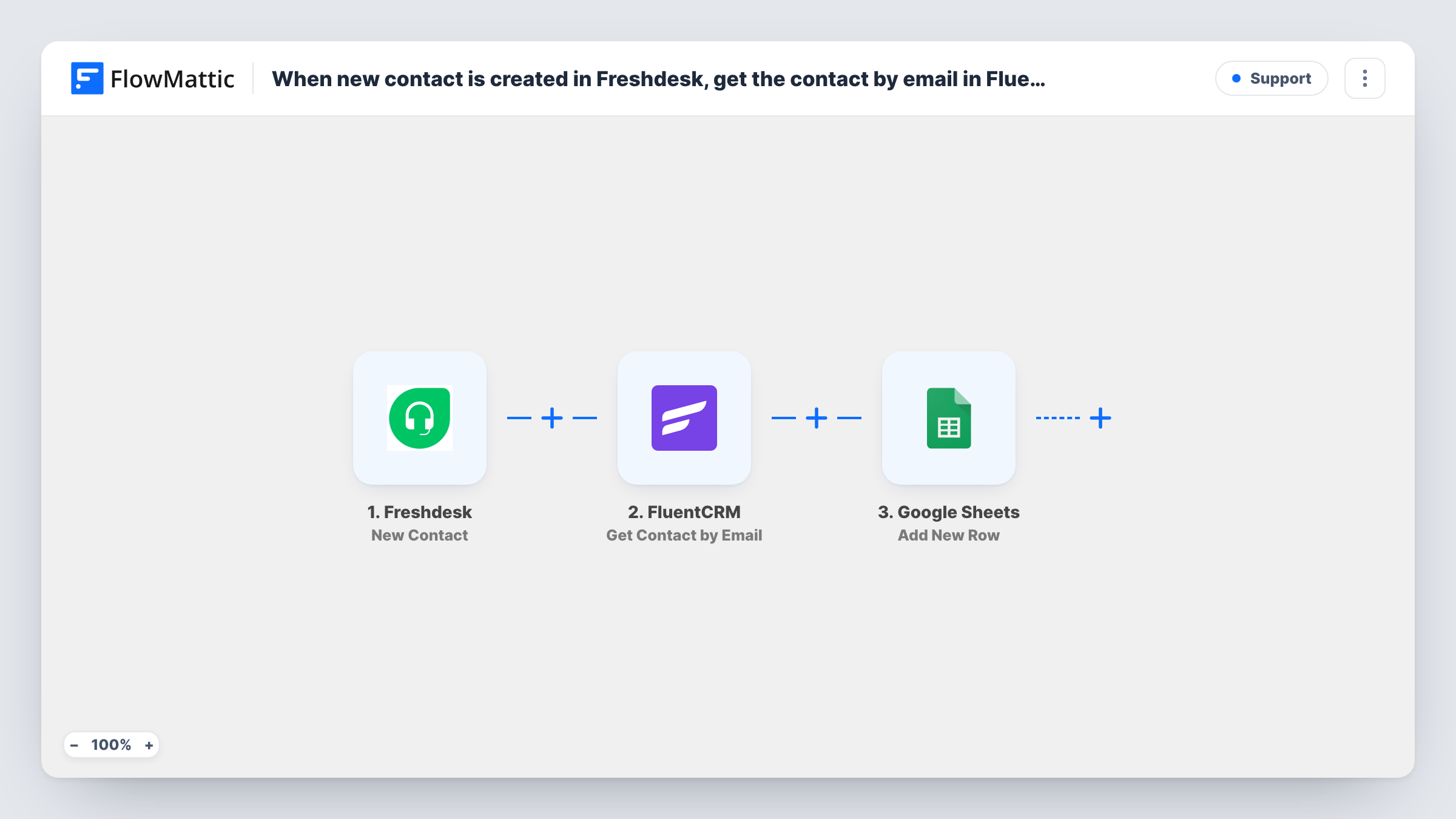
The Freshdesk trigger runs when a new contact is created. Its email address is passed to FluentCRM, where the Get Contact by Email step looks for a matching contact and returns what it finds. The last step adds a row in Google Sheets, and you choose which Freshdesk and FluentCRM values fill each column.
The lookup only reads FluentCRM. It does not create or change contacts there. When a Freshdesk contact has no match in FluentCRM, the lookup has nothing to return, yet the Google Sheets step still runs, so the row is added with the FluentCRM columns left blank. Task History shows the result of each step.
Spotting support contacts who are subscribers
A sheet column shows each new Freshdesk contact's FluentCRM status, so your team can see which people asking for help already get your emails.
Finding gaps in your email list
Rows with blank FluentCRM columns point to customers who reached support but never joined your list, a group marketing may want to invite.
A shared report for two teams
Support and marketing read the same Google Sheet, each seeing the help desk and CRM details side by side without access to the other's tool.
How this workflow runs
What happens at each step once the workflow is on, and what you need before you import it.
 Freshdesk New Contact
Runs when a new contact is created in your Freshdesk account. The contact's email and other details are passed to the next two steps.
- FluentCRM Get Contact by Email
Searches FluentCRM for a contact with the email from Freshdesk. Map the Freshdesk email here. When a match exists, its details become available for the sheet.
- Google Sheets Add New Row
Adds a new row to your chosen spreadsheet. Map Freshdesk values and the FluentCRM lookup result to columns, so each row shows the person as both tools know them.
What you need
- FlowMatticCore
- Freshdesk AccountAccount
- FluentCRM PluginPlugin
- Google Sheets AccountAccount
After importing, map your own data. To keep the template universal, not every step is pre-filled. Open each step in the builder and connect your accounts and fields (channels, lists, sheets, recipients) before you switch the workflow on.
Make it yours
Changes worth making after you import it.
- Want rows only for people already in FluentCRM? Add a Filter between the lookup and Google Sheets that continues when the returned contact email is not empty.
- Create a test contact in Freshdesk with an email that exists in FluentCRM, and another that does not, then map the columns using both results.
- To add missing people to FluentCRM, put a Router after the lookup with one route that creates a FluentCRM contact when no match was found.
Questions about this workflow
Does this add Freshdesk contacts to FluentCRM?
No. Get Contact by Email only searches FluentCRM. Nothing is created or changed there. Add a FluentCRM create step if you want new people added.
What if the Freshdesk contact has no email address?
The FluentCRM lookup has nothing to search with and returns no contact. The Google Sheets row is still added, with the CRM columns empty.
Where does the FluentCRM lookup for Freshdesk contacts happen?
On your own WordPress site. FluentCRM is a WordPress plugin, so it has to be installed alongside FlowMattic for the Get Contact by Email step to search it.
Are existing Freshdesk contacts copied into the sheet?
No. The trigger reacts to contacts created after the workflow is turned on. Earlier contacts are not looked up or logged.
More Support workflows
Other ready-to-import templates from the same category.







Import this workflow into your WordPress site
Download the JSON, import it from the Workflows screen and connect your accounts. Every run stays on your server, with no per-task fees.
30-day money-back guarantee Unlimited workflows and runs Self-hosted