

When a new feedback is created in Harvestr, create ticket in Fluent Support
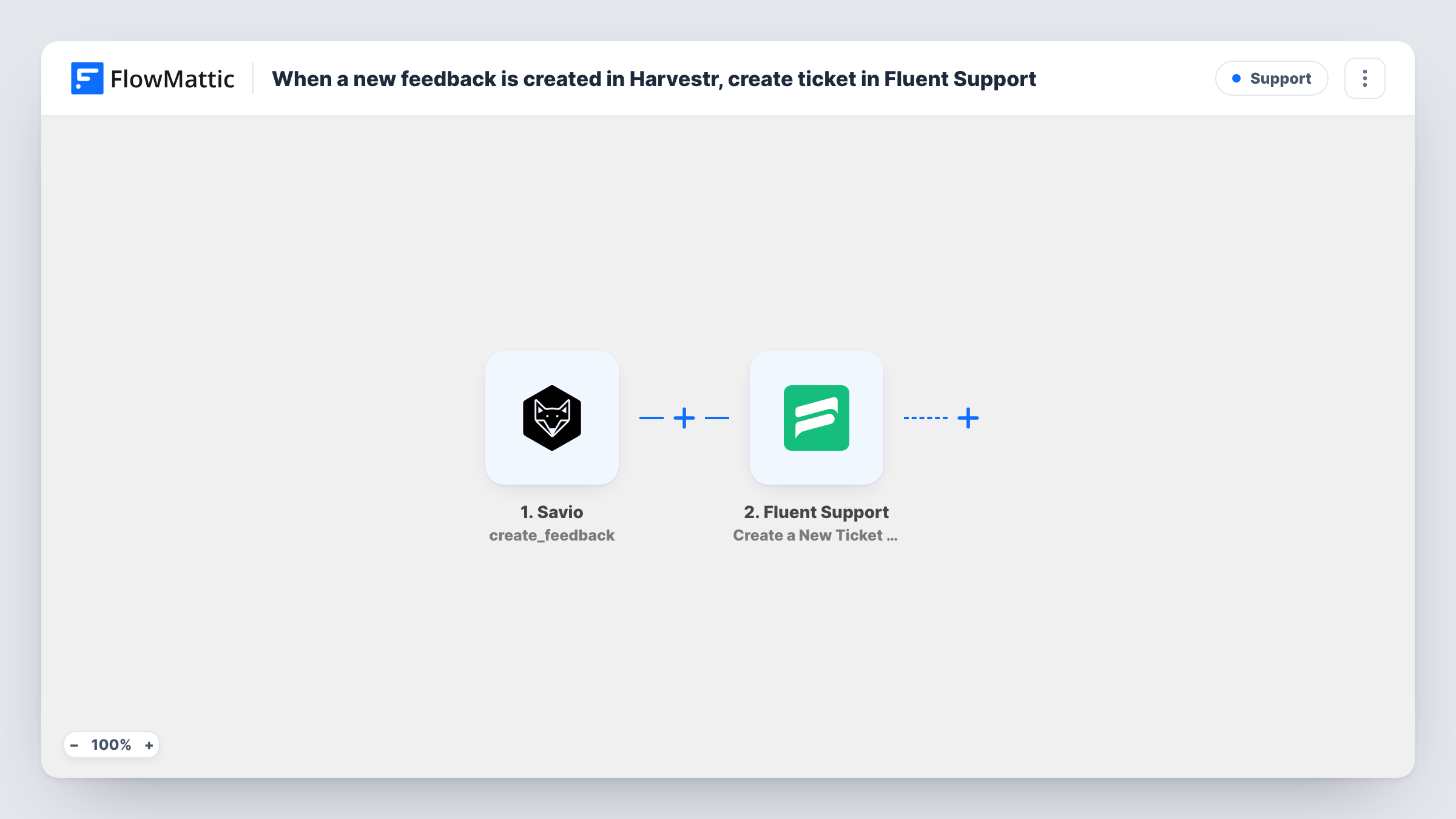
When new feedback is created in Harvestr, FlowMattic opens a ticket in Fluent Support from it, so your support team can reply to the customer from the helpdesk on your WordPress site.
 Harvestr
 Fluent Support
2 steps Setup ~5 min Used on 3.2k sites Free to import
What this workflow does
Product teams collect feedback in Harvestr, but some of it needs a person to answer the customer: a bug they hit, a question hidden in a feature request. Support agents working in Fluent Support don't see that feedback unless someone forwards it. This workflow opens a Fluent Support ticket for each new piece of feedback, so it reaches the helpdesk queue.
The Harvestr trigger, Feedback Created, fires when new feedback is created and passes its data to FlowMattic. Create a test piece of feedback after import to see which values arrive, such as the feedback text and details about the person it came from.
The Fluent Support step, Create a New Ticket Using Customer, then creates the ticket. It ships unmapped: map a subject and the feedback text into the ticket, and the customer's email and name from the Harvestr data. Fluent Support files the ticket under a customer, so the Harvestr feedback needs an email address you can map.
Every new feedback item opens one ticket, with no conditions. Test with a requester who isn't in Fluent Support yet and check Task History: if no ticket is created for a new address, add Fluent Support's Create OR Get Customer Info action between the Harvestr trigger and the ticket step.
Bug reports that need a reply
Customers report problems through channels that feed Harvestr. Each report opens a Fluent Support ticket, and an agent writes back with a workaround while the product team plans the fix.
Closing the loop on feature requests
A SaaS team wants every requester to hear back. The ticket lets support thank them and explain what happens next with the request.
One queue for a small team
A two-person company handles feedback and support in the same Fluent Support inbox, so nothing from Harvestr sits unread.
How this workflow runs
What happens at each step once the workflow is on, and what you need before you import it.
 Harvestr Feedback Created
Starts when new feedback is created in Harvestr. The feedback's data, such as its text and the requester's details, is passed to Fluent Support. Test with a sample to see the values.
- Fluent Support Create a New Ticket Using Customer
Opens a Fluent Support ticket from the feedback. The step ships unmapped: map the subject, the feedback text, and the requester's email and name from Harvestr, then test with a known address.
What you need
- FlowMatticCore
- Harvestr AccountAccount
- Fluent Support PluginPlugin
After importing, map your own data. To keep the template universal, not every step is pre-filled. Open each step in the builder and connect your accounts and fields (channels, lists, sheets, recipients) before you switch the workflow on.
Make it yours
Changes worth making after you import it.
- Start the ticket subject with Feedback: and the first words of the feedback, so agents can tell these tickets apart from regular requests.
- To open tickets only for some feedback, put a Filter between the Harvestr trigger and the Fluent Support step, for example continuing when the text contains bug or error. The words are examples to edit.
- If tickets fail for requesters who aren't Fluent Support customers yet, add Create OR Get Customer Info between the Harvestr trigger and the ticket step, and map the customer it returns.
Questions about this workflow
Does the Harvestr feedback need an email address?
Yes. Fluent Support files each ticket under a customer, and the email is how you identify them. Check a test run to see whether Harvestr sends the requester's email.
Will a reply in Fluent Support show up in Harvestr?
No. The workflow only goes from Harvestr to Fluent Support. Replies stay in the helpdesk.
What if the person isn't a Fluent Support customer yet?
Test with a new address. If the ticket isn't created, add Create OR Get Customer Info between the trigger and the ticket step, which creates the customer when they don't exist and returns them when they do.
Does edited Harvestr feedback open another ticket?
No. Only Feedback Created starts a run. Changes to existing feedback don't create tickets.
More Support workflows
Other ready-to-import templates from the same category.






Import this workflow into your WordPress site
Download the JSON, import it from the Workflows screen and connect your accounts. Every run stays on your server, with no per-task fees.
30-day money-back guarantee Unlimited workflows and runs Self-hosted