

When a ticket is closed in NeetoChat, append a log entry in Smartsheet
Every time a NeetoChat ticket is closed, this workflow adds a row to a Smartsheet sheet, so you build a running log of resolved tickets without exporting anything by hand.
 NeetoChat
 Smartsheet
2 steps Setup ~5 min Used on 2.5k sites Free to import
What this workflow does
Closed tickets tell you what your support team actually handled, but that history usually stays inside the chat tool. Managers who plan in Smartsheet then ask for exports or screenshots. This workflow writes each closed ticket to a sheet the moment it closes.
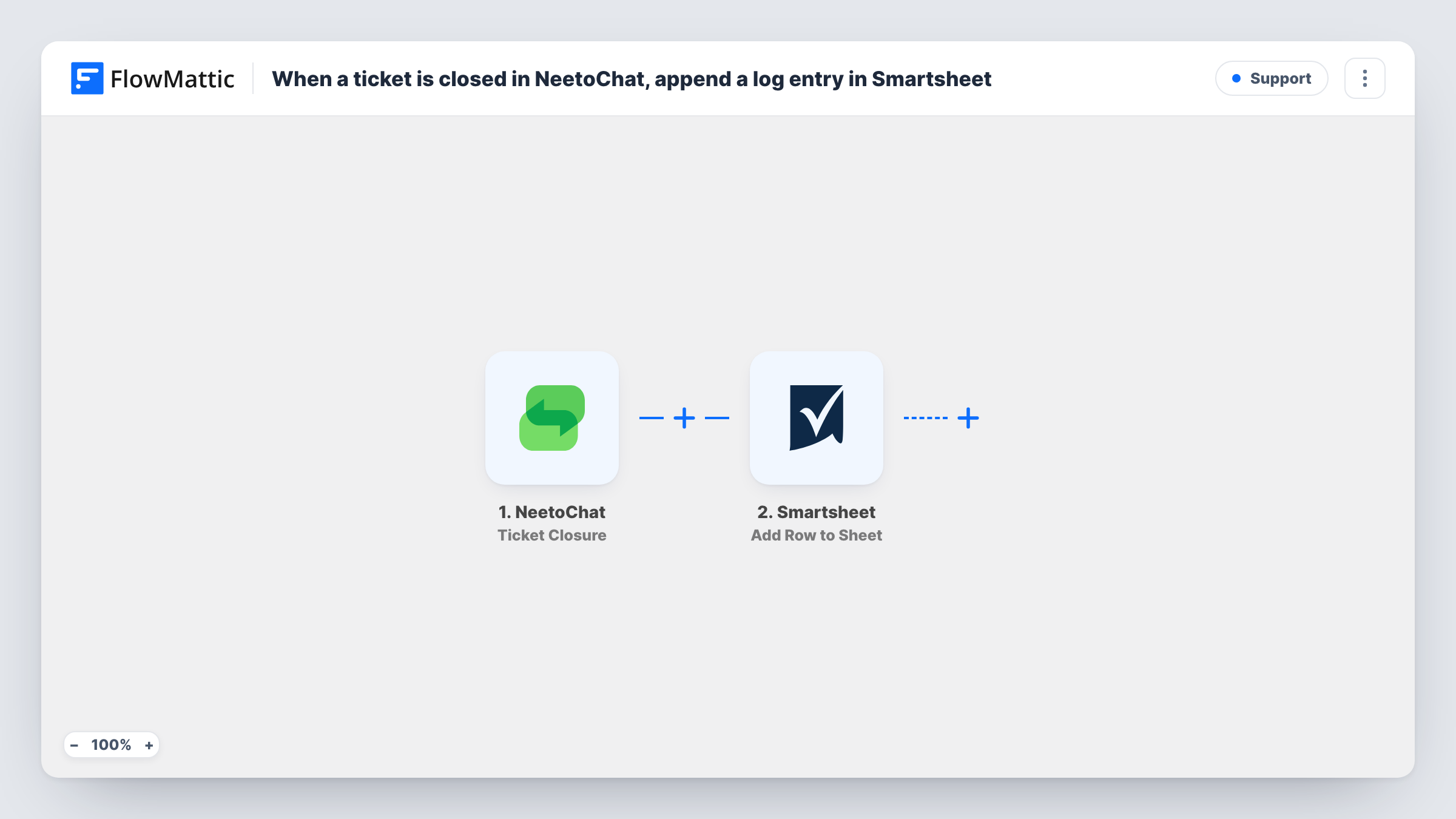
The NeetoChat trigger starts a run each time an agent or visitor closes a ticket. FlowMattic takes the ticket details from that event and passes them to Smartsheet, where the Add Row to Sheet action adds a row to the sheet you choose. You map ticket fields to the sheet's columns, so the log holds exactly the details you want to track.
The sheet becomes a record you can filter, report on and share in Smartsheet. Nothing changes in NeetoChat itself; the workflow only reads the closure event. Task History records each run, so you can see which tickets were logged.
Weekly support review
Your support lead opens the Smartsheet log every Monday and groups last week's closed NeetoChat tickets by topic or agent before the team meeting.
Audit trail for a client account
An agency handling chat support for a client keeps a Smartsheet of every closed ticket, which the client can view without access to NeetoChat.
Spotting recurring questions
Product managers scan the closed-ticket sheet for repeated subjects and decide which help articles to write next.
How this workflow runs
What happens at each step once the workflow is on, and what you need before you import it.
 NeetoChat Ticket Closure
Runs when a ticket is closed in NeetoChat. The ticket's details from that event are passed on for mapping in the Smartsheet step.
- Smartsheet Add Row to Sheet
Appends one row per closed ticket to your chosen Smartsheet sheet. Connect your Smartsheet account, pick the sheet, and map ticket fields to its columns.
What you need
- FlowMatticCore
- NeetoChat AccountAccount
- Smartsheet AccountAccount
After importing, map your own data. To keep the template universal, not every step is pre-filled. Open each step in the builder and connect your accounts and fields (channels, lists, sheets, recipients) before you switch the workflow on.
Make it yours
Changes worth making after you import it.
- Close one test ticket after import so FlowMattic captures the event's fields, then map them to your Smartsheet columns before you turn the workflow on.
- Add a column for the date of the run so the log can be sorted by when each ticket was closed.
- If you only want to log tickets of one kind, add a Filter after the trigger that checks a field from the closure event, such as a label or assignee.
Questions about this workflow
Are tickets closed before I import this added to Smartsheet?
No. The trigger fires on closures that happen while the workflow is on, so earlier tickets stay out of the sheet.
What if a NeetoChat ticket is reopened and closed again?
The second closure is a new event, so the workflow adds another row. The Smartsheet step always adds a row and does not look for an earlier one.
Which NeetoChat ticket details can I put in the sheet?
Whatever the closure event carries. Close a test ticket and look at the run in Task History to see the available fields before you map columns.
More Support workflows
Other ready-to-import templates from the same category.








Import this workflow into your WordPress site
Download the JSON, import it from the Workflows screen and connect your accounts. Every run stays on your server, with no per-task fees.
30-day money-back guarantee Unlimited workflows and runs Self-hosted