

When a new submission is added in FormDesigner, create a new ticket in Fluent Support
Every new FormDesigner submission opens a ticket in Fluent Support on your WordPress site, filed under the customer’s email, so requests from your forms land in your help desk queue.
 FormDesigner
 Fluent Support
2 steps Setup ~5 min Used on 3.4k sites Free to import
What this workflow does
A support or contact form built in FormDesigner collects requests, but your team answers them in Fluent Support. Copying each submission into a ticket by hand slows replies and lets some slip through. This workflow opens the ticket for you when the form comes in.
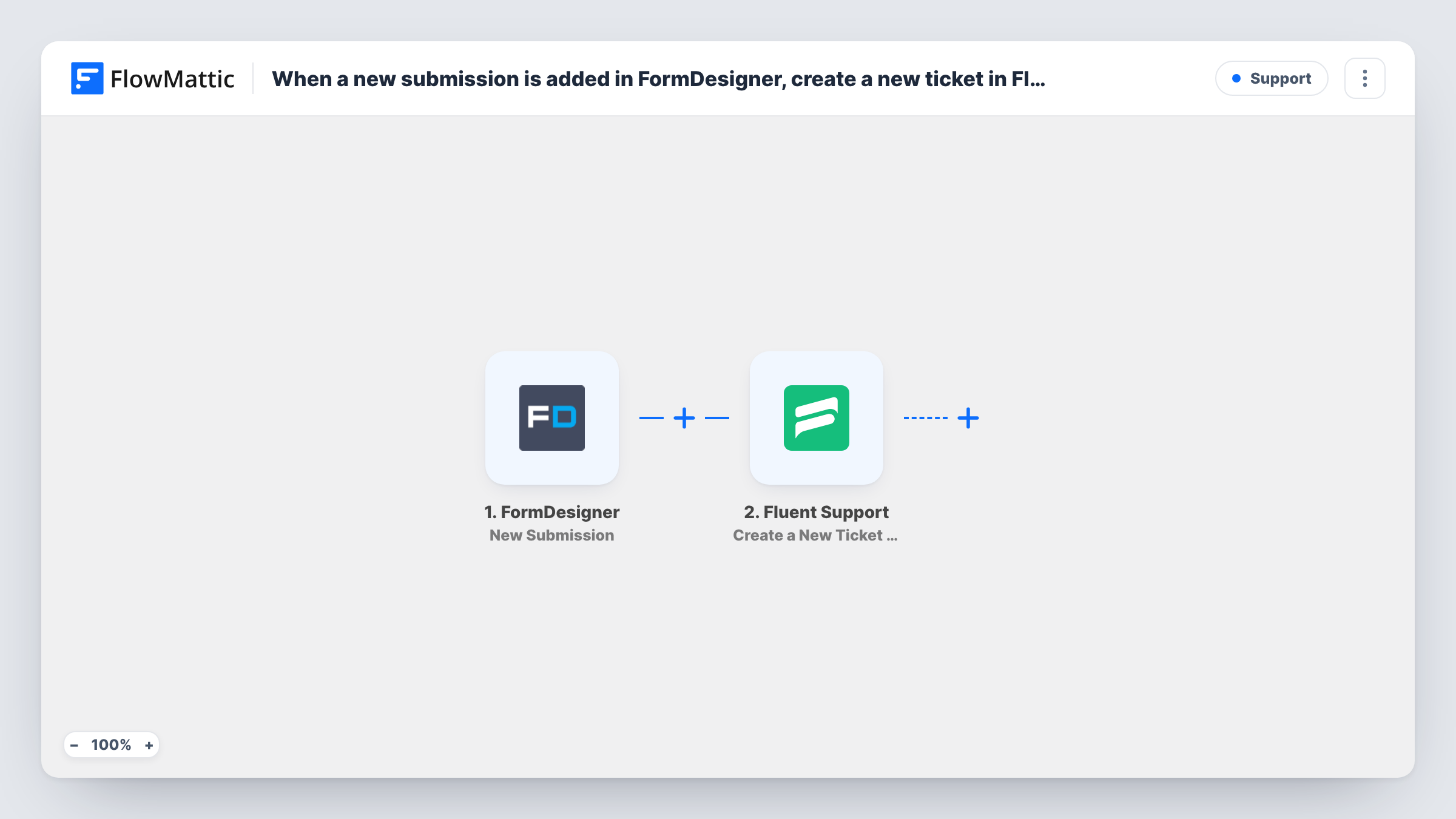
The FormDesigner trigger fires when a submission is added to your form. FlowMattic passes the answers to Fluent Support, where the Create a New Ticket Using Customer action opens a ticket for that person. You map the submitter's email to identify the customer, and the subject and message from the form into the ticket's title and content.
The template has no Filter, so every submission becomes a ticket, including test entries and spam that gets past the form. Fluent Support runs on your WordPress site, so the ticket is created there, next to your other conversations. Each run appears in Task History with the submission data and the Fluent Support response.
Support form on a marketing site
Your public site uses a FormDesigner form for help requests, and each one appears as a Fluent Support ticket that your agents pick up in the usual queue.
Warranty and return requests
A FormDesigner returns form collects the order number and the problem, and the ticket gives your team a thread to reply to the customer from.
Bug reports from customers
Customers describe an issue in a FormDesigner bug-report form, and the details become a ticket that a developer can follow up on.
How this workflow runs
What happens at each step once the workflow is on, and what you need before you import it.
 FormDesigner New Submission
Fires when a new submission is added to your FormDesigner form. Every answer, including the email the person entered, is passed on for mapping.
- Fluent Support Create a New Ticket Using Customer
Opens a Fluent Support ticket for the customer identified by the email you map. Map the form's subject and message into the ticket title and content so agents see the request.
What you need
- FlowMatticCore
- FormDesigner AccountAccount
- Fluent Support PluginPlugin
After importing, map your own data. To keep the template universal, not every step is pre-filled. Open each step in the builder and connect your accounts and fields (channels, lists, sheets, recipients) before you switch the workflow on.
Make it yours
Changes worth making after you import it.
- Make the email field required in your FormDesigner form, because the ticket is created for a customer and needs an address to file it under.
- Add Fluent Support's Add Tag to Ticket action after this step to label tickets that came from the form, which helps when you filter the queue.
- Send one test submission after import, then check the new ticket in Fluent Support to confirm the title, content and customer look right.
Questions about this workflow
Will a second FormDesigner submission from the same person open another ticket?
Yes. Each submission runs the workflow once and creates a new ticket, even when the email belongs to a customer who already has an open one.
Can FormDesigner file uploads be added to the Fluent Support ticket?
The action supports file attachments according to its description. Whether a FormDesigner upload maps across depends on what the trigger returns, so check with a test submission.
Where are FormDesigner tickets stored, and does Fluent Support need FlowMattic's site?
Tickets are stored in Fluent Support on your WordPress site. It is a WordPress plugin, so it must be installed on the same site as FlowMattic for this step to create them.
More Support workflows
Other ready-to-import templates from the same category.







Import this workflow into your WordPress site
Download the JSON, import it from the Workflows screen and connect your accounts. Every run stays on your server, with no per-task fees.
30-day money-back guarantee Unlimited workflows and runs Self-hosted