

When a new response is submitted in Reform, create a ticket in Freshdesk
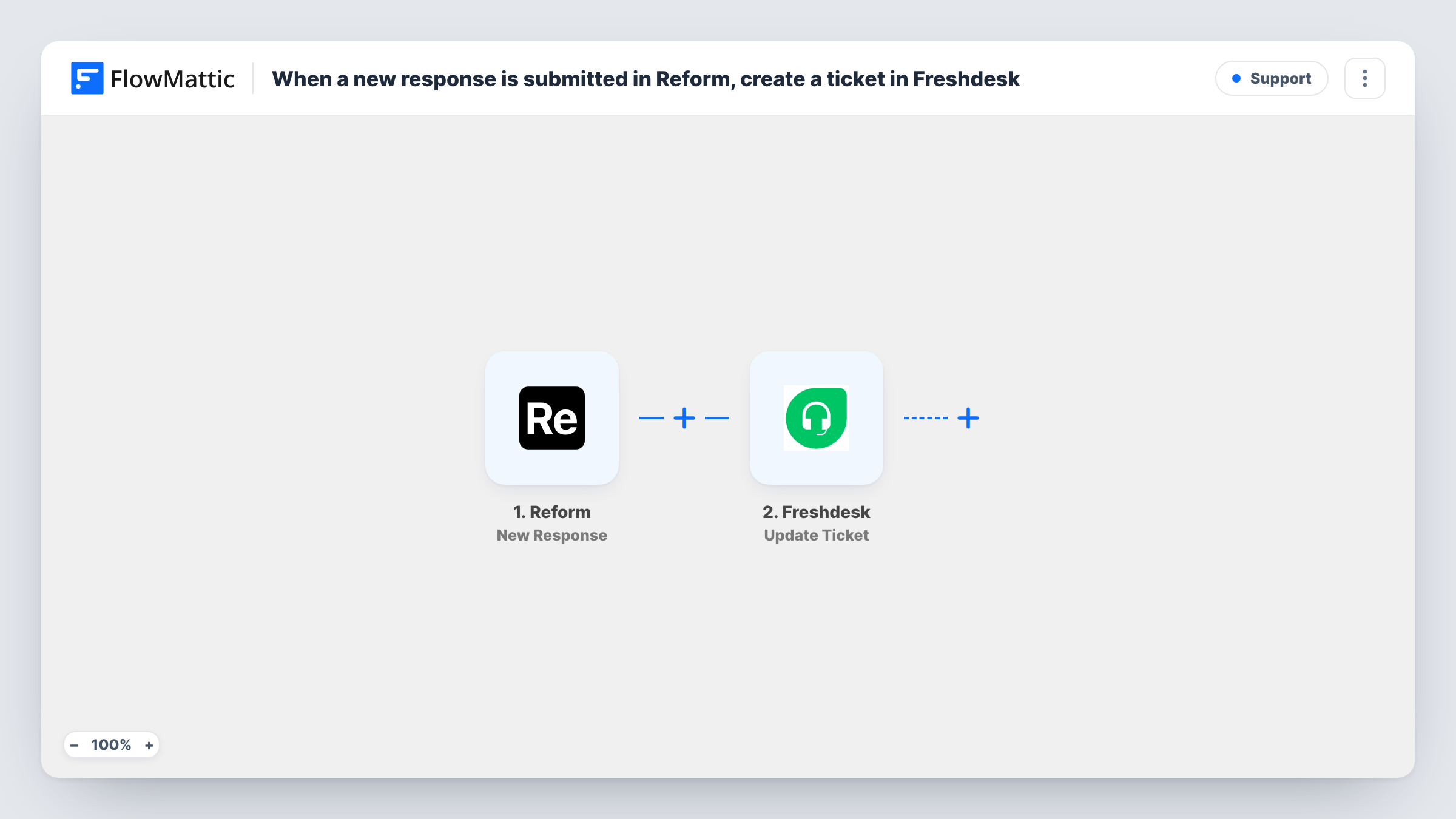
When someone submits a Reform form, FlowMattic sends the response to Freshdesk with an API by FlowMattic POST request that you set up to create a support ticket.
 Reform
 API by FlowMattic
2 steps Setup ~5 min Used on 3.0k sites Free to import
What this workflow does
Reform makes clean, simple forms, which suits support and contact requests. Getting those responses into your helpdesk usually means copying them across. This workflow sends each new response to Freshdesk as a ticket, so your support team works from their usual queue.
The Reform New Response trigger fires when a response is submitted. FlowMattic's Freshdesk integration has triggers for tickets but no action that creates one, so the second step uses API by FlowMattic to send a POST request.
That step ships unmapped: after import you build the request to Freshdesk's ticket API yourself. Use your Freshdesk account's address and the authentication and fields that Freshdesk's API documentation asks for, then map the Reform answers, such as the requester's email, a subject and the message, into the request body.
This template suits someone comfortable setting up an API request. Submit a test response once it's configured, and check Task History to see what Freshdesk sent back.
Support form on a marketing site
A product team embeds a Reform support form on its website, and every response lands in Freshdesk as a ticket the support agents can assign.
Bug reports from beta users
A startup collects beta feedback through Reform and turns each report into a Freshdesk ticket for triage.
Service requests from customers
A maintenance company takes repair requests on a Reform form, so each request becomes a ticket with the customer's email as the requester.
How this workflow runs
What happens at each step once the workflow is on, and what you need before you import it.
 Reform New Response
Starts a run each time someone completes your Reform form. Their answers become available to map into the Freshdesk request.
- API by FlowMattic POST
Sends a POST request to Freshdesk to create the ticket. The step ships unmapped: set Freshdesk's ticket endpoint, authentication and body, mapping the Reform answers into the fields Freshdesk needs.
What you need
- FlowMatticCore
- Reform AccountAccount
After importing, map your own data. To keep the template universal, not every step is pre-filled. Open each step in the builder and connect your accounts and fields (channels, lists, sheets, recipients) before you switch the workflow on.
Make it yours
Changes worth making after you import it.
- Keep Freshdesk's API documentation open while you set up the POST step, and match the request body to the fields it lists for creating a ticket.
- Make the email field required in your Reform form, since a ticket needs a way to identify the requester.
- Map a fixed word such as "Reform" into the ticket subject alongside the answer, so agents can see where the ticket came from.
- Send a test response and read Freshdesk's reply in Task History before switching the workflow on for real traffic.
Questions about this workflow
Why does this use API by FlowMattic instead of a Freshdesk step?
FlowMattic's Freshdesk integration offers triggers for new and updated tickets, but no create-ticket action. A POST request to Freshdesk's API fills that gap.
Is the Freshdesk request already set up in the template?
No. The POST step ships empty. You add the endpoint, authentication and body for your Freshdesk account after import and map the Reform answers into it.
Which Reform answers end up in the Freshdesk ticket?
The ones you map into the request body. Submit a test response first so the answers appear in FlowMattic, then pick them while building the body.
How do I know whether the Freshdesk ticket was created?
Open the run in Task History and read the response Freshdesk returned to the POST step, or look for the ticket in your Freshdesk queue.
More Support workflows
Other ready-to-import templates from the same category.






Import this workflow into your WordPress site
Download the JSON, import it from the Workflows screen and connect your accounts. Every run stays on your server, with no per-task fees.
30-day money-back guarantee Unlimited workflows and runs Self-hosted