

Log Iterable campaign events in a Google Sheets spreadsheet
Iterable sends the campaign events you choose, such as sends, opens or clicks, to FlowMattic, and this workflow writes each one to a new row in Google Sheets for a log you can filter and share.
 Iterable
 Google Sheets
2 steps Setup ~5 min Used on 2.5k sites Free to import
What this workflow does
Iterable reports campaign activity inside its own dashboards. When you want the raw events somewhere else, to join them with sales data, share them with a client or keep your own history, a spreadsheet is the simplest place. This workflow writes each event Iterable sends into Google Sheets.
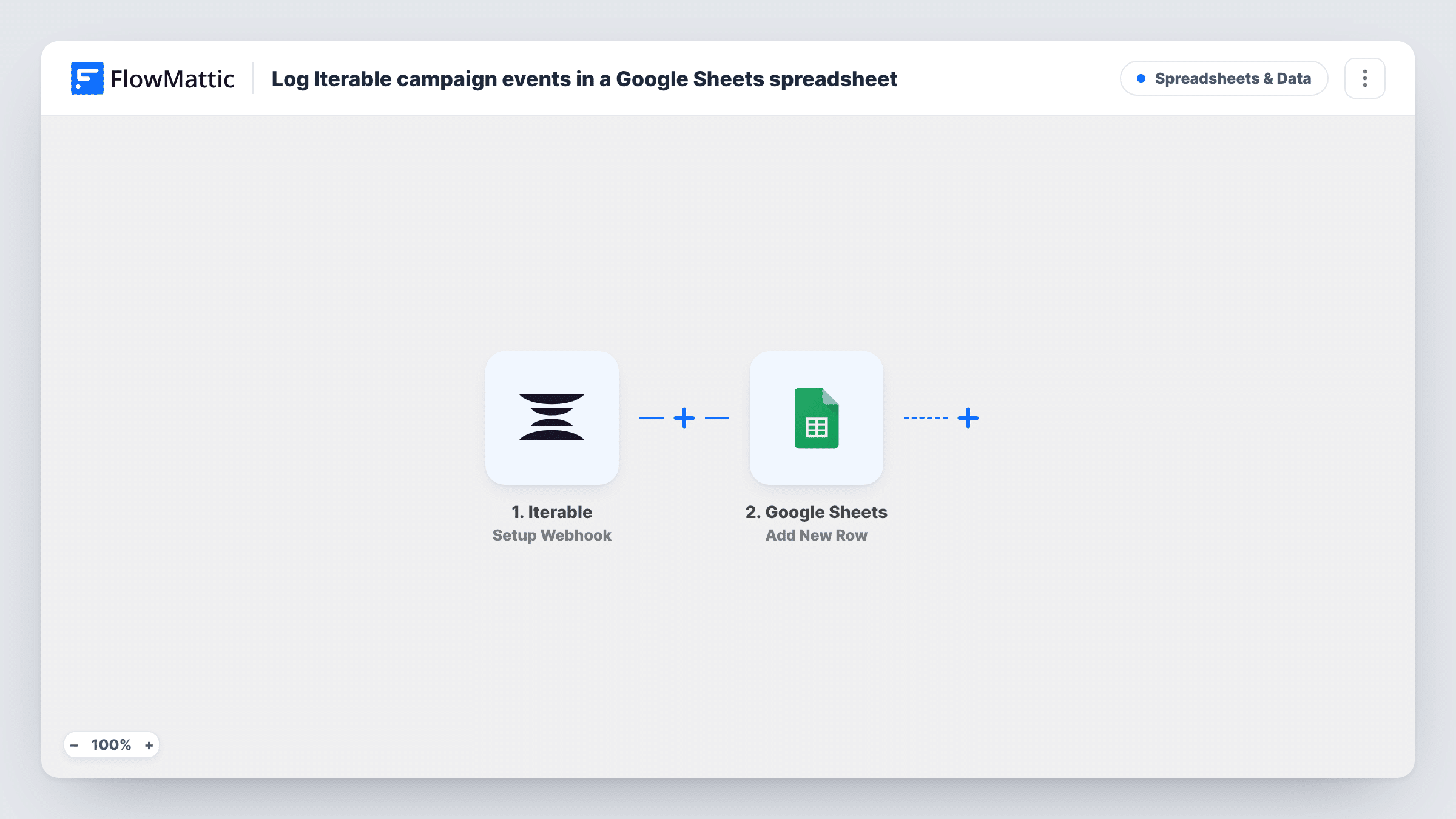
The Iterable trigger, Setup Webhook, fires for every event type you specify when you set up the webhook in Iterable. FlowMattic passes each event to Google Sheets, where Add New Row writes it into the spreadsheet you pick. You map the event values, such as the event type, email address, campaign and time, to columns.
One event means one row. A large send with opens and clicks enabled can produce a great many rows, so choose only the event types you need. The webhook decides what reaches the sheet, and nothing in the workflow narrows it further unless you add a Filter.
Click log for a client report
An agency sends only click events from a client's Iterable project to a sheet, then builds the monthly report from those rows.
Unsubscribe and bounce record
Choose unsubscribe and bounce events in the webhook so the sheet keeps a dated record your team can check against other lists.
Joining email activity with sales
Analysts pull the sheet into a spreadsheet model next to order data to see which campaigns people clicked before buying.
How this workflow runs
What happens at each step once the workflow is on, and what you need before you import it.
 Iterable Setup Webhook
Fires for each event type you specify in the Iterable webhook, such as sends, opens or clicks. Every event is passed to Google Sheets with its details for mapping.
- Google Sheets Add New Row
Adds one row per Iterable event to the Google Sheets spreadsheet you choose. Create column headers first, connect your Google account, and map each event value to a column.
What you need
- FlowMatticCore
- Iterable AccountAccount
- Google Sheets AccountAccount
After importing, map your own data. To keep the template universal, not every step is pre-filled. Open each step in the builder and connect your accounts and fields (channels, lists, sheets, recipients) before you switch the workflow on.
Make it yours
Changes worth making after you import it.
- Select only the Iterable event types you need in the webhook. Opens and clicks on large campaigns can fill a sheet quickly.
- Map the event type to its own column so you can filter the sheet by opens, clicks or bounces.
- Add a Filter after the trigger that checks the campaign value if you only want one campaign's events in this sheet.
Questions about this workflow
Which Iterable events end up in the sheet?
The ones you choose when you set up the webhook in Iterable. Each of those events sends one request to FlowMattic, which adds one row.
Will a big Iterable campaign overload my Google Sheet?
It can produce many rows quickly, because every event is a row. Limit the event types in the webhook, or start a new sheet per month.
Does this pull past Iterable campaign data?
No. Only events Iterable sends after the webhook is set up are logged. Export earlier data from Iterable if you need it.
Which Iterable values can I map into columns?
Whatever Iterable includes in each webhook event. Trigger a test event after import and check the captured data before you set up the columns.
More Spreadsheets & Data workflows
Other ready-to-import templates from the same category.



Import this workflow into your WordPress site
Download the JSON, import it from the Workflows screen and connect your accounts. Every run stays on your server, with no per-task fees.
30-day money-back guarantee Unlimited workflows and runs Self-hosted