

Save new Liferay portal activity to a Google Sheets spreadsheet
Each event your Liferay portal sends to FlowMattic is written to a new Google Sheets row, giving you a running activity log you can filter, chart and share with people who don’t work in Liferay.
 Liferay
 Google Sheets
2 steps Setup ~5 min Used on 2.2k sites Free to import
What this workflow does
A Liferay portal produces a steady stream of activity, from users and content to form data. Admins can see it inside the portal, but reporting to a wider team usually means pulling data out. A spreadsheet that fills itself is the simpler option for weekly reviews, audits or quick counts. This workflow writes each portal event into Google Sheets as it arrives.
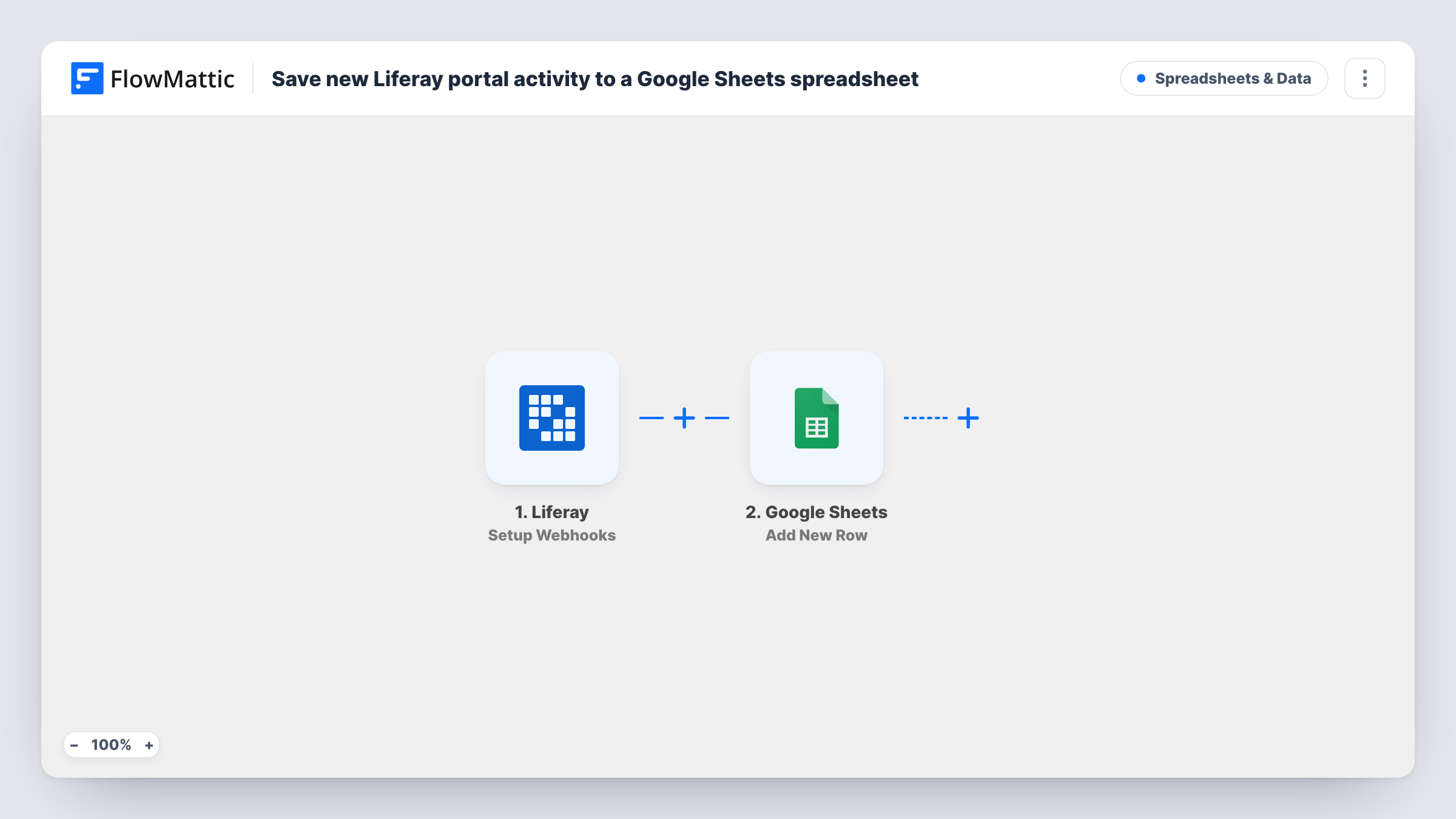
The Liferay Setup Webhooks trigger fires for the events you specify when you set it up. FlowMattic passes each event's data to Google Sheets, whose Add New Row action writes it to the spreadsheet and tab you choose. You decide which values become columns when you map the step.
The sheet logs whatever the chosen events report. If those include updates as well as new items, each change adds another row, so one record can appear several times. Pick your events with that in mind, or add a Filter on the event type if the payload names it. Every run is listed in Task History alongside the values that went into the row.
Weekly portal activity review
A portal manager opens the sheet each week and uses a pivot table to count events by type, without exporting anything from Liferay.
Audit trail for a regulated team
Compliance staff keep a dated record of the portal events you choose to send, in a spreadsheet they can lock down and archive.
Sharing usage with stakeholders
Department heads without Liferay admin access read the shared sheet to see how much activity the portal sees.
How this workflow runs
What happens at each step once the workflow is on, and what you need before you import it.
 Liferay Setup Webhooks
Fires for the Liferay events you specify when you set up the webhook. Each event's data is passed to the Google Sheets step for mapping.
- Google Sheets Add New Row
Adds one row per Liferay event to the spreadsheet and tab you select. Set up column headers, connect your Google account, then map the event values to each column.
What you need
- FlowMatticCore
- Liferay AccountAccount
- Google Sheets AccountAccount
After importing, map your own data. To keep the template universal, not every step is pre-filled. Open each step in the builder and connect your accounts and fields (channels, lists, sheets, recipients) before you switch the workflow on.
Make it yours
Changes worth making after you import it.
- Choose only the Liferay events you want logged when you set up the webhook, so the sheet doesn't fill with activity nobody reads.
- If the payload names the event type, keep each kind of event in its own tab with a Router that has one route per type, each holding its own Add New Row step. Distinct event types can't match two routes.
- Trigger one real event in Liferay after import so FlowMattic captures the payload, then map its fields before you turn the workflow on.
Questions about this workflow
Which Liferay activity ends up in Google Sheets?
Only the events you specify on the Setup Webhooks trigger. Every event of those types adds a row.
Will an edited Liferay item create a second row?
If the events you chose include updates, yes. The step only adds rows and never changes existing ones, so each change is logged as its own row.
Is past Liferay activity copied to the sheet?
No. Only events that happen after the workflow is on and the webhook is set up are sent. Earlier activity needs an export from Liferay.
More Spreadsheets & Data workflows
Other ready-to-import templates from the same category.



Import this workflow into your WordPress site
Download the JSON, import it from the Workflows screen and connect your accounts. Every run stays on your server, with no per-task fees.
30-day money-back guarantee Unlimited workflows and runs Self-hosted