

When a ticket is closed in NeetoDesk, update the record in Airtable
When a NeetoDesk ticket is closed, FlowMattic looks up the matching Airtable record, continues only if one was found, and updates that record with the closed ticket’s details.
 NeetoDesk
 Airtable
 Filter
4 steps Setup ~8 min Used on 3.1k sites Free to import
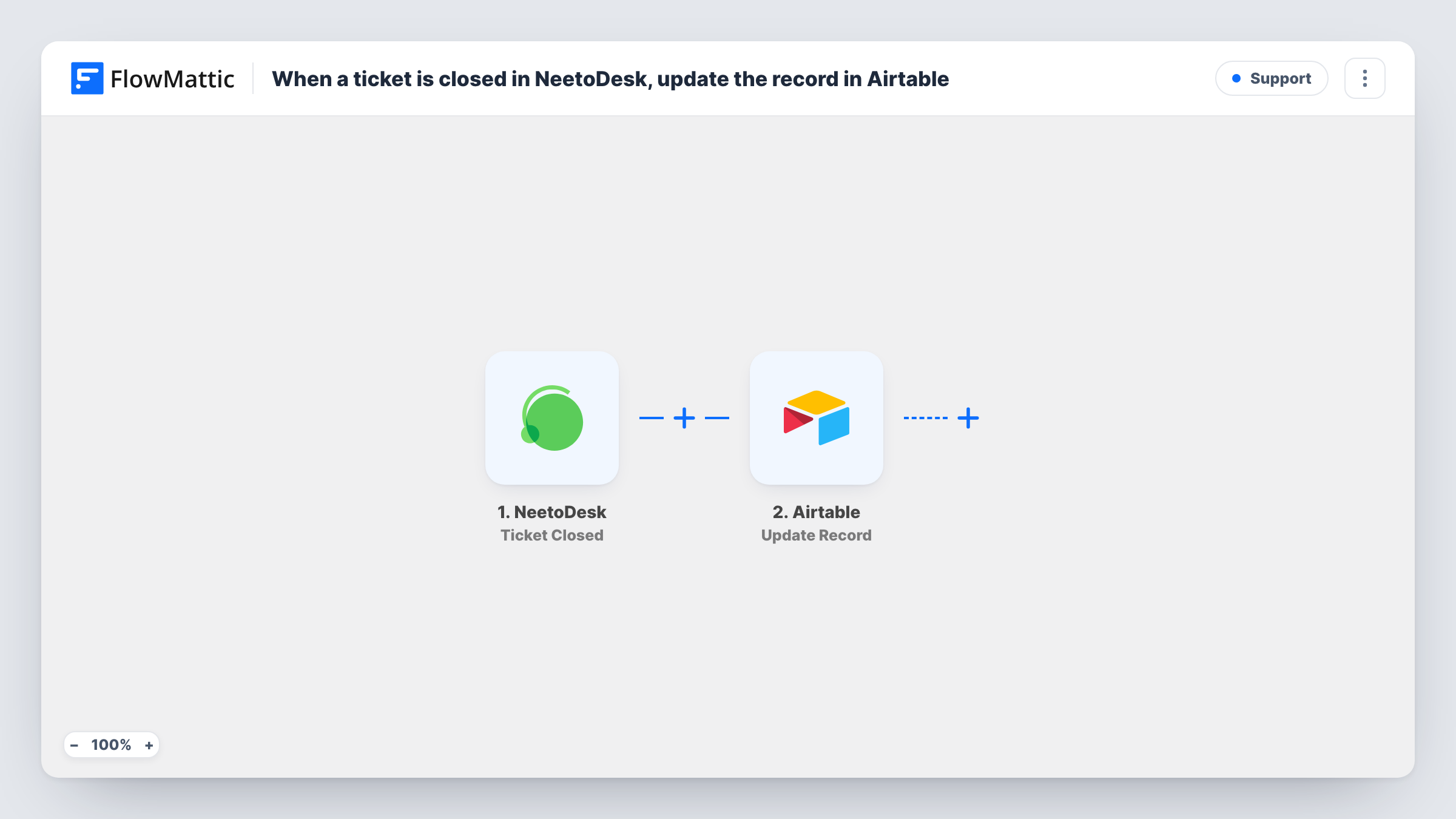
What this workflow does
Teams that track support work in Airtable often add a row when a ticket opens and then forget to mark it done. This workflow keeps that table honest: each time a ticket closes in NeetoDesk, the matching Airtable record is found and updated, so your base shows the same status as your help desk.
The NeetoDesk trigger fires when a ticket is closed and passes the ticket data on. The first Airtable step searches your table using a filter formula. That formula isn't written in the template: after import you pick the base and table and build a formula that compares a column you keep, such as a ticket ID, with the matching value from NeetoDesk.
A Filter then checks the search result. It continues only when the total number of records found is greater than 0, so a closed ticket with no row in your base ends the run there. When a record is found, the last step updates the first match, using the record ID from the search. Its field values aren't mapped, so choose which columns to change, for example a status column set to Closed and a closed date.
Close a test ticket and check Task History to see how many records the search returned and what Airtable changed.
Support tracker that closes itself
An operations lead keeps one Airtable row per customer issue. When an agent closes the ticket in NeetoDesk, the row's status flips to Closed without anyone touching the base.
Resolution dates for reporting
A product team writes the close date into its Airtable bug table each time the linked NeetoDesk ticket is closed, then charts time to resolution from that column.
Account health in a client base
An agency marks the client's open-issue record as resolved in Airtable when NeetoDesk closes the ticket, so account managers see current status before calls.
How this workflow runs
What happens at each step once the workflow is on, and what you need before you import it.
 NeetoDesk Ticket Closed
Starts the workflow each time a ticket is closed in NeetoDesk. The ticket's details are passed to the Airtable search so you can match it to a record.
- Airtable Search Record
Looks for the ticket's record in Airtable using a filter formula you write. The template leaves the base, table and formula empty: write a formula that matches a column you store, such as the ticket ID, against the NeetoDesk value.
- Filter Continue If Condition Meet
Lets the run continue only when the Airtable search found more than 0 records. A closed ticket that has no matching record stops here and nothing in Airtable is changed.
- Airtable Update Record
Updates the first record the search returned, using its record ID from step 2. Pick the fields to change after import, such as a status column and a closed date taken from the ticket.
What you need
- FlowMatticCore
- NeetoDesk AccountAccount
- Airtable AccountAccount
After importing, map your own data. To keep the template universal, not every step is pre-filled. Open each step in the builder and connect your accounts and fields (channels, lists, sheets, recipients) before you switch the workflow on.
Make it yours
Changes worth making after you import it.
- Store the NeetoDesk ticket ID in its own Airtable column when you first log a ticket, so the search formula has an exact value to match on.
- Write the search formula so it can only match one record. The update uses the first result, so a loose formula could change the wrong row.
- Map a closed timestamp from the ticket into a date field in the Update Record step if you want to measure how long tickets stay open.
Questions about this workflow
How does the workflow know which Airtable record belongs to the ticket?
Through the filter formula you write in the Search Record step. It should compare a column in your table, like a stored ticket ID, with the matching value from the NeetoDesk ticket.
What happens if no Airtable record matches the closed ticket?
The Filter after the search only continues when more than 0 records were found. With no match the run stops at the Filter, so no record is updated or created.
Does this create a new Airtable record for tickets that aren't in my base?
No. The workflow only updates records it finds. If you also want new rows, build a separate workflow on NeetoDesk's Ticket Created trigger that adds them.
Which Airtable fields get updated when a NeetoDesk ticket closes?
Only the ones you map. The template fills in the record ID from the search and leaves the field values for you to choose after import.
More Support workflows
Other ready-to-import templates from the same category.





Import this workflow into your WordPress site
Download the JSON, import it from the Workflows screen and connect your accounts. Every run stays on your server, with no per-task fees.
30-day money-back guarantee Unlimited workflows and runs Self-hosted