

Send regularly scheduled Slack messages with information from Google Sheets
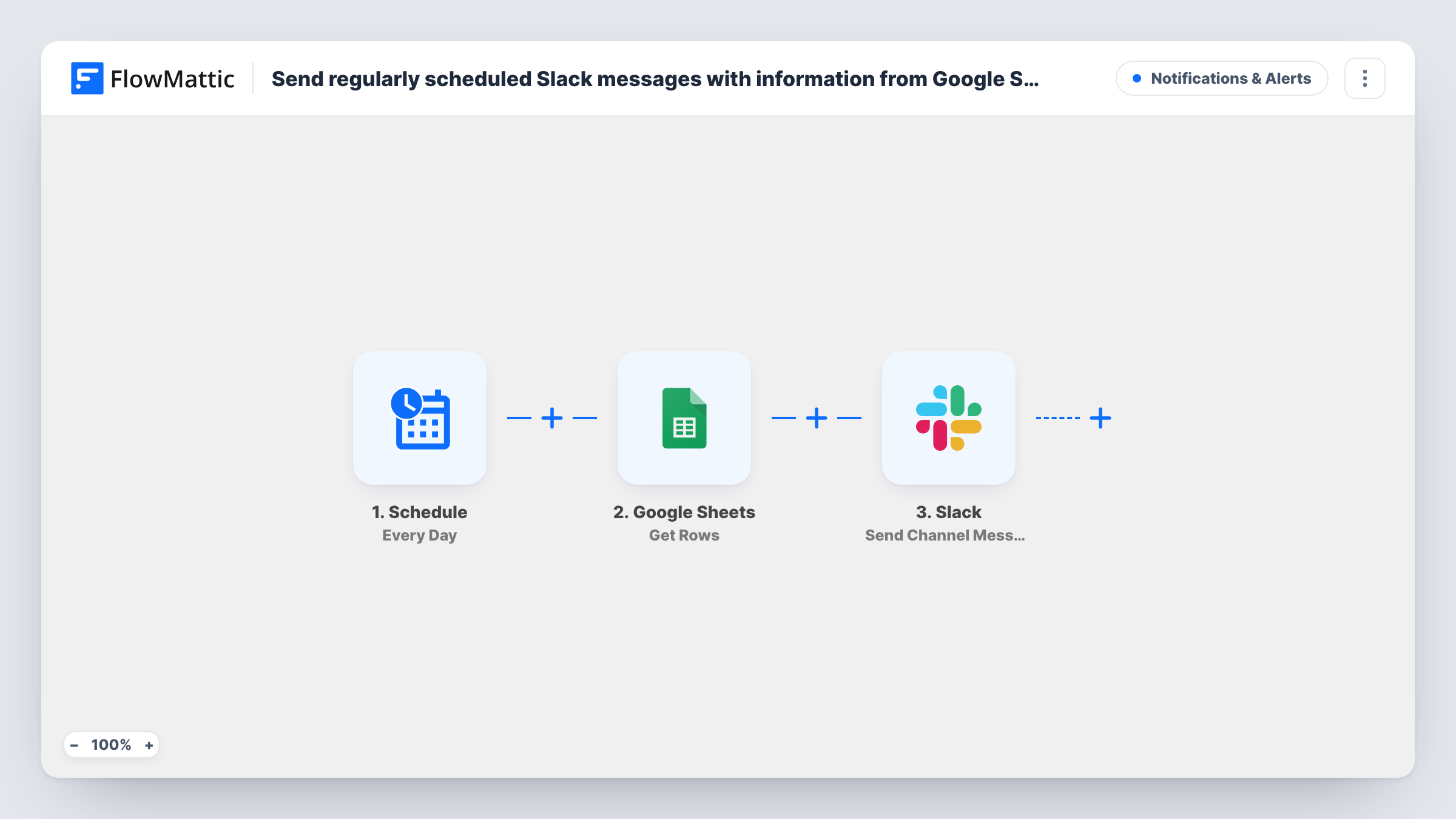
Once a day, this workflow reads rows from a Google Sheets spreadsheet and posts a message to a Slack channel built from that data, so your team sees the sheet’s figures without opening it.
 Schedule
 Google Sheets
 Slack
3 steps Setup ~5 min Used on 568 sites Free to import
What this workflow does
Plenty of teams keep a shared spreadsheet of numbers, tasks or rotas that people forget to check. Posting the key details into Slack each day puts them where the team already talks. This workflow does that on a daily schedule.
The Schedule trigger starts a run every day. The Google Sheets step then runs Get Rows on the spreadsheet you choose, returning the rows as JSON. The Slack step posts to a channel using Send Channel Message, with the text you compose from that data.
Keep two things in mind about this daily post. First, there is no Iterator, so each run posts one message built from whatever Get Rows values you map into it, not one message per row. Second, Get Rows reads the sheet fresh every time and nothing marks rows as sent, so the same rows appear in each day's message until you change or remove them in the sheet. That suits a status board or a daily summary, where repeating the current data is the point.
Daily sales figures
Your team updates a small sheet of yesterday's totals. Each morning the Slack channel gets a message with the current numbers from it.
On-call or cover rota
A sheet lists who is on duty. The daily message posts the rota to the team channel, and it changes when someone edits the sheet.
Open-items board
A short sheet of open issues is posted to Slack every day, so outstanding items stay visible until someone deletes their rows.
How this workflow runs
What happens at each step once the workflow is on, and what you need before you import it.
 Schedule Every Day
Starts the workflow once a day on the schedule you set. Nothing else needs to happen for it to run.
- Google Sheets Get Rows
Reads rows from the Google Sheets spreadsheet you pick and returns them as JSON for later steps. Each run reads the sheet again, including rows from earlier days.
- Slack Send Channel Message
Posts a message to the Slack channel you choose, built from the Get Rows data you map into the text. Connect your Slack account and run a test to see how the message looks.
What you need
- FlowMatticCore
- Google Sheets AccountAccount
- Slack AccountAccount
After importing, map your own data. To keep the template universal, not every step is pre-filled. Open each step in the builder and connect your accounts and fields (channels, lists, sheets, recipients) before you switch the workflow on.
Make it yours
Changes worth making after you import it.
- Add an Iterator between Get Rows and Slack if you want one Slack message per row instead of a single combined post.
- After an Iterator, add a Filter so only rows meeting a condition, such as a status column equal to Open, reach Slack.
- For a private channel, swap the step for Slack's Send Private Channel Message action. To message one person, use Send Direct Message instead.
Questions about this workflow
Will Slack get the same Google Sheets rows every day?
Yes. Get Rows reads the sheet on every run and nothing records which rows were posted, so rows stay in the message until you edit or delete them in the sheet.
Can I change the time of day the Slack message goes out?
The trigger is the Schedule app's Every Day event. Open that step after import to see the timing options it gives you, then save the workflow.
Does this post one Slack message per Google Sheets row?
Not as imported. Without an Iterator, each run sends one message using the values you map. Add an Iterator after Get Rows for one message per row.
More Notifications & Alerts workflows
Other ready-to-import templates from the same category.





Import this workflow into your WordPress site
Download the JSON, import it from the Workflows screen and connect your accounts. Every run stays on your server, with no per-task fees.
30-day money-back guarantee Unlimited workflows and runs Self-hosted