

Send a Slack notification when a new Funnelish order is placed
Every new order in your Funnelish funnels is posted to a Slack channel you pick, with the order details you place in the message, so your team sees each sale as it comes in.
 Funnelish
 Slack
2 steps Setup ~5 min Used on 3.2k sites Free to import
What this workflow does
Funnelish runs your sales funnels and records each order. Unless someone keeps the dashboard open, nobody else on the team hears about a sale until later. A short Slack post per order keeps support, fulfilment and marketing aware of what is being bought.
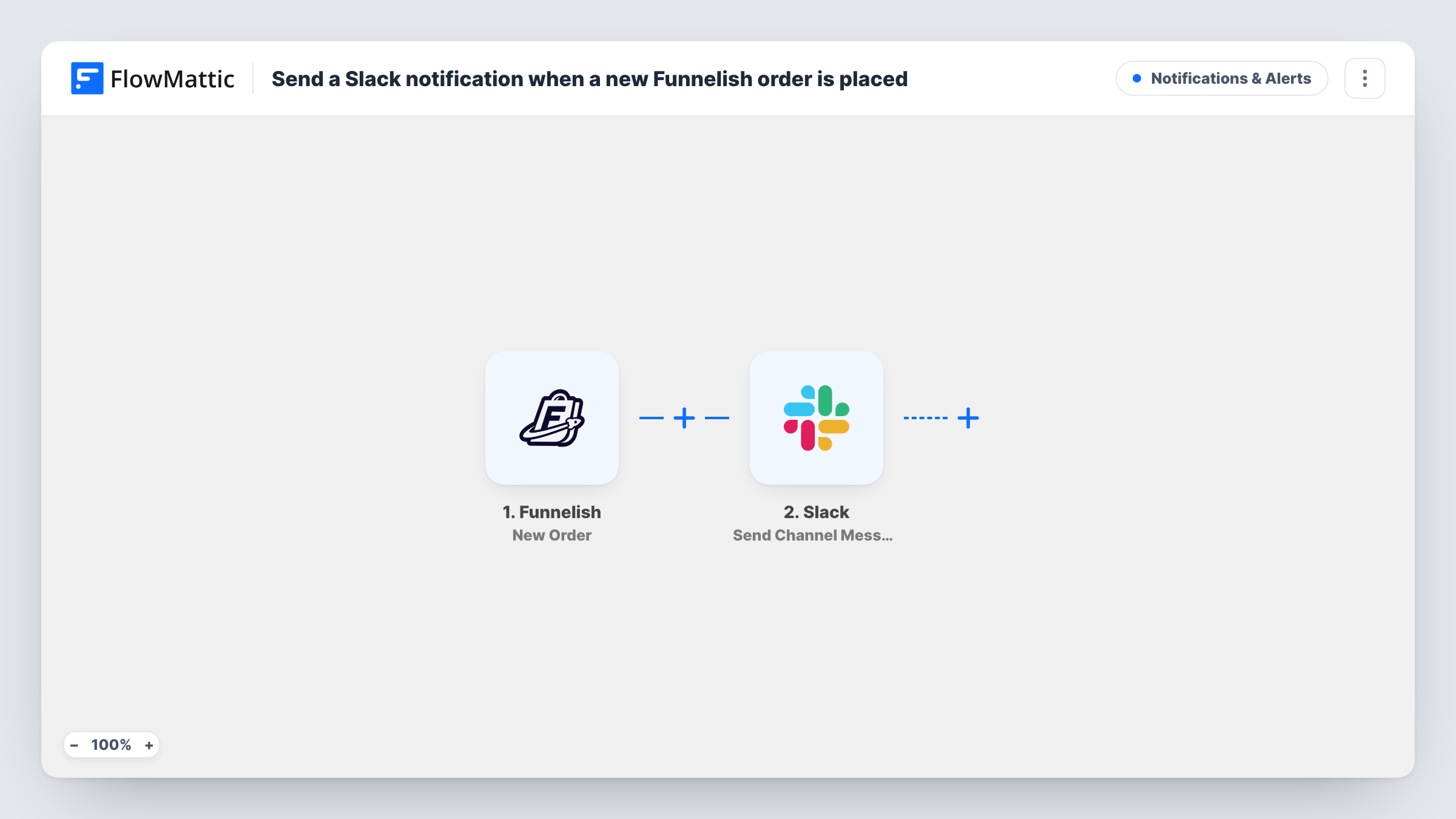
The Funnelish trigger is New Order, which fires when a new order is created. FlowMattic passes the order data to Slack, where Send Channel Message posts to the #channel you choose. You write the text and place order fields in it, such as the buyer and the product, once a test order shows which fields arrive.
Each order produces one message, including test orders. The workflow doesn't fulfil or change the order in Funnelish; it only posts about it. Task History logs every order run.
Sales feed for a small team
A #sales channel gets a post for every Funnelish order, so the whole team sees what is selling during a launch.
Fulfilment heads-up
The person who packs physical products watches a Slack channel for new Funnelish orders and starts on each one from the post.
Testing a new funnel
After publishing a funnel, you watch Slack for its first orders to confirm checkout works end to end.
How this workflow runs
What happens at each step once the workflow is on, and what you need before you import it.
 Funnelish New Order
Fires when a new order is created in Funnelish. The order data becomes available to place in the Slack message. Connect your Funnelish account on import.
- Slack Send Channel Message
Posts to the Slack #channel you select. Write the message and drop in the Funnelish order fields your team needs. Connect Slack when you import the workflow.
What you need
- FlowMatticCore
- Funnelish AccountAccount
- Slack AccountAccount
After importing, map your own data. To keep the template universal, not every step is pre-filled. Open each step in the builder and connect your accounts and fields (channels, lists, sheets, recipients) before you switch the workflow on.
Make it yours
Changes worth making after you import it.
- Post to a private Slack channel with the separate Send Private Channel Message action, or to one person with Send Direct Message.
- Add a Filter after the trigger that continues only when the order total is above an amount you choose. The Filter compares whole numbers, so 49.99 is checked as 49.
- Add a Google Sheets Add New Row step after Slack if you also want each order kept in a spreadsheet.
Questions about this workflow
Does every Funnelish order post to Slack?
Yes, as imported. Each new order starts one run and posts one message. To post only some of them, place a Filter right after the Funnelish trigger.
Which Funnelish order details can appear in the Slack post?
The fields Funnelish includes with the new order. Place a test order after import, then insert the ones you want from the captured data.
Will my Funnelish test orders also show up in Slack?
Yes, if Funnelish creates them as orders. Use them to set up the message, and add a Filter later if you want to keep them out.
Are Funnelish orders placed before import posted?
No. Only Funnelish orders created once the workflow is on are posted.
More Notifications & Alerts workflows
Other ready-to-import templates from the same category.



Import this workflow into your WordPress site
Download the JSON, import it from the Workflows screen and connect your accounts. Every run stays on your server, with no per-task fees.
30-day money-back guarantee Unlimited workflows and runs Self-hosted