

Email the customer via Gmail when a new ChargeOver invoice is created
When an invoice is created in ChargeOver, this workflow sends an email through your Gmail account, so the customer hears about the new invoice in a message written in your own words and sent from your address.
 ChargeOver
 Gmail
2 steps Setup ~5 min Used on 2.5k sites Free to import
What this workflow does
Billing emails from a system address can feel impersonal, and some customers filter them out. If you would rather your customers hear about a new invoice from your own Gmail address, in words you choose, this workflow sends that email each time ChargeOver creates an invoice.
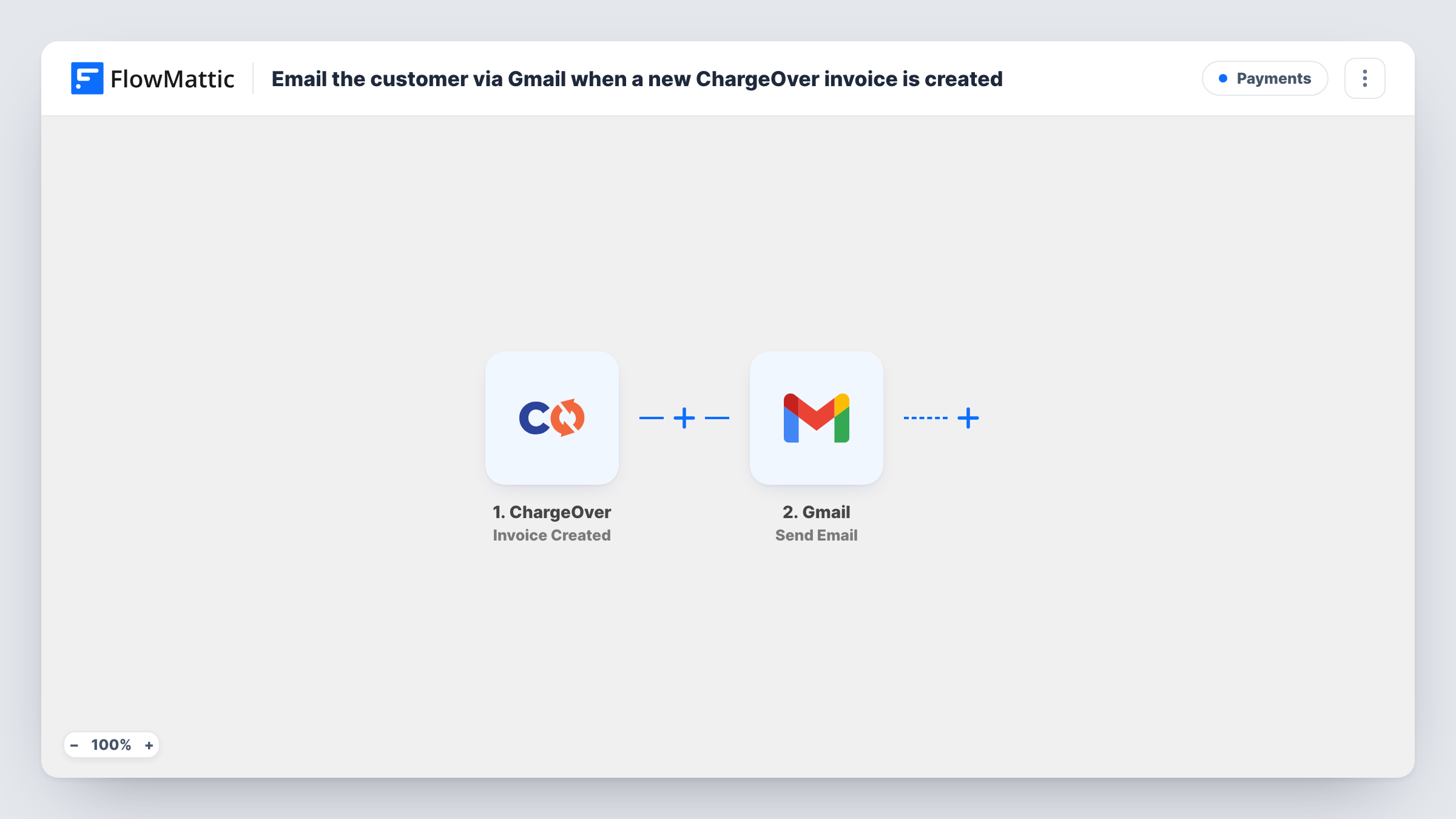
The ChargeOver trigger fires when an invoice is created. FlowMattic passes the invoice data to Gmail, and the Send Email action sends a message from the account you connect. You write the subject and body and drop in values from the invoice, such as its number or total, where you want them.
The recipient must be mapped to an email address the invoice data provides. Create a test invoice after import and check what ChargeOver sends before you rely on it. The email is a message you compose, not ChargeOver's own invoice document, and Task History shows each send.
Personal note from a freelancer
A consultant bills through ChargeOver but wants each client to get a short note from their own Gmail address when an invoice is raised.
Small agency monthly retainers
Retainer invoices created each month in ChargeOver trigger a friendly Gmail message from the account manager's address.
Membership organisations
When a renewal invoice is created, members get an email from the office Gmail account explaining what the invoice covers.
How this workflow runs
What happens at each step once the workflow is on, and what you need before you import it.
 ChargeOver Invoice Created
Fires when an invoice is created in your ChargeOver account. The invoice data is passed on so you can use it in the email.
- Gmail Send Email
Sends one message per ChargeOver invoice from the Gmail account you connect. Map the recipient address from the invoice data and write a subject and body that include the invoice values you want.
What you need
- FlowMatticCore
- ChargeOver AccountAccount
- Gmail AccountAccount
After importing, map your own data. To keep the template universal, not every step is pre-filled. Open each step in the builder and connect your accounts and fields (channels, lists, sheets, recipients) before you switch the workflow on.
Make it yours
Changes worth making after you import it.
- Include the invoice number and amount in the subject line, so the customer can match your email to the invoice at a glance.
- Add a Google Sheets step after Gmail if you want a running log of which ChargeOver invoices were emailed and to whom.
- Create a test invoice for your own customer record after import and check the email that arrives in your inbox before going live.
Questions about this workflow
Does the Gmail email include the ChargeOver invoice as a PDF?
No. The Gmail step sends the message you write. Include the invoice details in the body, or a link if the invoice data carries one.
Will ChargeOver stop sending its own invoice emails?
No. This workflow does not change ChargeOver's settings. If ChargeOver also emails invoices, customers may get both messages.
How does the Gmail step know which ChargeOver customer to email?
From the invoice data the trigger delivers. Run a test invoice and check that an email value is present before you map it as the recipient.
More Payments workflows
Other ready-to-import templates from the same category.







Import this workflow into your WordPress site
Download the JSON, import it from the Workflows screen and connect your accounts. Every run stays on your server, with no per-task fees.
30-day money-back guarantee Unlimited workflows and runs Self-hosted