

When a new survey is completed in Survicate, add a new row in Google Sheets
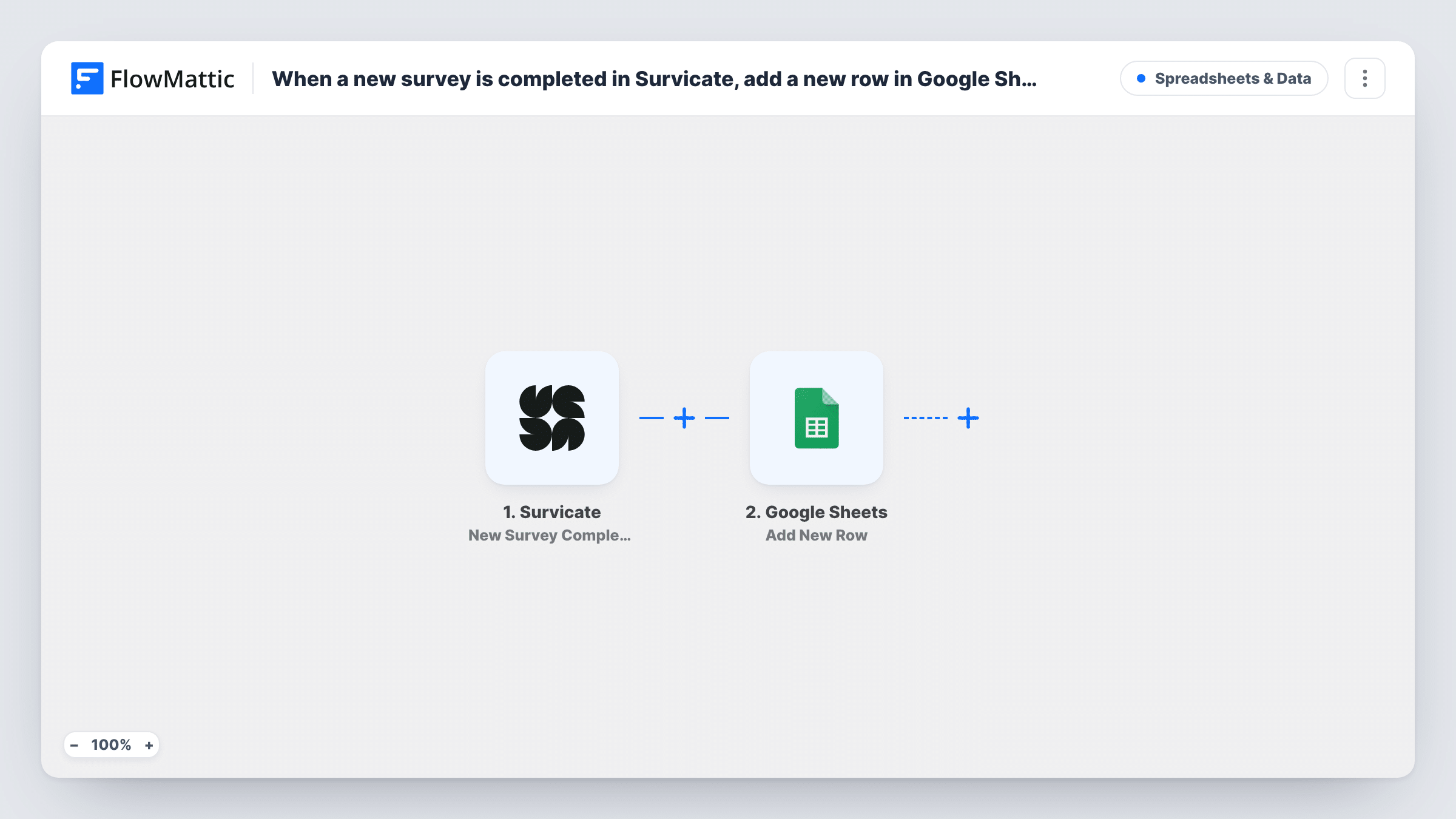
When a respondent finishes a whole Survicate survey, this workflow adds their responses to a new row in Google Sheets, building a spreadsheet of completed surveys you can chart, filter and share.
 Survicate
 Google Sheets
2 steps Setup ~5 min Used on 2.2k sites Free to import
What this workflow does
Survicate shows results in its own reports, but you may want the raw answers somewhere you control: a sheet you can pivot, join with other data or hand to a colleague. This workflow writes each completed survey into Google Sheets, one respondent per row.
The Survicate trigger used here is New Survey Completion, which fires when someone completes the entire survey. FlowMattic passes the response data to Google Sheets, and Add New Row places it in the next free row of the sheet you pick, with each answer in the column you mapped.
People who stop partway do not trigger a run, so the sheet holds finished surveys only. Survicate also offers a New Question Answer trigger if you want each answer as it is given. Every run appears in Task History with the data Survicate sent.
NPS survey tracking
Each completed NPS survey lands in a sheet where you chart scores by month and read the comments next to each score.
Onboarding feedback for a SaaS product
New users who finish your in-app Survicate survey get a row, and the product team tags each row with the theme it raises.
Post-purchase questionnaires
Completed surveys after checkout fill a sheet the marketing team uses to compare answers across product lines.
How this workflow runs
What happens at each step once the workflow is on, and what you need before you import it.
 Survicate New Survey Completion
Runs once a person works through your Survicate survey to the very end. The completed response is passed on so you can map its answers into columns.
- Google Sheets Add New Row
Places the completed Survicate response in a new row of the spreadsheet you select. Connect your Google account and assign each column an answer from the response.
What you need
- FlowMatticCore
- Survicate AccountAccount
- Google Sheets AccountAccount
After importing, map your own data. To keep the template universal, not every step is pre-filled. Open each step in the builder and connect your accounts and fields (channels, lists, sheets, recipients) before you switch the workflow on.
Make it yours
Changes worth making after you import it.
- Want partial answers too? Swap the trigger for Survicate's New Question Answer, which fires each time a question is answered, and expect one row per answer instead of one per survey.
- Add a Filter after the trigger if you run several surveys and only one belongs in this sheet, using a value that names the survey.
- Complete the survey yourself once after import so FlowMattic captures the response format, then finish mapping the columns.
Questions about this workflow
Do half-finished Survicate surveys reach the sheet?
No. The New Survey Completion trigger fires only when the whole survey is completed, so partial responses are not written.
What if I add a question to the Survicate survey later?
Its answer is not written until you add a column for it and map it in the Google Sheets step. Complete a test survey so FlowMattic sees the new question.
Are responses collected before import added to Google Sheets?
No. Only surveys completed while the workflow is on start a run. Export earlier results from Survicate if you need them in the sheet.
More Spreadsheets & Data workflows
Other ready-to-import templates from the same category.



Import this workflow into your WordPress site
Download the JSON, import it from the Workflows screen and connect your accounts. Every run stays on your server, with no per-task fees.
30-day money-back guarantee Unlimited workflows and runs Self-hosted