

Add a new Freemius affiliate to a Mailchimp audience
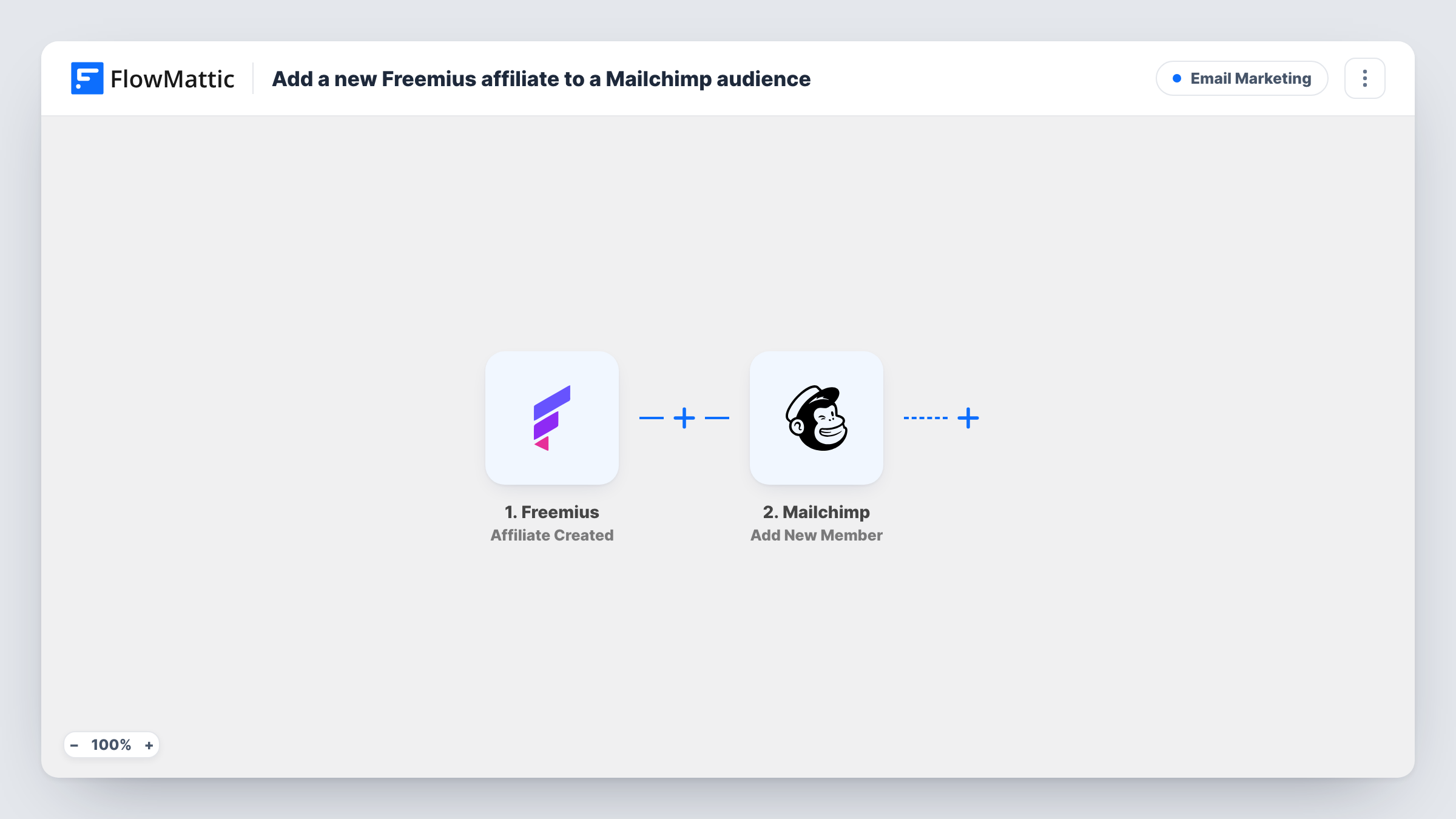
When an affiliate is created in Freemius, this workflow adds their email address to the Mailchimp audience you choose, or updates them if they are already there, so your partner list builds itself.
 Freemius
 Mailchimp
2 steps Setup ~5 min Used on 759 sites Free to import
What this workflow does
Affiliates who promote your plugin or SaaS need program news: new assets, commission changes, launch dates. If they sign up in Freemius but your updates go out from Mailchimp, someone has to move each address across. This workflow moves it for you when the affiliate is created.
The Freemius trigger is Affiliate Created, which fires whenever an affiliate is created in your Freemius account. The affiliate's details from that event become data you can map. The Mailchimp step uses Add New Member, which adds the person to the list you pick or updates them if that address is already a member. Map the affiliate's email, and name fields if you want them.
Affiliate Created fires when the record is created, which may be before you approve the application. Freemius has a separate Affiliate Approved trigger if you would rather add people only once accepted. Task History shows what was sent to Mailchimp for each affiliate.
Partner newsletter for a WordPress plugin
A plugin developer sends a monthly affiliate update from Mailchimp, and every new Freemius affiliate lands in that audience without an export.
Welcome sequence for new affiliates
Use the Mailchimp audience as the starting point for an automation in Mailchimp that sends new partners a welcome email with banners and links.
Launch announcements to promoters
Before a major release, a SaaS team emails all affiliates at once from Mailchimp, knowing everyone created in Freemius is already on the list.
How this workflow runs
What happens at each step once the workflow is on, and what you need before you import it.
 Freemius Affiliate Created
Fires whenever an affiliate is created in Freemius. The affiliate's details, including the email address, are passed on for the Mailchimp step.
- Mailchimp Add New Member
Adds the affiliate to your chosen Mailchimp audience, or updates the member if the address is already there. Map the affiliate's email from Freemius and connect your Mailchimp account.
What you need
- FlowMatticCore
- Freemius AccountAccount
- Mailchimp AccountAccount
After importing, map your own data. To keep the template universal, not every step is pre-filled. Open each step in the builder and connect your accounts and fields (channels, lists, sheets, recipients) before you switch the workflow on.
Make it yours
Changes worth making after you import it.
- To add only accepted partners, swap the trigger for Freemius's Affiliate Approved, so applicants you reject never reach the Mailchimp audience.
- Create an affiliate in Freemius after import, or wait for the next sign-up, so FlowMattic captures the fields. Then map the email and any name fields in Mailchimp.
- If you also want to know about each new partner, add a Slack or email step after Mailchimp that names the affiliate who just joined.
Questions about this workflow
Are Freemius affiliates added before approval?
The trigger is Affiliate Created, which fires when the affiliate record is created. If you only want approved partners, use the Affiliate Approved trigger instead.
What happens when a new Freemius affiliate is already a Mailchimp member?
Add New Member updates an existing member instead of adding a duplicate. Check the mapped values, since the update can change fields such as their name.
Do I need consent to email Freemius affiliates from Mailchimp?
That depends on your affiliate terms and the law where you and your partners are. Make sure your program terms cover sending updates by email.
Are existing Freemius affiliates added when I turn this on?
No. Only affiliates created after the workflow is active reach Mailchimp. Import earlier ones into the audience once by hand.
More Email Marketing workflows
Other ready-to-import templates from the same category.






Import this workflow into your WordPress site
Download the JSON, import it from the Workflows screen and connect your accounts. Every run stays on your server, with no per-task fees.
30-day money-back guarantee Unlimited workflows and runs Self-hosted