

When a new submission received in Elementor Pro Forms, check if the email is valid with MailRefine, and create a new contact in Sendinblue
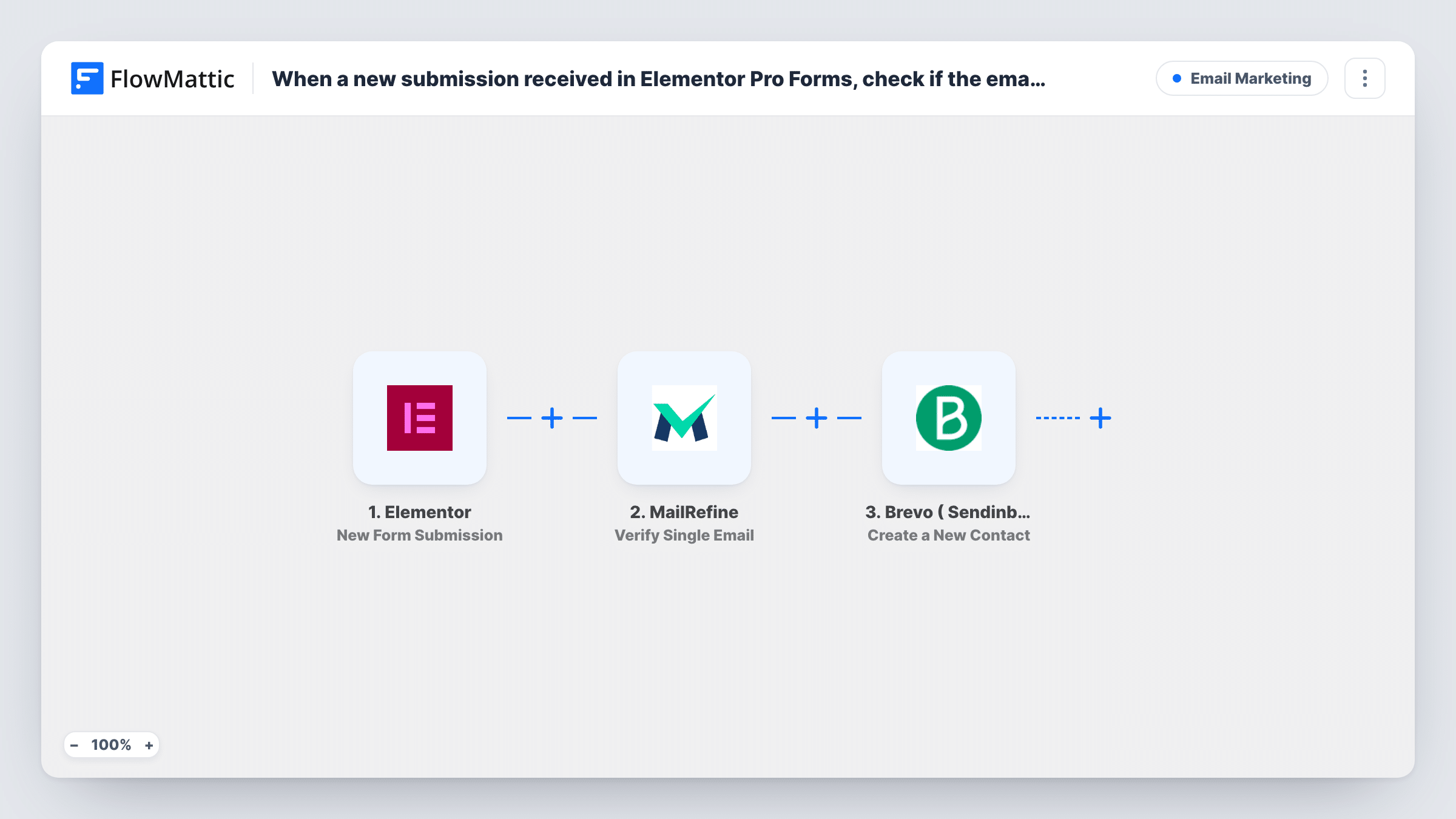
Each Elementor Pro form submission has its email address checked by MailRefine, then FlowMattic creates a contact in Brevo (Sendinblue). As imported, every submission becomes a contact whatever MailRefine returns.
 Elementor
 MailRefine
 Brevo ( Sendinblue )
3 steps Setup ~5 min Used on 3.2k sites Free to import
What this workflow does
Form sign-ups bring in typos and made-up addresses along with real ones. Once they sit in your Brevo list, your campaigns to them bounce. This workflow runs a check on each address as the form is sent, then creates the Brevo contact, so you can see the result and decide what to keep out.
A visitor submits a form built with Elementor Pro, and the run begins. FlowMattic sends the email field to MailRefine using Verify Single Email, and MailRefine's response becomes mappable data. The final step uses Create a New Contact in Brevo ( Sendinblue ) with the form details you map.
No Filter sits between the check and Brevo in the template, so the contact is created for every submission. To keep failed addresses out, add a Filter between MailRefine and Brevo that continues only on a valid result. All three steps come unmapped, so connect your accounts, then send a test entry and map the email and name fields.
Newsletter sign-up form in an Elementor footer
Sign-ups from the footer form are checked and added to Brevo, where your newsletter goes out. With a Filter added, failed addresses stay off the list.
Gated download on a landing page
Visitors give an email to get a guide. MailRefine checks it, and the contact lands in Brevo for the follow-up emails about the guide.
Event interest form
People register interest in an upcoming event through an Elementor form. Each address is checked before you email them dates and tickets from Brevo.
How this workflow runs
What happens at each step once the workflow is on, and what you need before you import it.
 Elementor New Form Submission
Runs when a visitor submits an Elementor Pro form on your site. All form fields, including the email address, are passed on. Send a test entry after import to capture them for mapping.
- MailRefine Verify Single Email
Passes the visitor's email address to MailRefine's Verify Single Email action. Connect your MailRefine account and map the form's email field. The response is available to the Brevo step and to any Filter you add.
- Brevo ( Sendinblue ) Create a New Contact
Creates a new contact in Brevo (Sendinblue). Connect your Brevo account and map the email address and any name fields from the form to the contact.
What you need
- FlowMatticCore
- Elementor PluginPlugin
- MailRefine AccountAccount
- Brevo ( Sendinblue ) AccountAccount
After importing, map your own data. To keep the template universal, not every step is pre-filled. Open each step in the builder and connect your accounts and fields (channels, lists, sheets, recipients) before you switch the workflow on.
Make it yours
Changes worth making after you import it.
- Place a Filter between MailRefine and Brevo that continues only when the result shows a valid address. Run one good and one fake test entry first to see what MailRefine returns for each.
- Add a Filter between the Elementor trigger and the MailRefine step that checks a consent checkbox. A Filter stops every later step, so visitors who didn't tick it reach neither MailRefine nor Brevo.
- To send failed addresses somewhere else, such as a review spreadsheet, add a Router between the MailRefine step and the Brevo step instead of a Filter. Give the routes conditions that can't both match, and move the Brevo step onto the valid route.
Questions about this workflow
Does MailRefine keep invalid emails out of Brevo as imported?
No. The template has no Filter, so every Elementor submission becomes a Brevo contact. Add a Filter between the MailRefine step and the Brevo step to stop invalid ones.
What happens if the email is already a Brevo contact?
The step is Create a New Contact, not an update. Test with an address already in Brevo and check Task History to see the response before going live.
Does this work with the free Elementor plugin?
No. The trigger listens to the Elementor Pro form widget, so you need Elementor Pro on the same site as FlowMattic.
Which Elementor field does MailRefine check?
The one you map. Verify Single Email ships unmapped, so after import you send a test entry and map the form's email field into it. The Brevo step ships unmapped as well, so map the same address there. Task History shows what MailRefine returned for each entry.
More Email Marketing workflows
Other ready-to-import templates from the same category.







Import this workflow into your WordPress site
Download the JSON, import it from the Workflows screen and connect your accounts. Every run stays on your server, with no per-task fees.
30-day money-back guarantee Unlimited workflows and runs Self-hosted