

When a new submission received in Elementor Pro Forms, check if the email is valid with Mailboxlayer, and create a new contact in Sendinblue
Each Elementor Pro form submission has its email address checked by Mailboxlayer, then a new contact is created in Brevo (Sendinblue), with the check result available to map or to filter on after import.
 Elementor
 Mailboxlayer
 Brevo ( Sendinblue )
3 steps Setup ~5 min Used on 3.4k sites Free to import
What this workflow does
Email lists fed straight from website forms collect mistyped and made-up addresses, and sending to them hurts your list. Checking each address by hand is not realistic. This workflow runs every Elementor Pro form entry through Mailboxlayer before it creates the contact in Brevo, so the check happens while the entry is fresh.
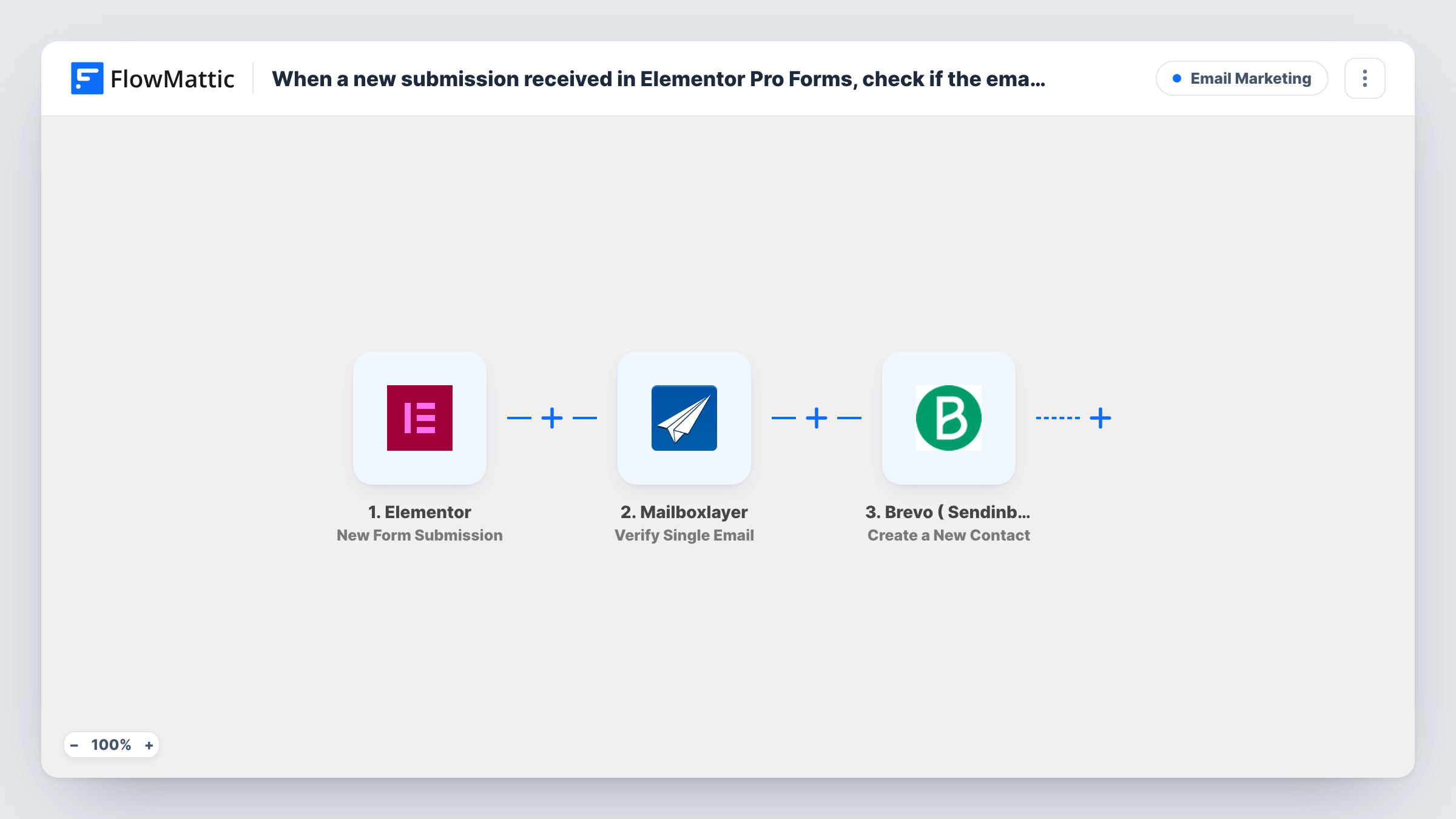
When a visitor submits an Elementor Pro form, FlowMattic receives the form fields. It sends the email field to Mailboxlayer using Verify Single Email, and the response from Mailboxlayer becomes data the next step can use. The last step creates a new contact in Brevo (Sendinblue) from the fields you map.
Be clear on one point: as imported, the workflow creates the Brevo contact whatever Mailboxlayer says. Nothing sits between the check and the contact step. To keep failed addresses out of Brevo, add a Filter after Mailboxlayer that continues only on the result you treat as valid. The tips below cover that change.
Newsletter sign-up form in an Elementor footer
Add a Filter on the Mailboxlayer result and only addresses that pass reach your Brevo newsletter contacts.
Download form for a free guide
Each download request is checked and sent to Brevo, and the Mailboxlayer response sits in Task History for any address you want to review.
Event registration on an Elementor landing page
Registrants are added to Brevo for reminder emails, and a Filter on the check keeps typo addresses out of the list.
How this workflow runs
What happens at each step once the workflow is on, and what you need before you import it.
 Elementor New Form Submission
Fires when a visitor submits a form built with Elementor Pro on your site. All submitted fields, including the email, are passed to the following steps.
- Mailboxlayer Verify Single Email
Sends the submitted email to Mailboxlayer for a single-address check. Map the form's email field here and connect your Mailboxlayer account. The response is then available to map or filter on.
- Brevo ( Sendinblue ) Create a New Contact
Creates a new contact in Brevo from the form submission. Connect your Brevo account and map the email plus any other form fields you want on the contact. Use a test run to see which options the step offers.
What you need
- FlowMatticCore
- Elementor PluginPlugin
- Mailboxlayer AccountAccount
- Brevo ( Sendinblue ) AccountAccount
After importing, map your own data. To keep the template universal, not every step is pre-filled. Open each step in the builder and connect your accounts and fields (channels, lists, sheets, recipients) before you switch the workflow on.
Make it yours
Changes worth making after you import it.
- Insert a Filter between Mailboxlayer and Brevo that continues only when the verification result shows a valid address. Run a test with a good and a bad address first to see the values Mailboxlayer returns.
- Prefer to keep every entry? Leave the flow as it is and map the Mailboxlayer result into a contact attribute in Brevo, if your Brevo account has one set up for it.
- Swap the Filter for a Router with two routes if you want failed addresses sent somewhere else, such as a Google Sheets row for manual review.
Questions about this workflow
Does Mailboxlayer stop invalid emails from reaching Brevo as imported?
No. The template runs all three steps for every submission, so the contact is created even when the check fails. Add a Filter after the Mailboxlayer step to change that.
Do I need Elementor Pro for this workflow?
Yes. The form widget is part of Elementor Pro, which must be active on the same WordPress site as FlowMattic.
What if the email is already a contact in Brevo?
The step creates contacts and does not update them, so Brevo may return an error for an address it already holds. Task History shows the error on the Brevo step, and the existing contact stays as it is.
Do I need my own Mailboxlayer account?
Yes. The check runs through your Mailboxlayer account, which you connect in the Mailboxlayer step when you import the workflow.
More Email Marketing workflows
Other ready-to-import templates from the same category.





Import this workflow into your WordPress site
Download the JSON, import it from the Workflows screen and connect your accounts. Every run stays on your server, with no per-task fees.
30-day money-back guarantee Unlimited workflows and runs Self-hosted