

Add each new Poper lead to a MailerLite subscriber group
Each new lead captured by a Poper popup is created as a MailerLite subscriber, or updated if the email is already there, and then assigned to the MailerLite group you pick.
 Poper
Poper
 MailerLite
3 steps Setup ~5 min Used on 1.8k sites Free to import
What this workflow does
Popups collect email addresses quickly, but the leads are only useful once they sit in the right place in your email tool. Keeping popup sign-ups in their own MailerLite group lets you send them the welcome or offer that matches what the popup promised. This workflow moves each lead there as it arrives.
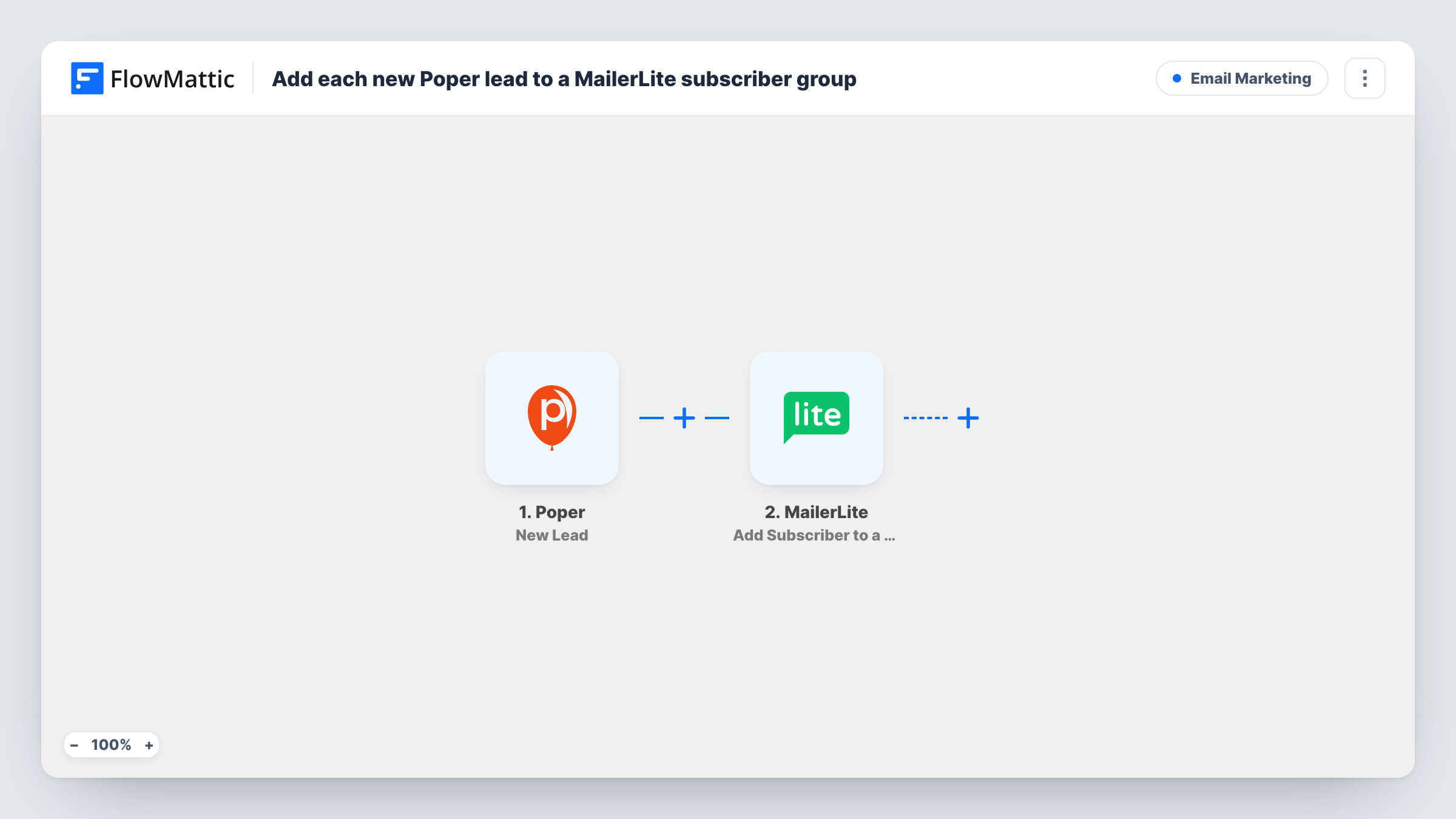
The Poper trigger fires for each new lead from a popup and passes the details the visitor entered. The first MailerLite step creates a subscriber from that lead, or updates the existing subscriber with the same email, including any custom fields you map. Because the subscriber now exists, the second MailerLite step can assign them to a group.
The template leaves the two MailerLite steps without mapping, so after import connect your MailerLite account, map the lead's email and name into Create or Update Subscriber, then pick the group in the last step and map the subscriber from the step before it. A test lead in Task History shows which values Poper sends and what MailerLite returned.
Every new Poper lead runs the full workflow, so leads from all your popups land in the same group unless you change that after import.
Discount popup for a shop
A store offers a first-order code in a Poper popup and puts every lead into a MailerLite group whose automation emails the code.
Exit-intent sign-ups on a blog
Readers who subscribe from an exit popup go to a dedicated group, so the blogger can send them a different welcome than newsletter sign-ups from the footer.
Waitlist for a product launch
A popup on a coming-soon page collects emails, and the MailerLite group becomes the waitlist that gets the launch announcement.
How this workflow runs
What happens at each step once the workflow is on, and what you need before you import it.
 Poper New Lead
Fires for each new lead from a Poper popup. The details the visitor entered, such as their email address, become available to map into MailerLite.
- MailerLite Create or Update Subscriber
Creates a MailerLite subscriber from the lead, or updates the subscriber who already has that email. Map the email, name and any custom fields after import.
- MailerLite Add Subscriber to a Group
Assigns the subscriber from the previous step to an existing MailerLite group. Pick the group and map the subscriber returned by the step before.
What you need
- FlowMatticCore
- Poper AccountAccount
- MailerLite AccountAccount
After importing, map your own data. To keep the template universal, not every step is pre-filled. Open each step in the builder and connect your accounts and fields (channels, lists, sheets, recipients) before you switch the workflow on.
Make it yours
Changes worth making after you import it.
- Create the MailerLite group before you import, so it is ready to pick in the last step.
- Set up an automation in MailerLite that starts when someone joins the group, so each Poper lead gets your welcome email without extra steps here.
- Add a Router between the Poper trigger and the first MailerLite step with a route per popup, if leads from different popups belong in different groups. Use conditions that can't both match, and give each route its own Create or Update Subscriber and group steps.
Questions about this workflow
What happens if the Poper lead's email is already a MailerLite subscriber?
The Create or Update Subscriber step updates that subscriber instead of creating a second one, and the next step adds them to the group.
Do I need to create the MailerLite group first?
Yes. The Add Subscriber to a Group step assigns people to a group that already exists, so make it in MailerLite and select it after import.
Which Poper popups send leads to MailerLite?
Every new lead from your popups starts a run as imported. Check a test lead in Task History for a field that tells popups apart if you want to send only some of them.
More Email Marketing workflows
Other ready-to-import templates from the same category.







Import this workflow into your WordPress site
Download the JSON, import it from the Workflows screen and connect your accounts. Every run stays on your server, with no per-task fees.
30-day money-back guarantee Unlimited workflows and runs Self-hosted