

When a form is submitted via MightyForms, add the user to a Mailchimp mailing list
Every MightyForms submission adds the person who filled it in as a member of your Mailchimp audience, using the email and name they entered, so form sign-ups reach your mailing list without an export.
 MightyForms
 Mailchimp
2 steps Setup ~5 min Used on 2.5k sites Free to import
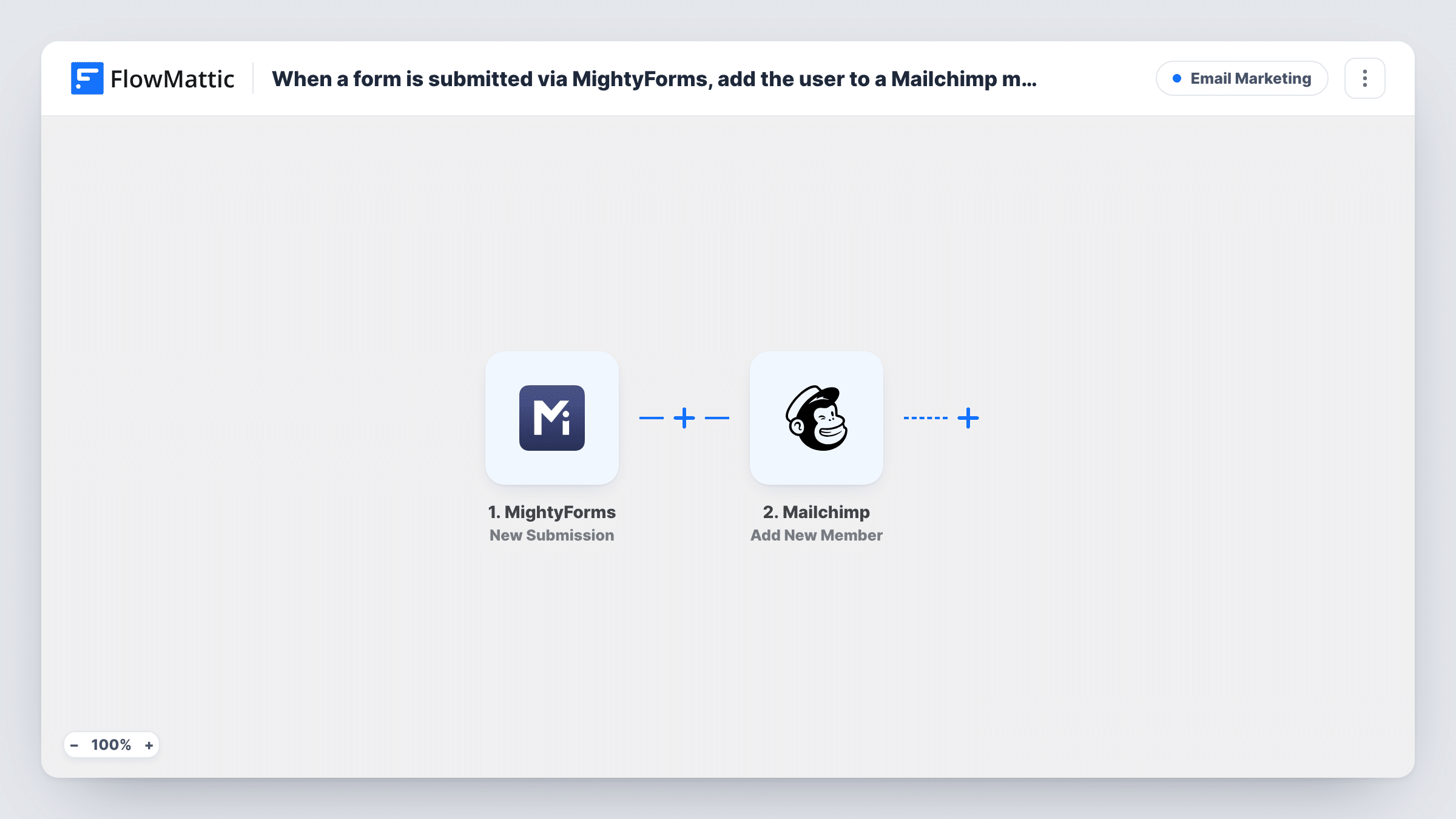
What this workflow does
A MightyForms form often doubles as a newsletter sign-up, a download gate or a contact form with an opt-in. The addresses are only useful once they are in Mailchimp, where your campaigns go out. This workflow places each respondent on your list the moment they submit.
The MightyForms trigger fires on New Submission and hands every answer to FlowMattic. The Add New Member step in Mailchimp then subscribes the person to your audience, using the email field you map and any name fields you collect.
As imported, every response is sent on, including entries that did not tick an opt-in box. If your form has one, add a Filter between the two steps. Task History logs each response along with Mailchimp's reply, which is where you look when an address did not appear in your audience.
Newsletter box on a landing page
A short MightyForms form asks for a name and email. Each sign-up joins your Mailchimp audience in time for the next issue.
Checklist or ebook download
Visitors give their email in a MightyForms form to get a free checklist. They become Mailchimp members you can email about related guides.
Contact form with an opt-in
Your contact form asks whether the person wants updates. With a Filter on that answer, only those who said yes reach Mailchimp.
How this workflow runs
What happens at each step once the workflow is on, and what you need before you import it.
 MightyForms New Submission
Runs when someone submits your MightyForms form. Every answer, including the email and name, is passed on for mapping into Mailchimp.
- Mailchimp Add New Member
Adds the respondent to your Mailchimp audience as a new member. Connect your Mailchimp account and map the MightyForms email field, along with any name answers your form collects.
What you need
- FlowMatticCore
- MightyForms AccountAccount
- Mailchimp AccountAccount
After importing, map your own data. To keep the template universal, not every step is pre-filled. Open each step in the builder and connect your accounts and fields (channels, lists, sheets, recipients) before you switch the workflow on.
Make it yours
Changes worth making after you import it.
- Mark the email field as required in MightyForms, because Mailchimp cannot add a member without an address.
- Add a Filter between the steps that continues only when your opt-in answer is yes, so people who did not agree to emails stay off the list.
- Decide which MightyForms answers to map with repeat sign-ups in mind, because a second submission updates the existing Mailchimp member with the new values.
Questions about this workflow
Does every MightyForms submission go to Mailchimp?
Yes, as imported. Add a Filter between the trigger and Mailchimp if you want to send only responses that meet a condition, such as a ticked opt-in.
Someone fills in my MightyForms form twice. Are they added twice?
No. The second submission updates the existing Mailchimp member with whatever the person entered this time, so they stay on the list once.
Can I send MightyForms sign-ups to more than one Mailchimp audience?
Add a second Mailchimp step after the first and point it at the other audience. Both steps then run for every response.
Are people who filled in my MightyForms form before import added?
No. Only responses that arrive while the workflow is on reach Mailchimp. Import older contacts through Mailchimp's own import.
More Email Marketing workflows
Other ready-to-import templates from the same category.





Import this workflow into your WordPress site
Download the JSON, import it from the Workflows screen and connect your accounts. Every run stays on your server, with no per-task fees.
30-day money-back guarantee Unlimited workflows and runs Self-hosted