

Subscribe a Braze user to an ActiveCampaign automation when an event arrives
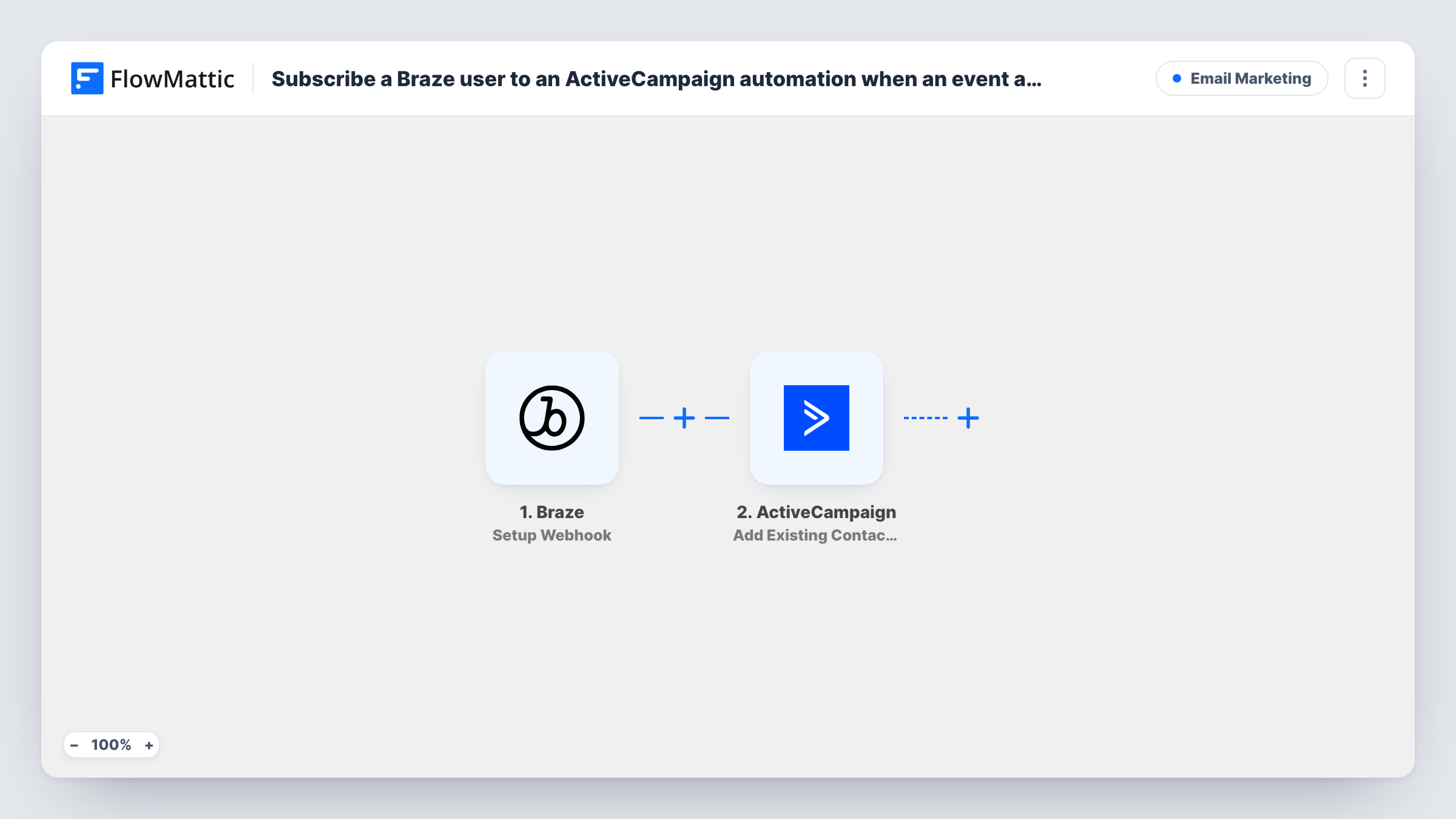
A Braze webhook campaign sends user data to FlowMattic, and this workflow adds that person, who must already be an ActiveCampaign contact, to the ActiveCampaign automation you choose.
 Braze
Braze
 ActiveCampaign
2 steps Setup ~5 min Used on 1.4k sites Free to import
What this workflow does
Teams that run product messaging in Braze and email nurturing in ActiveCampaign often need one to start the other. A user does something in your app, Braze notices, and an ActiveCampaign automation should take over. This workflow passes that hand-off through FlowMattic.
The Braze trigger runs according to a webhook campaign in Braze. You build that campaign to post to the FlowMattic URL, and you decide what goes in the request body, so include the user's email address or whatever identifier the ActiveCampaign step asks for. The ActiveCampaign step then runs Add Existing Contact to Automation, which puts an existing contact into the automation you pick.
The word existing matters. This action doesn't create contacts, so a Braze user who isn't in ActiveCampaign yet won't be enrolled. Test with a user you know is already a contact, and check Task History for ActiveCampaign's response. If many of your Braze users aren't in ActiveCampaign, add a step that creates the contact first.
Trial users who hit a milestone
Braze fires a webhook campaign when a trial user finishes onboarding. That contact enters an ActiveCampaign automation that explains paid features over a series of emails.
Re-engaging inactive app users
A Braze segment of lapsed users triggers the webhook, and each one who is already in ActiveCampaign joins a win-back email automation.
Upsell after a purchase in the app
An in-app purchase event starts a Braze webhook campaign, and the buyer joins an ActiveCampaign automation about related products.
How this workflow runs
What happens at each step once the workflow is on, and what you need before you import it.
 Braze Setup Webhook
Runs when your Braze webhook campaign posts to the FlowMattic URL. Build the request body in Braze to include the user's email address or other identifier for ActiveCampaign.
- ActiveCampaign Add Existing Contact to Automation
Adds an existing ActiveCampaign contact to the automation you select. Map the identifier from the Braze data; people who aren't contacts yet are not created or enrolled.
What you need
- FlowMatticCore
- Braze AccountAccount
- ActiveCampaign AccountAccount
After importing, map your own data. To keep the template universal, not every step is pre-filled. Open each step in the builder and connect your accounts and fields (channels, lists, sheets, recipients) before you switch the workflow on.
Make it yours
Changes worth making after you import it.
- Put ActiveCampaign's Create or Update Contact action before this step if some Braze users may not be contacts yet, so everyone can be enrolled.
- Send a test from your Braze webhook campaign using a user who already exists in ActiveCampaign, then map the fields before you turn the workflow on.
- Add a Filter after the trigger on a value in the Braze payload, such as plan type, if only some users should enter this automation.
Questions about this workflow
Will a Braze user who isn't in ActiveCampaign be added to the automation?
No. The step adds existing contacts only. Add ActiveCampaign's Create or Update Contact before it if you need everyone enrolled.
What should my Braze webhook campaign send?
You define the request body in Braze. Include the user's email address, or the identifier the ActiveCampaign step needs, plus any other values you want to use.
Can one Braze event put the user into several ActiveCampaign automations?
Not as imported. Add another Add Existing Contact to Automation step for each extra automation.
What if the contact is already in that ActiveCampaign automation?
That depends on your automation's settings in ActiveCampaign. Check Task History for the response ActiveCampaign returns.
More Email Marketing workflows
Other ready-to-import templates from the same category.





Import this workflow into your WordPress site
Download the JSON, import it from the Workflows screen and connect your accounts. Every run stays on your server, with no per-task fees.
30-day money-back guarantee Unlimited workflows and runs Self-hosted