

Add a Google Sheets row for every document parsed in Parsio
Each time Parsio parses a document, FlowMattic adds the extracted fields to Google Sheets as a new row, with any table fields flattened into values you can map to columns.
 Parsio
 Google Sheets
2 steps Setup ~5 min Used on 629 sites Free to import
What this workflow does
Parsio pulls structured data out of PDFs and emails, such as invoice numbers, order totals or lead details. That data is most useful in a spreadsheet you can sort, total and share. This workflow sends the result of every parse to Google Sheets, one row per document, so you stop copying values out of the Parsio dashboard.
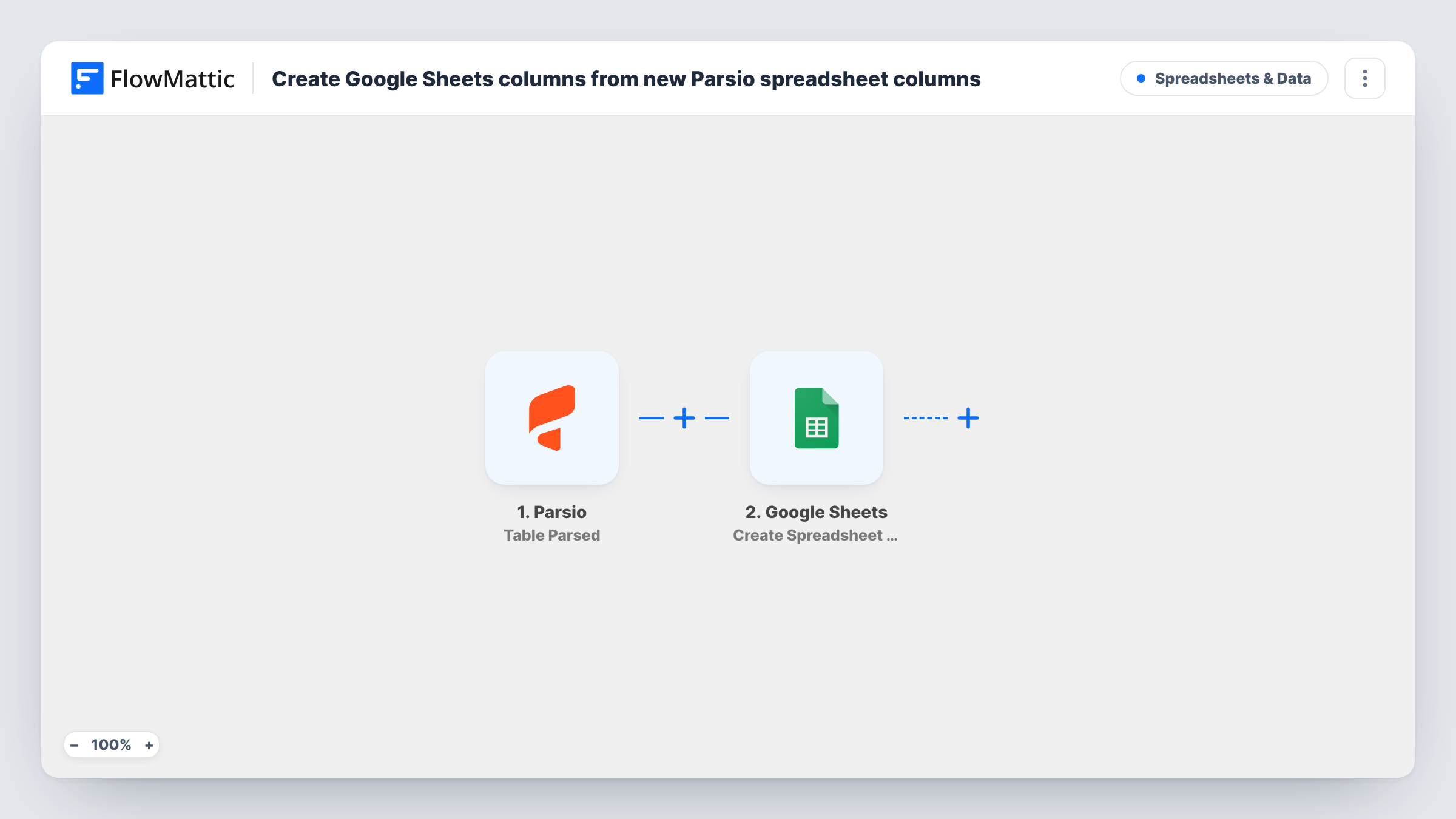
This flow listens for the Document Parsed (Flat Tables) event from Parsio. It fires when a document is parsed, and FlowMattic notes this covers both new documents and older ones that are parsed again. If the document contains table fields, those are flattened so each value can be passed on and placed in its own column instead of arriving as a nested list.
Next, Google Sheets receives those values as a fresh row. No columns are mapped in the template, so after import you choose the spreadsheet and sheet and match each Parsio field to a header. Parse one sample document first so the fields show up in FlowMattic for mapping.
Because a re-parsed document fires the trigger again, the same document can appear on more than one row. If the parsed data includes a document ID or file name, give it a column so duplicates are easy to spot, and check Task History if a row looks wrong.
Supplier invoices into a ledger sheet
A bookkeeper forwards supplier invoice PDFs to a Parsio mailbox, and each invoice's number, date, supplier and total lands on a row ready for reconciliation.
Order confirmation emails
A reseller parses order confirmations from several marketplaces with Parsio and keeps one Google Sheet listing every order across them.
Lead notification emails
A real estate agent parses lead emails from listing portals, and the sheet collects each enquirer's name, phone and the property they asked about.
How this workflow runs
What happens at each step once the workflow is on, and what you need before you import it.
 Parsio Document Parsed ( Flat Tables )
Starts a run each time Parsio finishes a parse, including when you parse an earlier document a second time. Table fields are flattened, so their values arrive as separate items you can map.
- Google Sheets Add New Row
Appends one row per parsed document to the sheet you pick. The template maps no columns: choose the spreadsheet, then match the Parsio fields from a sample parse to your headers.
What you need
- FlowMatticCore
- Parsio AccountAccount
- Google Sheets AccountAccount
After importing, map your own data. To keep the template universal, not every step is pre-filled. Open each step in the builder and connect your accounts and fields (channels, lists, sheets, recipients) before you switch the workflow on.
Make it yours
Changes worth making after you import it.
- Parse a sample document in Parsio before you map the Google Sheets step, so every extracted field is available to pick from.
- Look in a sample parse for an identifier such as a document ID or file name and map it into its own column, so rows from re-parsed documents are easy to find.
- If your documents hold line-item tables and you want a row per line, Parsio's flattened values may not be enough; test with a multi-line document and check how the items arrive before you rely on the layout.
Questions about this workflow
Does re-parsing a document in Parsio add another row?
Yes. The trigger fires for new documents and for older ones parsed again, so a re-parsed document starts a fresh run and adds a new row.
How are Parsio table fields written to Google Sheets?
This trigger flattens table fields so their values can be passed on as separate items. You then map each one to a column in the Add New Row step.
Which Google Sheets columns does each parsed document fill?
Only those you map after import. The step ships unmapped, so you pick the sheet and match fields such as dates, totals or names to your headers.
Do I need a Parsio parser set up before importing?
Yes. The workflow picks up documents your Parsio mailbox parses, so set up the parser and its fields in Parsio first, then connect it to the trigger.
More Spreadsheets & Data workflows
Other ready-to-import templates from the same category.



Import this workflow into your WordPress site
Download the JSON, import it from the Workflows screen and connect your accounts. Every run stays on your server, with no per-task fees.
30-day money-back guarantee Unlimited workflows and runs Self-hosted