

Send a Twilio SMS follow-up after a MyOperator call ends
When a call on your MyOperator number ends, this workflow sends a text through Twilio to the number you map from the call data, so the person gets a written follow-up right after hanging up.
 MyOperator
 Twilio
2 steps Setup ~5 min Used on 1.5k sites Free to import
What this workflow does
A phone call leaves nothing in writing. A short text afterwards can carry the link, address or next step you just talked about, but sending it by hand after every call is easy to forget. This workflow sends it for you as soon as the call is over.
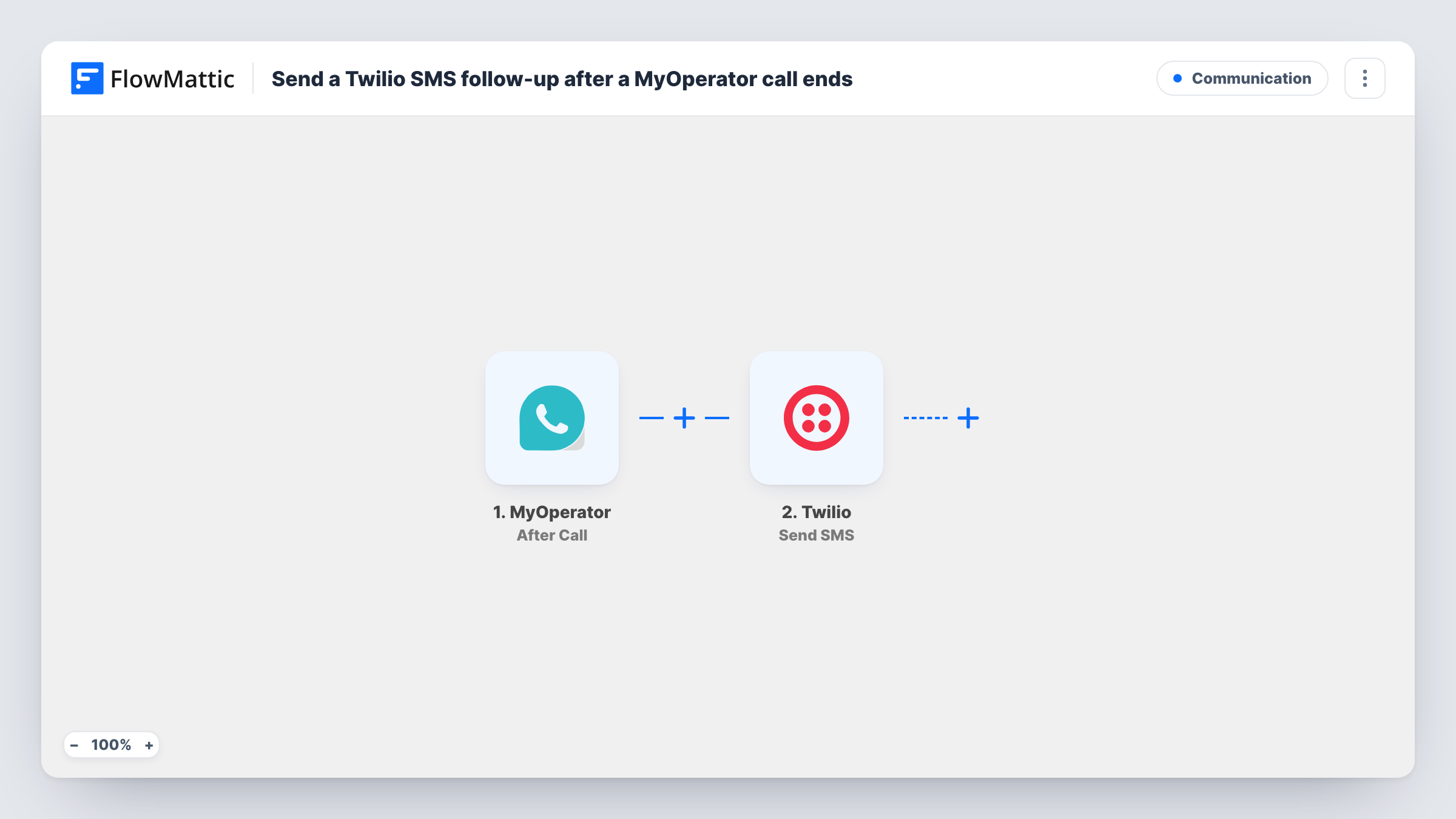
The MyOperator After Call trigger receives the call details once a call on your MyOperator account ends. FlowMattic passes that data to Twilio, whose Send SMS action texts a number from your Twilio account. You map the recipient from the call data and write the message, and you can drop call details such as the caller's number into the text.
As imported there is no condition between the two steps. Every call that ends starts a run, so someone who calls three times gets three texts. Make a test call after import to see which details MyOperator sends, then decide whether you need a Filter to limit which calls get a follow-up. Task History shows each run and the reply from Twilio.
Send your booking link after a sales call
Your team answers enquiries on a MyOperator number. When each call ends, the caller gets a text with the booking page so they can pick a time while the call is fresh.
Confirm a service visit in writing
A repair shop agrees on a visit by phone. The follow-up text repeats your address and contact number, so the customer has it saved.
Acknowledge support calls
A support line on MyOperator ends each call with a text that thanks the caller and gives the email address for sending photos or documents.
How this workflow runs
What happens at each step once the workflow is on, and what you need before you import it.
 MyOperator After Call
Fires when a call on your MyOperator account ends and delivers that call's details to FlowMattic. Make one test call so the data is captured and you can map it in the Twilio step.
- Twilio Send SMS
Texts one recipient using your Twilio account. Map the recipient from the MyOperator call data, choose your Twilio sender number, and write the message, adding call details where they help.
What you need
- FlowMatticCore
- MyOperator AccountAccount
- Twilio AccountAccount
After importing, map your own data. To keep the template universal, not every step is pre-filled. Open each step in the builder and connect your accounts and fields (channels, lists, sheets, recipients) before you switch the workflow on.
Make it yours
Changes worth making after you import it.
- Add a Filter after the trigger if only some calls should get a text, for example only answered calls. Check the values in a test run first so the condition compares against what MyOperator actually sends.
- Check the format of the phone number in the test data. If it lacks the country code Twilio expects, change the number before the Twilio step or adjust the mapping.
- Add a Delay before the Twilio step if you would rather the text arrive a few minutes after the call than the moment it ends.
Questions about this workflow
Does every MyOperator call trigger a Twilio text?
Yes, as imported. The After Call trigger runs once per ended call and there is no Filter, so each call sends one text. Add a Filter if some calls should be left out.
Which number does the Twilio SMS come from?
From a number in your own Twilio account, which you choose in the Send SMS step. It is not your MyOperator number, so mention your business name in the message.
Do I need permission to text MyOperator callers?
Texting rules differ by country, and some require consent before you send messages. Check the rules that apply to you and to your Twilio number before you turn the workflow on.
Can I see whether Twilio sent the follow-up?
Task History records each run with the response from Twilio, so a rejected number or other error shows on the Send SMS step.
More Communication workflows
Other ready-to-import templates from the same category.





Import this workflow into your WordPress site
Download the JSON, import it from the Workflows screen and connect your accounts. Every run stays on your server, with no per-task fees.
30-day money-back guarantee Unlimited workflows and runs Self-hosted