

Log every new Myfundbox payment in a Google Sheets spreadsheet
Each time a payment is made in Myfundbox, FlowMattic adds a row to your Google Sheets spreadsheet with the payment details you map, building a running log of income you can sort and share.
 Myfundbox
 Google Sheets
2 steps Setup ~5 min Used on 3.0k sites Free to import
What this workflow does
Payment records spread across a payment app's dashboard are hard to total, compare or hand to an accountant. A spreadsheet that fills itself as money comes in gives you one place to check. This workflow writes every Myfundbox payment into Google Sheets as it happens.
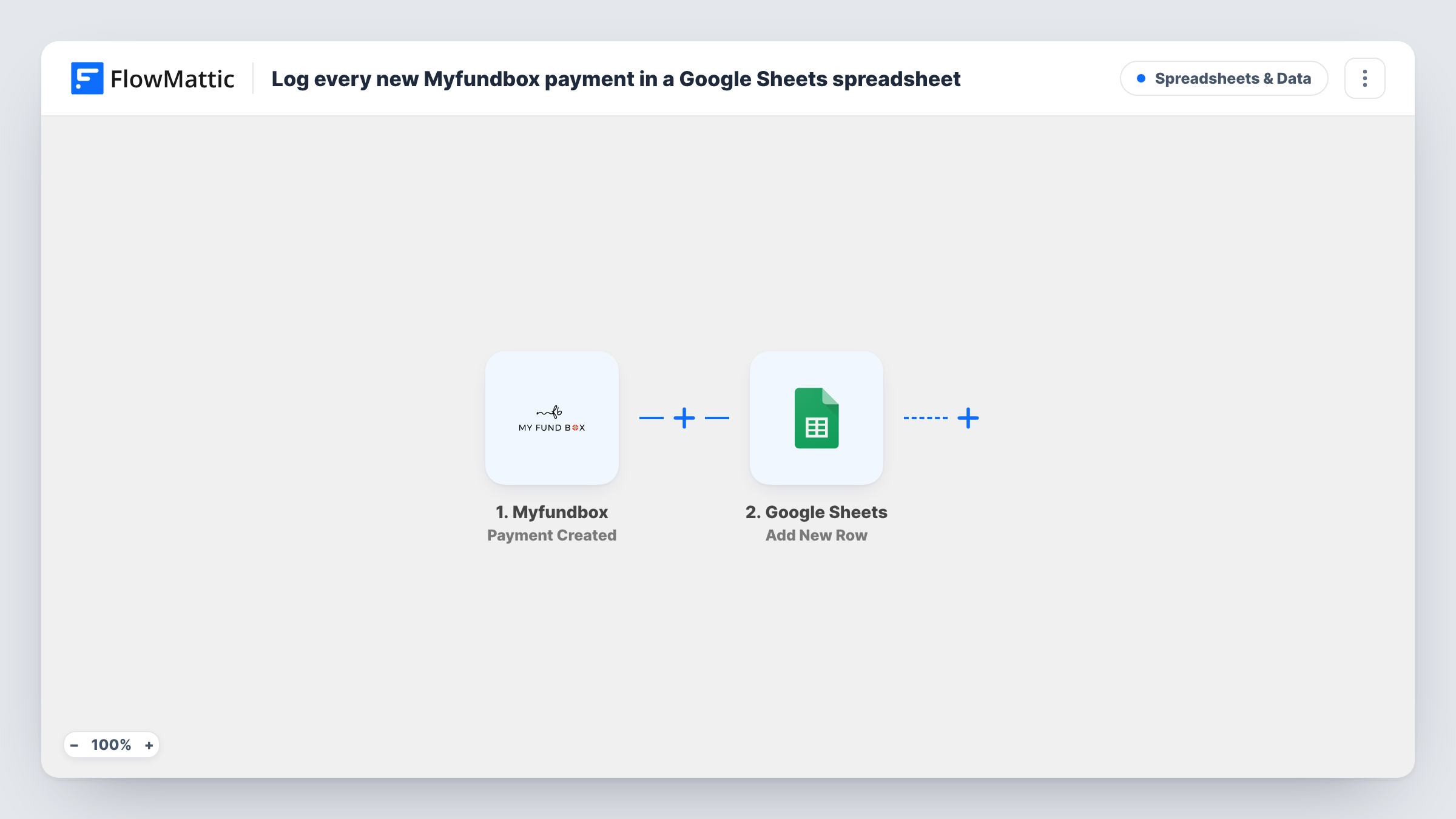
The Myfundbox trigger fires when a payment is done, and passes the payment data to FlowMattic. Next, Google Sheets receives that payment as one fresh row at the bottom of the sheet you select. You decide which payment values go in which columns, such as the amount, the payer and the date, based on what Myfundbox sends.
There is no Filter, so every payment adds its own row and the sheet becomes a full history. Make a test payment after import so the trigger captures sample data, then map the columns and check the result in Task History.
Monthly bookkeeping
At month end you share the sheet with your bookkeeper instead of exporting from Myfundbox, since every payment is already listed with the columns you chose.
Tracking a fundraising goal
Add a total formula below the payment rows so you can see how far a campaign has come, while the workflow keeps adding each new payment.
Reconciling against bank deposits
Keep payment amounts and dates side by side in the sheet, then tick off each row as the matching deposit shows up in your bank account.
How this workflow runs
What happens at each step once the workflow is on, and what you need before you import it.
 Myfundbox Payment Created
Fires when a payment is done in Myfundbox. The payment data it sends is available to map into the spreadsheet row in the next step.
- Google Sheets Add New Row
Writes the payment as one row in the Google Sheets file and tab you select. Set up column headers first, map each one to a Myfundbox payment value, and connect your Google account on import.
What you need
- FlowMatticCore
- Myfundbox AccountAccount
- Google Sheets AccountAccount
After importing, map your own data. To keep the template universal, not every step is pre-filled. Open each step in the builder and connect your accounts and fields (channels, lists, sheets, recipients) before you switch the workflow on.
Make it yours
Changes worth making after you import it.
- Add a Filter after the trigger if you only want certain payments in this sheet, for example payments above a set amount. Payments that fail the condition then add no row.
- Leave the header row in place and add new columns only at the right-hand end, so the mapping you set in the Google Sheets step keeps pointing at the right columns.
- Swap the single Google Sheets step for a Router with two routes, each writing to a different sheet, if you track two kinds of payment separately.
Questions about this workflow
Will past Myfundbox payments be added to the sheet?
No. The trigger fires for payments made after you turn the workflow on. Any earlier payments you want in the sheet have to be added by hand.
Which Myfundbox payment details can I put in Google Sheets?
Whatever the Payment Created trigger sends. Make a test payment after import, then look at the captured data in the Google Sheets step to see which values you can map to columns.
What if the Google Sheets step fails for a payment?
Task History shows the error on that step for that run, so you can see which payment was not logged and add it yourself after fixing the problem.
More Spreadsheets & Data workflows
Other ready-to-import templates from the same category.



Import this workflow into your WordPress site
Download the JSON, import it from the Workflows screen and connect your accounts. Every run stays on your server, with no per-task fees.
30-day money-back guarantee Unlimited workflows and runs Self-hosted