

Send a Slack alert to the sales team for each new Nimbata call
Each time an inbound call to one of your Nimbata tracking numbers is completed, this workflow posts the call details to a Slack channel, so your sales team sees every call without logging in to Nimbata.
 Nimbata
 Slack
2 steps Setup ~5 min Used on 1.8k sites Free to import
What this workflow does
Call tracking tells you which campaign made the phone ring, but that information sits in the Nimbata dashboard. Sales reps who want to follow up on a call, or see which ads are working, rarely check it during the day. This workflow posts every completed call to Slack, where the team already talks.
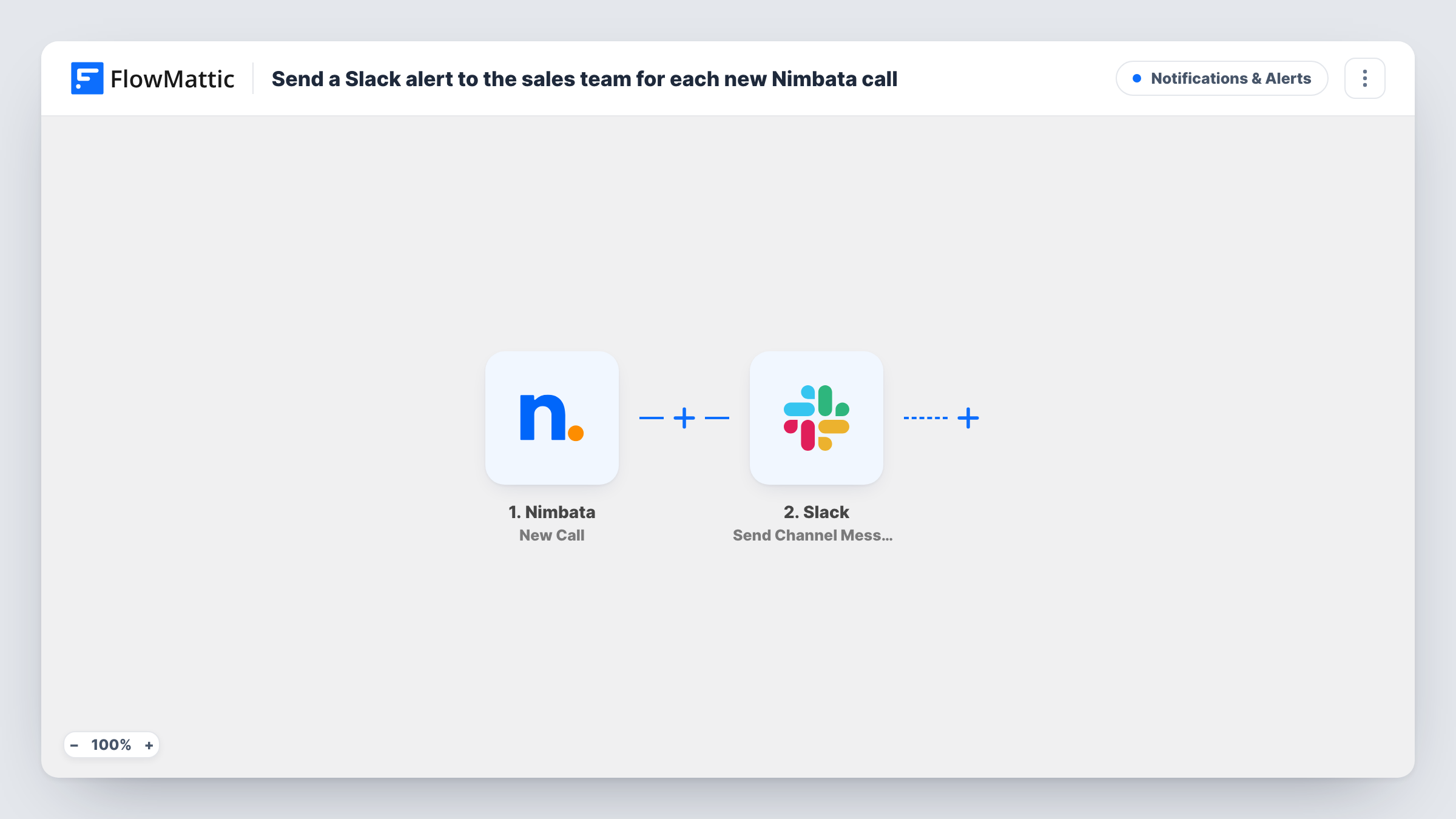
The Nimbata trigger, New Call, starts a run once someone who dialled one of your tracking numbers hangs up. FlowMattic receives the call data Nimbata sends. The Slack step, Send Channel Message, then drops a note into a channel your sales team follows. You decide what the message says and map in whichever call details a test call shows Nimbata sending.
Every completed inbound call is posted, because the template has no Filter. The message goes out after the call ends, not while the phone is ringing. Task History shows each run with the call data and Slack's response.
Follow-up on missed opportunities
A short call from a new prospect shows up in #sales, and a rep calls the number back the same afternoon.
Seeing which campaign drives calls
If Nimbata sends the tracking number or source, include it in the message, and the channel becomes a running log of which ads and listings bring in calls.
Agency reporting for clients
An agency posts each client's Nimbata calls to a shared Slack channel, so the client sees every call their campaign produced.
How this workflow runs
What happens at each step once the workflow is on, and what you need before you import it.
 Nimbata New Call
Runs at the end of every inbound call placed to a Nimbata tracking number. The call data is passed to the Slack step for mapping.
- Slack Send Channel Message
Sends a call summary to one Slack channel. Write the text with the Nimbata call details mapped in and connect your Slack workspace on import.
What you need
- FlowMatticCore
- Nimbata AccountAccount
- Slack AccountAccount
After importing, map your own data. To keep the template universal, not every step is pre-filled. Open each step in the builder and connect your accounts and fields (channels, lists, sheets, recipients) before you switch the workflow on.
Make it yours
Changes worth making after you import it.
- Make a test call to a tracking number after import so FlowMattic captures the call fields, then map the ones your team needs into the message.
- If Nimbata sends a call duration and very short calls are noise for you, add a Filter on it. Durations compare as whole numbers, so set the threshold in the unit Nimbata uses.
- To alert one rep directly instead of a channel, swap the step for Slack's Send Direct Message action.
Questions about this workflow
Does the Slack alert arrive while the Nimbata call is still ringing?
No. The trigger fires when an inbound call is completed, so the message is posted after the call ends.
Are outbound calls posted to Slack too?
No. Nimbata's New Call trigger covers inbound calls to your tracking numbers only.
Can I post Nimbata calls for different campaigns to different channels?
Yes, with a change. Use a Router with a condition on a call field that differs per campaign, such as the tracking number if Nimbata sends it, and a Slack step on each route.
What Nimbata call details can go in the Slack message?
Any field the trigger returns. Make a test call, then pick the details you want from the captured data in the Slack step.
More Notifications & Alerts workflows
Other ready-to-import templates from the same category.



Import this workflow into your WordPress site
Download the JSON, import it from the Workflows screen and connect your accounts. Every run stays on your server, with no per-task fees.
30-day money-back guarantee Unlimited workflows and runs Self-hosted